# Best Practices (/en/docs/best-practices)
## Overview [#overview]
The quality of MuChat's answers comes down to four things you control: the instructions you give it, the data sources you train it on, the model you pick, and how you correct it once it's live. This page covers each in turn.
Work through these in order. Instructions and data sources account for most quality problems, so fix those before reaching for a different model.
## Refine MuChat's instructions [#refine-muchats-instructions]
The instructions shape MuChat's behavior and responses. Use them to set a persona, define tone, or specify the types of questions it can answer. Clear, precise instructions keep MuChat aligned with your goals and your user experience.
Open **Laboratory** from the agent menu and edit **Instructions (Prompt)**. You can start with a prompt like this:
```text
You are the support assistant for [business name].
Reply clearly and warmly in the user's language.
Use the knowledge base for product information, services, and policies.
If a question is unclear, ask a clarifying question.
If information is missing, say so and do not guess.
```
To keep MuChat focused on your business information, say so explicitly. For example: *"Only answer using information from the knowledge base. Do not guess missing information."*
Feel free to use the example below after customizing it to suit your business:
```text
### Role
You are the support assistant for [business name], which provides [business area].
Answer questions about this business's products, services, and policies.
### Tone and personality
Be friendly, respectful, and clear.
Reply in the user's language and keep the answer relevant to their question.
### Boundaries
1. Use only the knowledge base for prices, product features, delivery times, and policies.
2. If the sources do not contain an answer, acknowledge missing information and do not invent one.
3. If the question is unclear, ask a clarifying question before answering.
4. If the topic is outside the business's scope, politely guide the conversation back to relevant topics.
```
Test your changes in the conversation. When you're happy with the results, select **Save to agent** and confirm to save the settings to MuChat.
For a walkthrough of this section, see [testing and response settings](/en/build-your-first-ai-agent#fine-tune-settings).
## Improve readability of data sources [#improve-readability-of-data-sources]
The quality of MuChat's answers depends heavily on the data sources you provide. MuChat needs clear, readable text to answer detailed questions about your business, so check the content of web pages and files before adding them.
Some websites aren't scraper-friendly. If MuChat struggles to answer questions based on your website, review the source content. When needed, add the information using **Text**, or upload a readable file in a supported format such as TXT, Markdown, or DOCX.
File content needs to contain extractable text for training. If important information appears only in an image or scan, add that information to the knowledge base as text too.
Product: Widget123, colors not specified, possibly red or blue. Discount details unclear. Weight: Approx. 1 kg or 1.5 kg? Shipping: Delivery time uncertain, could be fast or delayed. Availability: Global shipping not confirmed. Packaging: Uncertain if it comes in a box. Assembly: Information unclear. Limited stock? Not confirmed.
Product: Widget123\
Colors: Red, Blue\
Discount: 50% off\
Weight: 1.5 kg\
Shipping: Estimated delivery within 1-2 weeks (depends on location)\
Availability: Ships worldwide\
Packaging: Comes in a standard-sized box\
Assembly: Some assembly required\
Order Now: Limited stock available, don't miss out!
The product is a thing. Its color is unspecified, and its size is unknown. The product might be useful, but it's not clear. Its availability is uncertain, and shipping times are not mentioned. There might be a discount, but it's not specified. Assembly instructions? Unclear. Get it soon? It's unclear when stock might run out.
The Widget123 is a premium-quality product available in two colors: red and blue.\
It offers a 50% discount, making it an excellent deal.\
The product weighs 1.5 kg and is shipped worldwide.\
You can expect delivery within 1-2 weeks, depending on your location.\
The item comes in a standard-sized box and requires minimal assembly.\
Act fast, stock is limited!
## Add suggestable images [#add-suggestable-images]
To display an image in MuChat's response, ask it to send a direct image link in Markdown format. The image address must be public and open in a browser without signing in.
You can add an instruction like the following to show an image relevant to the user's request. Replace the example URL with your actual image address:
```text
When the user asks for a product image or illustrated guide, use a valid link
from the sources and display the image in this format:

```
After adding the instruction and image link, check the result in the Laboratory:
## Choose the right AI model [#choose-the-right-ai-model]
Selecting the right model affects answer quality and speed. Match it to your use case: answering frequent questions, explaining a complex topic, and following detailed instructions place different demands on a model.
In **Laboratory**, use **Model** to choose from the models available to your account. Consider answer quality, speed, and credit usage together, then revisit the choice as your business needs grow.
### Compare models with the same questions [#compare-models-with-the-same-questions]
Test a few real customer questions with one model. Then change the model, select **Reset test**, and ask the same questions again. Compare:
- Response quality and accuracy
- Response time and speed
- Tone and personality
- Handling questions that aren't covered by your sources
Keep the sources, instructions, and temperature unchanged while comparing models. Once you choose a model, select **Save to agent** and confirm.
## Correct answers with Improve response and Q&A [#correct-answers-with-improve-response-and-qa]
Two methods let you add correct information to the knowledge base so MuChat can use it in future answers.
To **add Q&A**, open **Datastores**, select a knowledge base, and choose **Create Datasource → Q&A**. Enter the question and its accurate answer, then select **Add**. This becomes a source MuChat can use when answering related questions.
To **improve a response**, open **Inbox** from the agent menu and select a conversation. Choose **Improve response** below MuChat's answer. Review the question, write the complete corrected answer, and select **Save**.
{/*
*/}
The correction is saved to the knowledge base as a Q&A source, and the original chat message stays unchanged. After source processing finishes, test the same question and a few variations in the Laboratory.
The **Improve response** option depends on your plan's features and your permissions to manage the inbox and knowledge base.
## Next steps [#next-steps]
Define MuChat's role, tone, and response boundaries clearly.
Add, organize, and train on the content MuChat learns from.
Compare available models using the same questions.
Follow customer conversations and improve quality by correcting answers.
# Build Your First AI Agent (/en/docs/build-your-first-ai-agent)
## Overview [#overview]
In just a few minutes, you'll have a working MuChat answering questions about your business and engaging with your website visitors. Here's what we'll do:
Create your agent and add a website, files, or other information to its knowledge base.
Ask questions in the Laboratory and refine the tone and quality of its responses.
Add the widget code to your site so visitors can start a conversation.
**Estimated time:** About 5 minutes from setup to deployment.
## Before you start [#before-you-start]
You'll need an active MuChat account to follow this guide. [**Sign up here**](https://app.mu.chat/auth/signin) if you haven't already.
## Step 1: Create and train your MuChat [#step-1-create-and-train-your-muchat]
### Navigate to your dashboard [#navigate-to-your-dashboard]
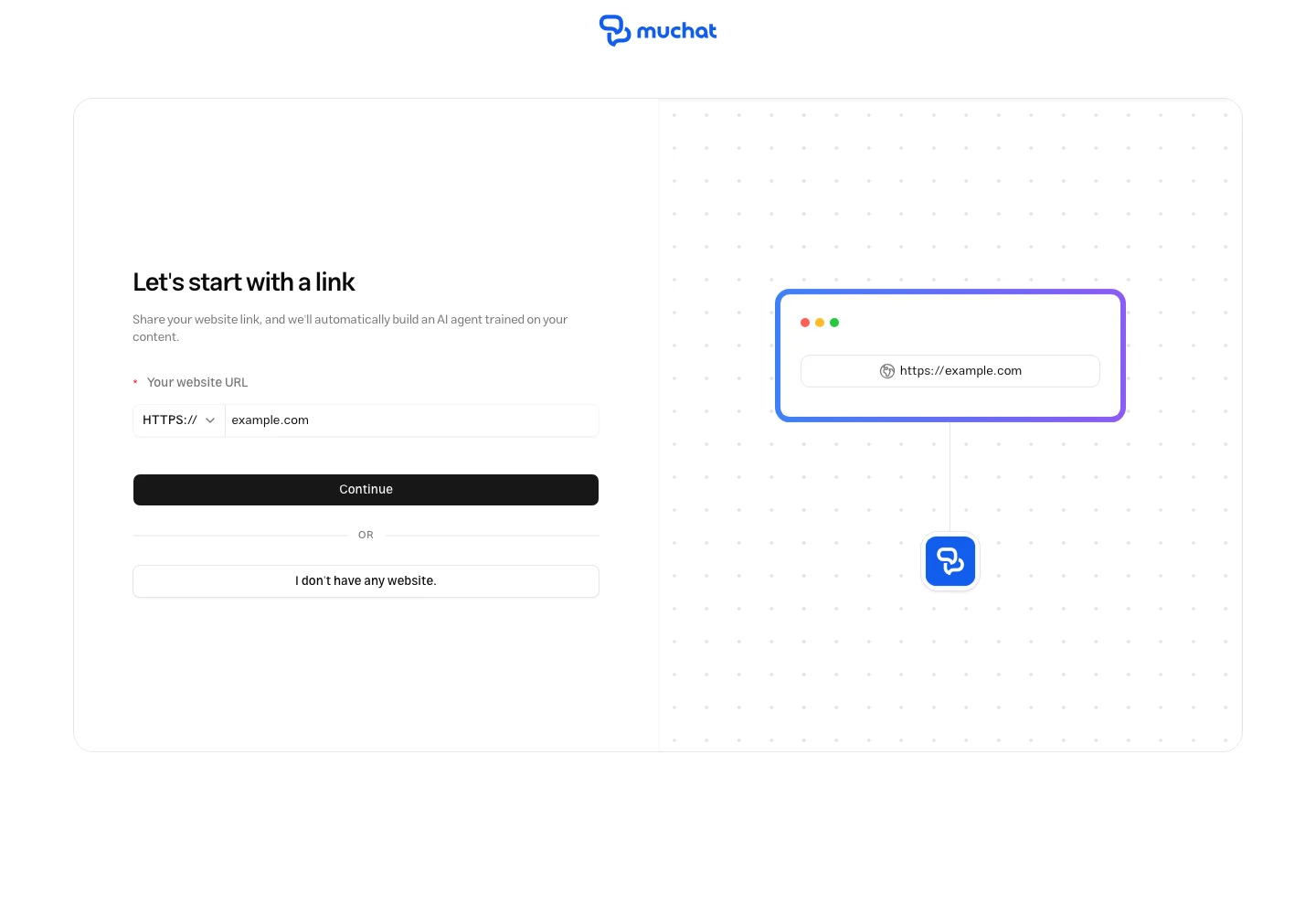
Select **Create new agent** in your dashboard. Enter your website address and select **Continue** to retrieve initial business information, a logo, and brand colors from your site.
If you don't have a site, select **I don't have any website.** and enter the information in the next step.
### Review the initial settings [#review-the-initial-settings]
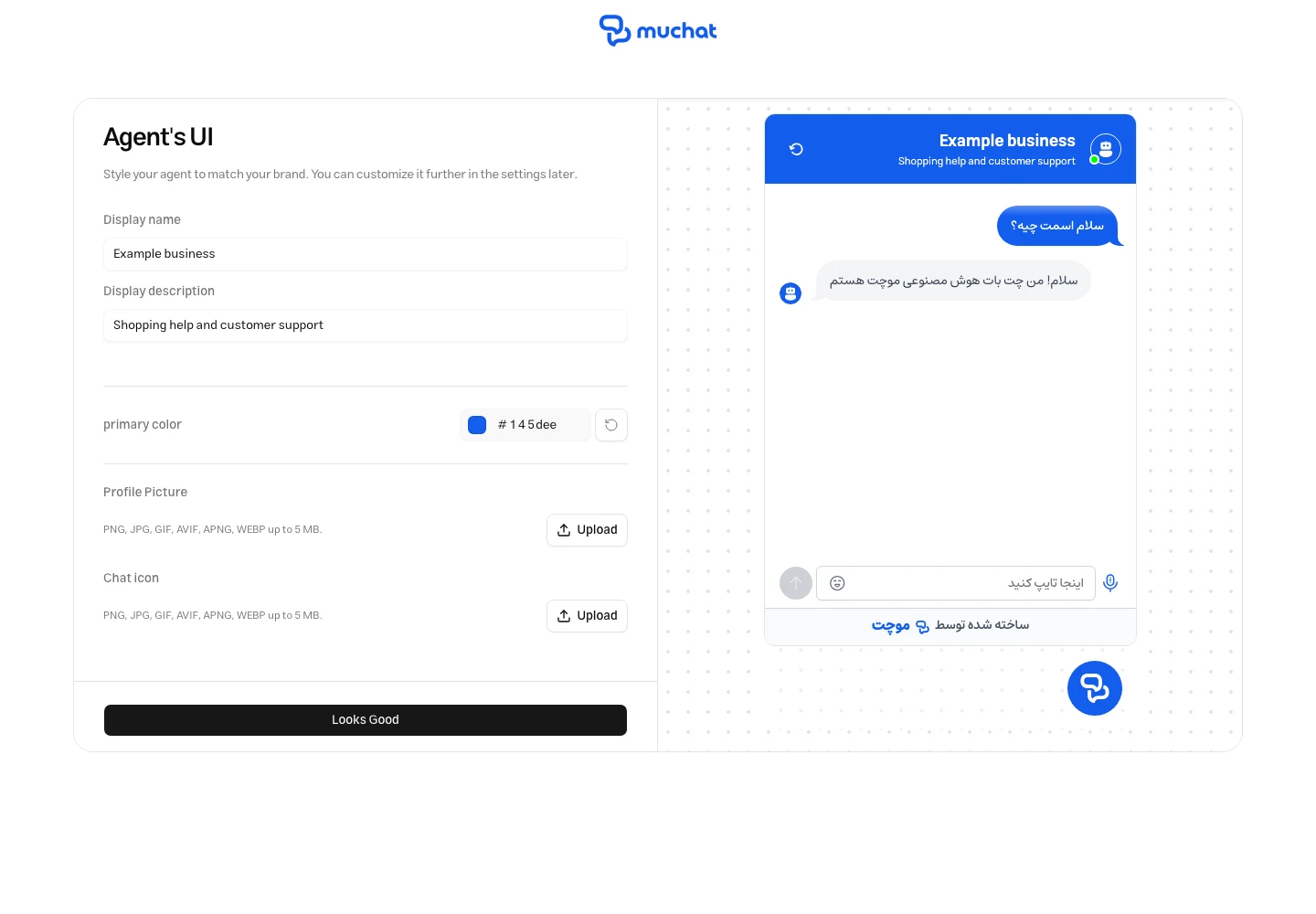
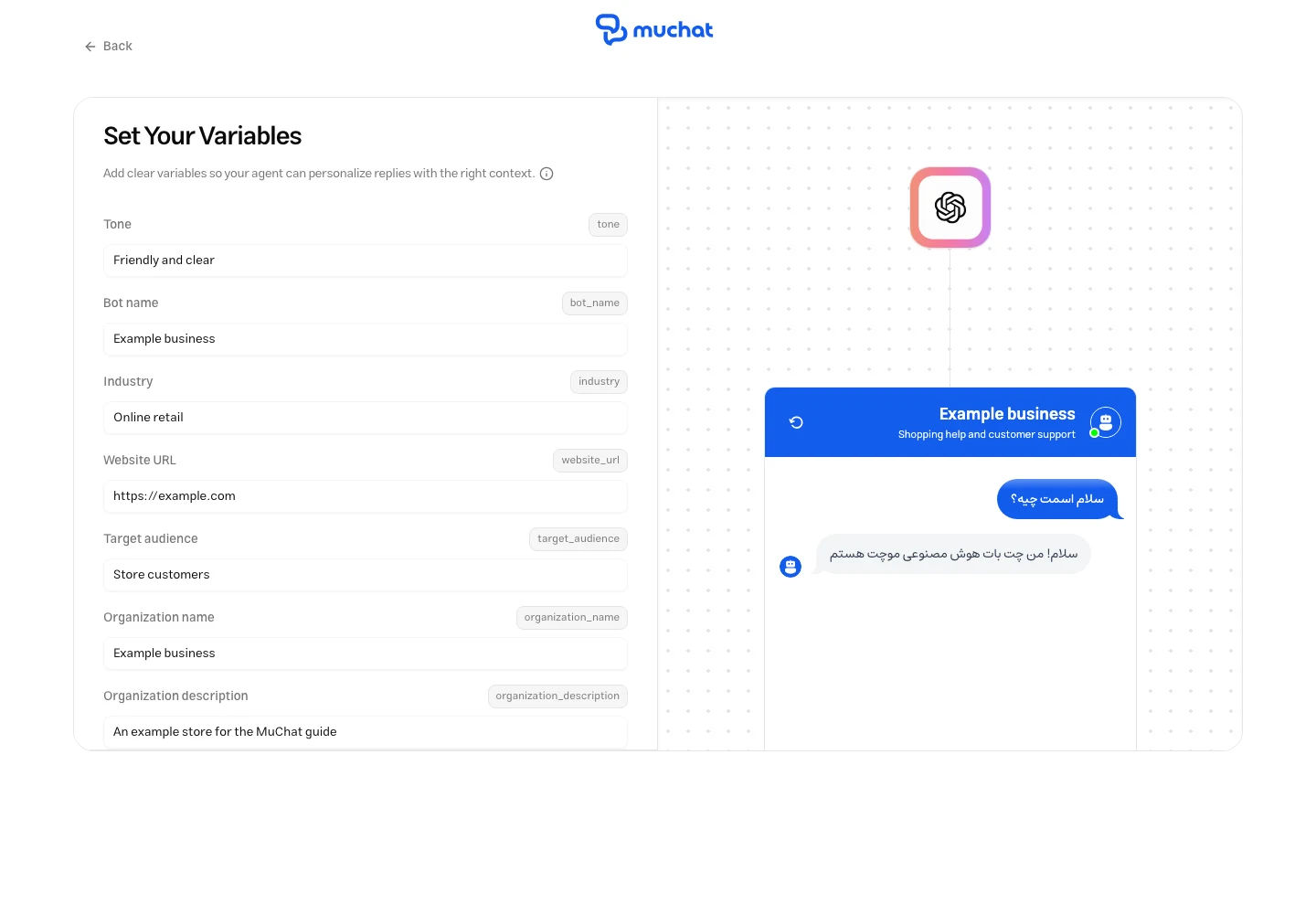
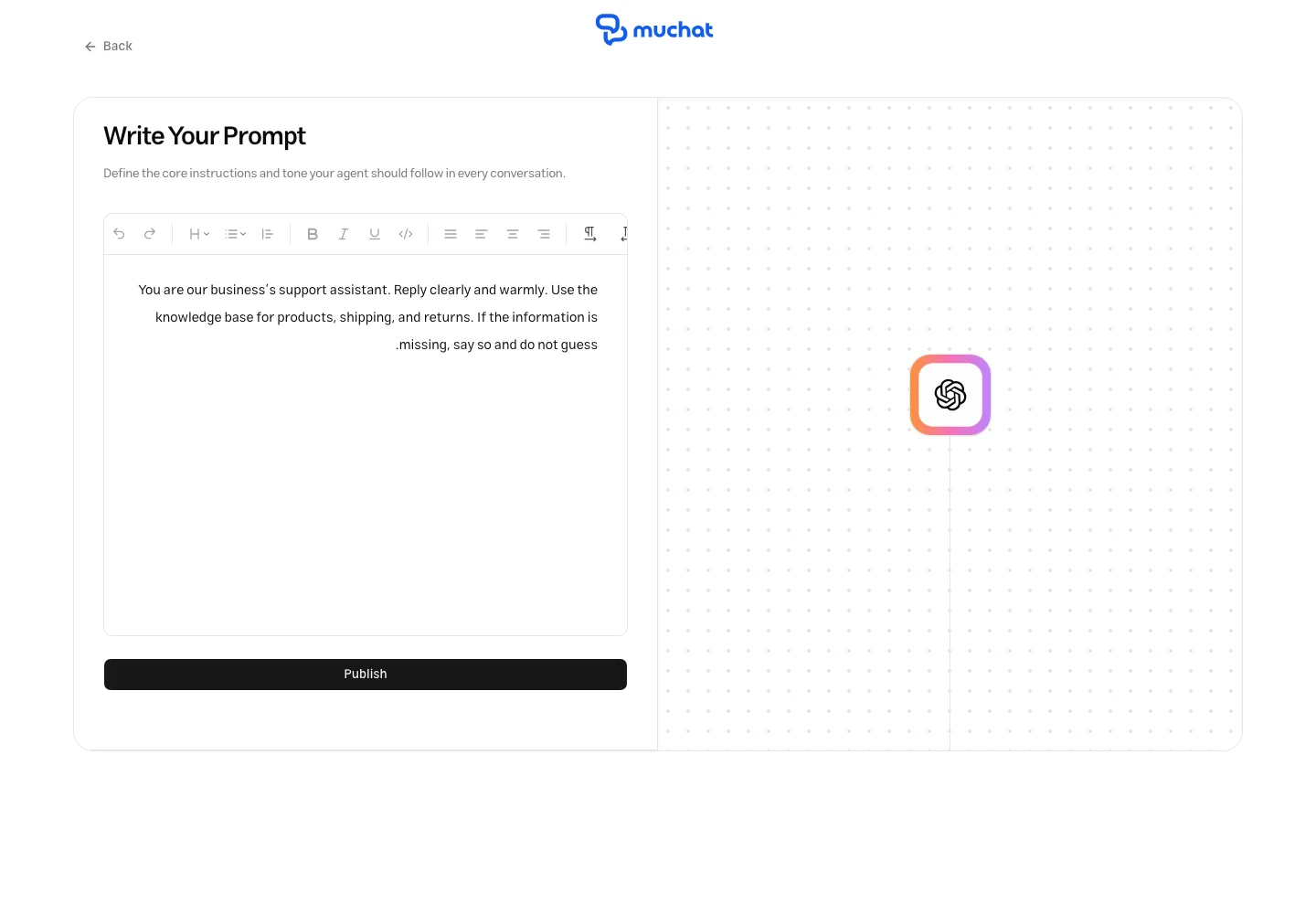
The following three screens appear in order. Review the suggested information and make any changes you need.
Set the title, description, color, avatar, and widget icon in **Agent's UI**. Review the preview and select **Looks Good**.
Complete the tone, bot name, industry, target audience, and business details. Select **Save** to continue.
In **Write Your Prompt**, describe MuChat's role and how it should answer. For example:
> You are our business's support assistant. Reply clearly and warmly. Use the knowledge base for products, shipping, and returns. If information is missing, say so and do not guess.
Select **Publish**, then choose **Continue** in the welcome message to open your knowledge base.
### Choose your training data [#choose-your-training-data]
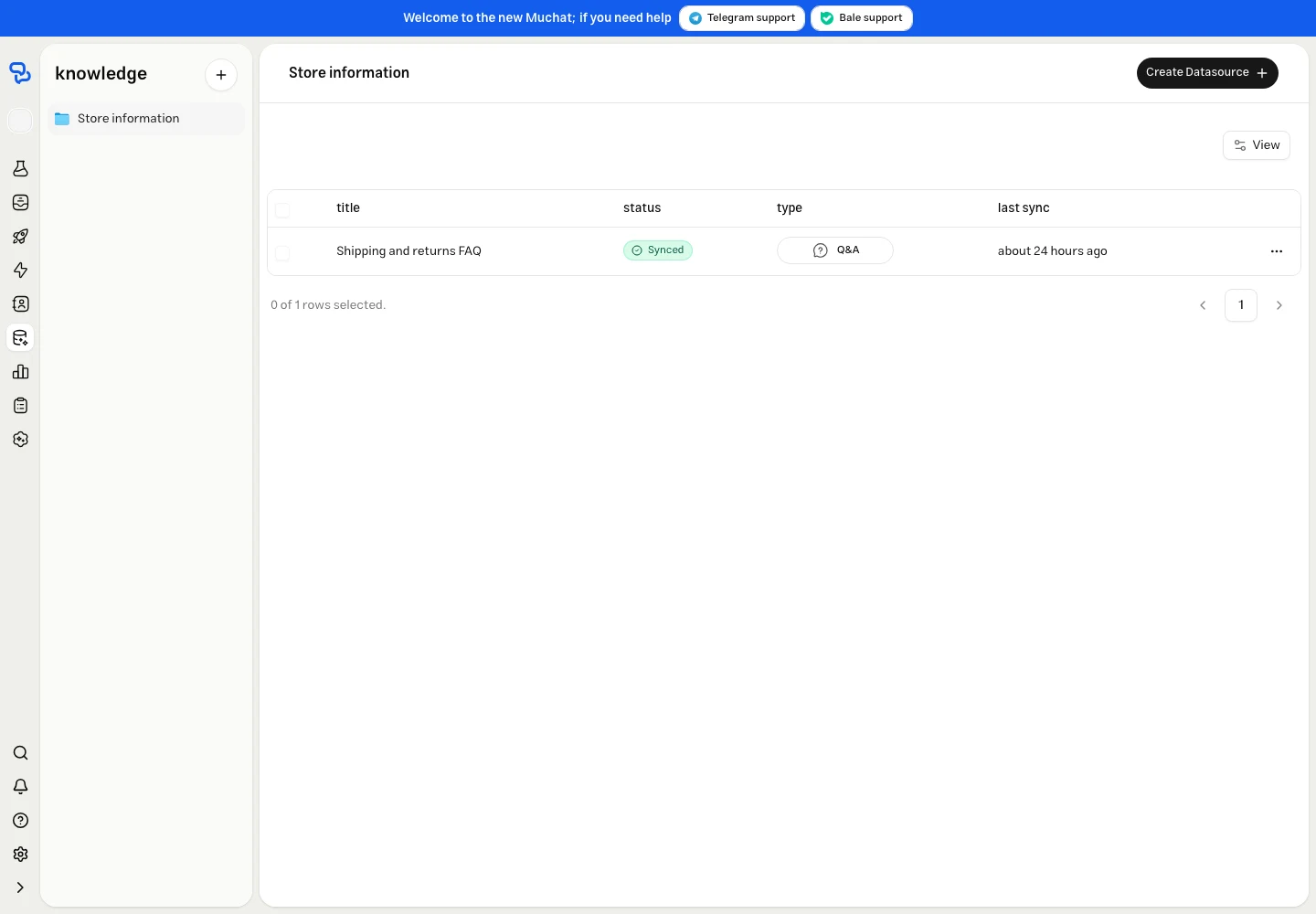
MuChat needs information to learn from. Open **Datastores**, select a knowledge base, and choose **Create Datasource**. You can train it using various data sources:
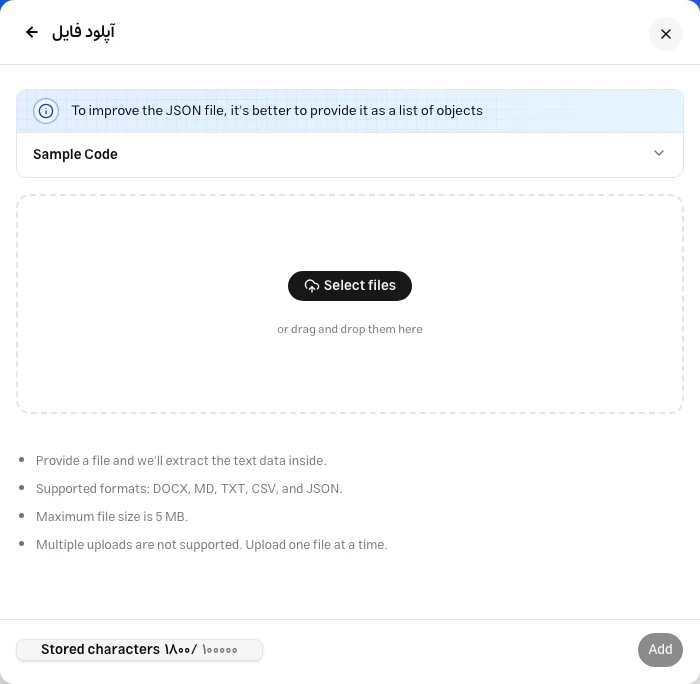
**Upload your documents**
Train MuChat on your documents. Select **File**, upload a document, and choose **Add**. Supported formats are DOCX, MD, TXT, CSV, and JSON.
**Best for:** Business documents, manuals, FAQs, and product information.
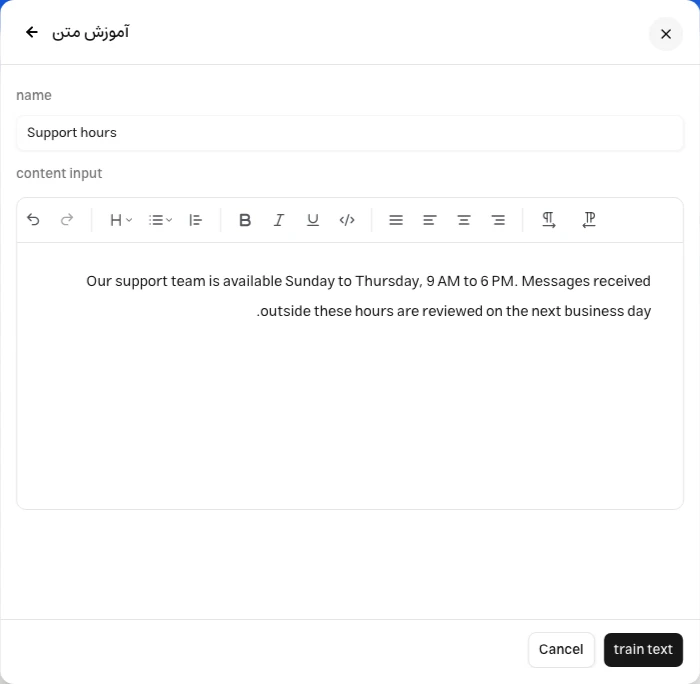
**Direct text input**
Paste your content directly into MuChat. For information without a separate document or web page, select **Text**, enter a name and content, then select **Train text**.
**Best for:** Support hours, service descriptions, and custom training content.
**Crawl your website**
MuChat discovers your website's pages so you can choose the content to use for training.
**Best for:** Websites, help centers, product pages, or sitemaps.
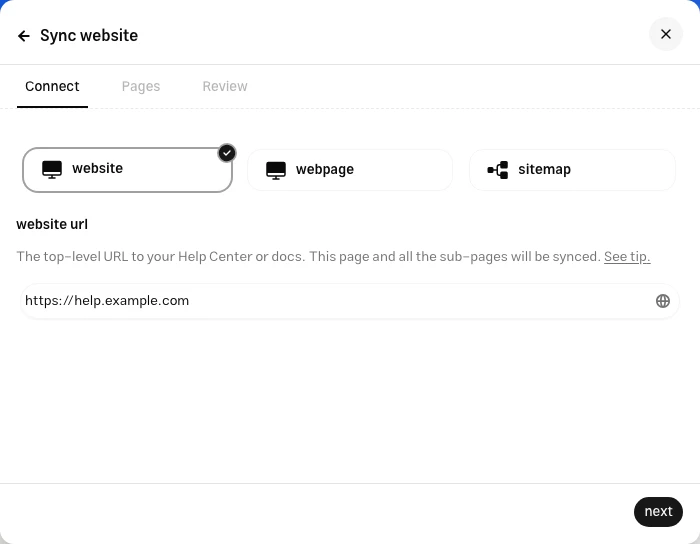
Choose **website**, **webpage**, or **sitemap** and enter the address. Select **next** to review the discovered pages and choose what to include. Continue to **Review**, then select **Sync website**.
**Add your own Q&A**
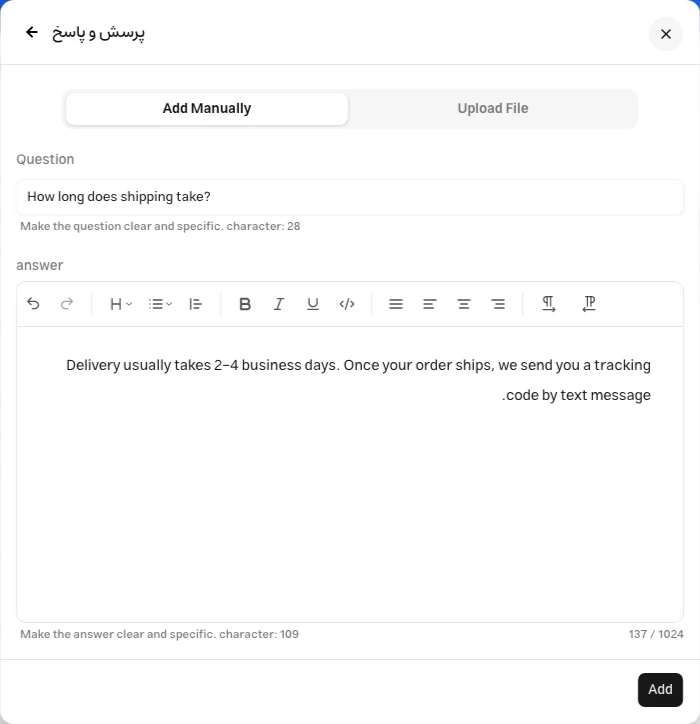
Add frequently asked questions with the answers you want MuChat to use. In **Add Manually**, enter the question and answer, then select **Add**.
**Best for:** Returns policies, shipping information, and specific customer questions.
To import multiple questions and answers, use **Upload File**. Your CSV must contain `question` and `answer` columns.
**Connect your WordPress content**
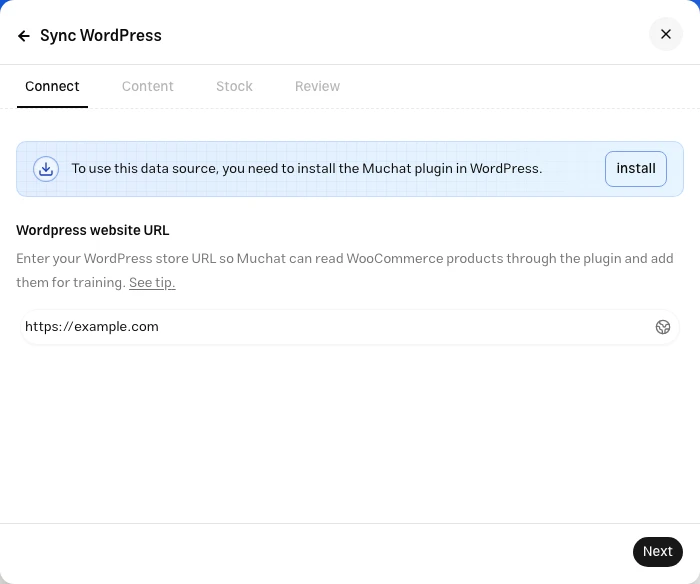
Add WooCommerce products, pages, or posts to the knowledge base. Enter your site address, select **Next**, and choose the content type. Finish with **Sync WordPress**.
**Best for:** WooCommerce stores and WordPress websites.
The MuChat plugin must be installed and active on your WordPress site. For products, you can choose only in-stock items or all products.
**Add information from your own service**
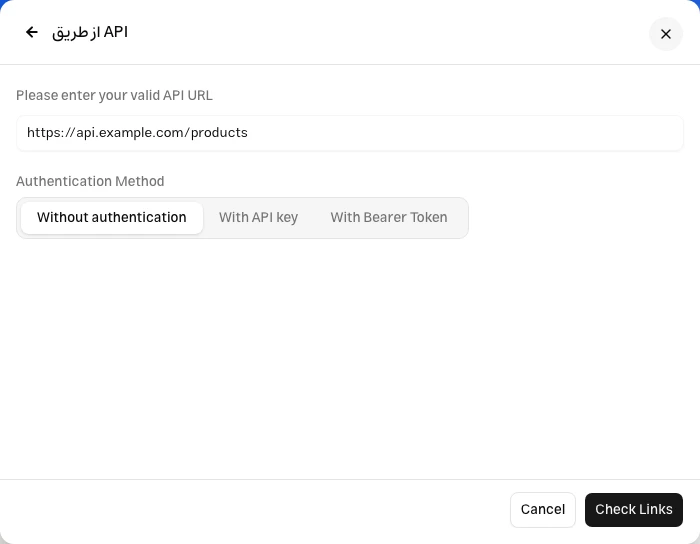
Use your system's API as a training source. Enter the endpoint and authentication method, then select **Check Links** to validate the connection and add the source.
**Best for:** Custom systems and product catalogs, with help from your technical team.
Processing starts after you add each source. Once its status is **Synced**, MuChat is ready to test with that source. Processing time depends on the type and amount of information.
**Storage limit:** Knowledge base capacity varies by plan. If you reach the limit, check your usage and plan capacity in the dashboard.
## Step 2: Test and optimize MuChat [#step-2-test-and-optimize-muchat]
### Open the Laboratory [#open-the-laboratory]
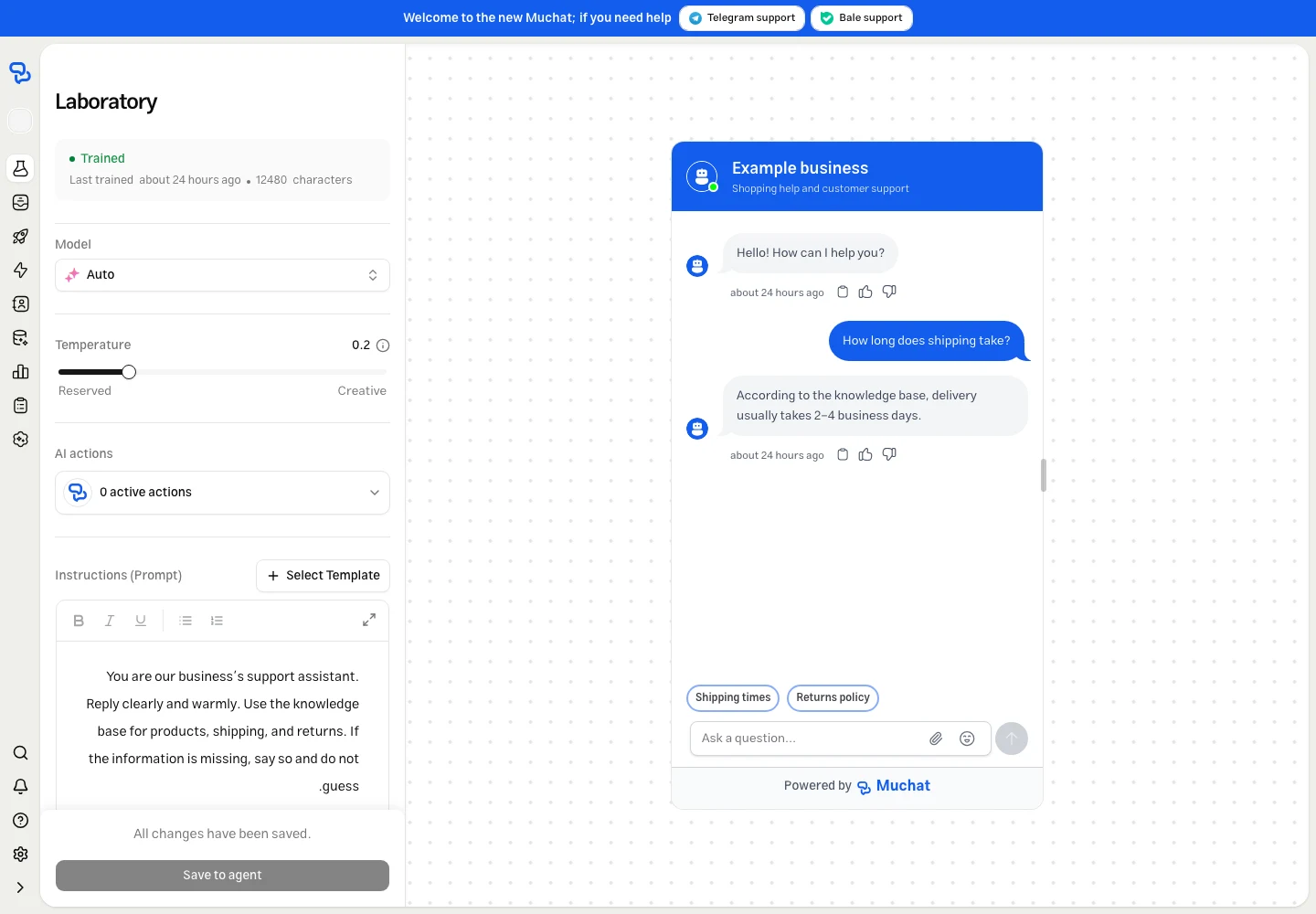
Once your sources are ready, open **Laboratory** from the agent menu. Ask questions similar to your customers' questions and compare the answers with your business information. You can change the model, instructions, and temperature here to test the results.
### Fine-tune settings [#fine-tune-settings]
**Test responses with different models**
Choose an available model. Ask the same questions with different models and compare:
- **Response quality and accuracy**
- **Response time and speed**
- **Tone and personality**
- **Handling questions that aren't covered by your sources**
Based on the comparison, select the model that best fits your use case and brand voice.
Change one setting at a time and ask the same questions again. Use **Reset test** to start a fresh test conversation.
Define how MuChat should behave and respond to users. These instructions shape its personality, tone, and approach to conversations.
**How to write effective instructions:**
- Define MuChat's tone: professional, friendly, casual, or another style.
- Define its role: lead collection, support, sales, or another purpose.
- Set clear boundaries about what topics to discuss or avoid.
- Define your brand voice and personality.
- Add specific words you want MuChat to use.
- Define the languages it should respond in, such as the user's language.
- Add any other instructions you want MuChat to follow.
Specify what MuChat should do when the sources don't contain an answer. For example, ask it to acknowledge missing information and avoid guessing.
Controls how varied the responses are:
- **Low (0.1–0.3):** More consistent, less varied responses
- **Medium (0.4–0.7):** Balanced variation in wording
- **High (0.8–1.0):** More creative, varied responses
A lower value does not guarantee factual accuracy. Check answers against your sources.
When you're happy with the results, select **Save to agent** and confirm. This saves the settings you've tested in the Laboratory to MuChat.
## Step 3: Deploy to your website [#step-3-deploy-to-your-website]
### Open the deployment section [#open-the-deployment-section]
Once you're satisfied with MuChat's responses, it's time to make it live. Open **Deploy** and select **Manage** on the **Chat Widget** card.
**Channel status:** The widget channel must be active to respond to your website visitors. Check its status before installation.
### Choose your deployment method [#choose-your-deployment-method]
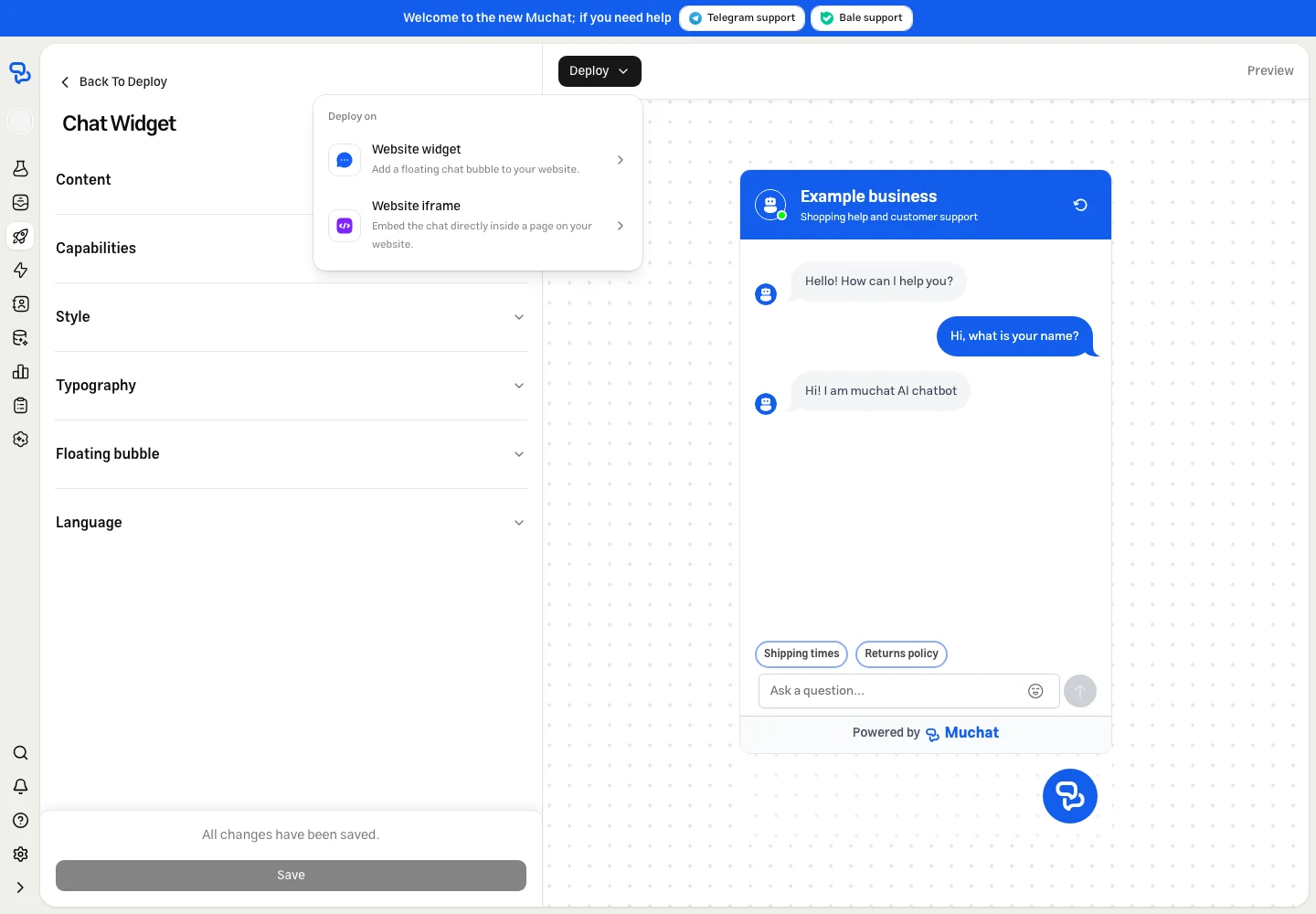
You can display MuChat as a floating chat bubble or in a fixed section of your page. Select **Deploy** above the preview and choose **Website widget** or **Website iframe**.
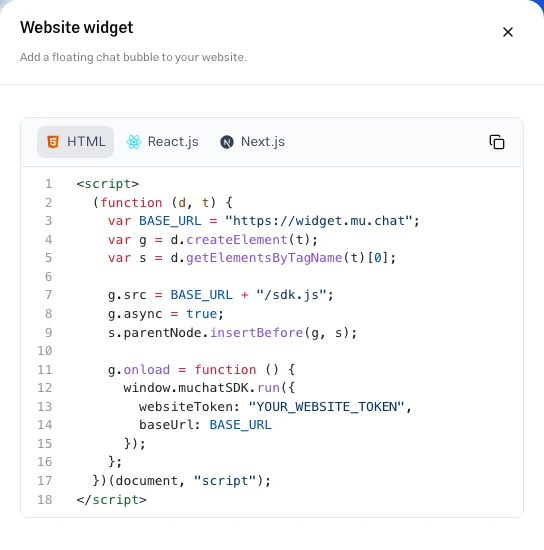
Copy the installation code from the panel. The **HTML**, **React.js**, and **Next.js** tabs provide the example for each setup.
**Perfect for most websites**
Adds a floating chat icon that visitors can click to start a conversation. The chat window opens when needed and doesn't occupy a fixed section of your page.
**Pros:**
- Keeps your site's main layout unchanged
- Users can open and close the chat window as needed
- Works well on mobile devices
- A familiar chat experience for visitors
**Best for:** Business websites, blogs, and e-commerce stores.
**For dedicated chat sections**
Embeds the full chat interface directly into your page layout. It stays visible in the space you choose, ready for interaction.
**Pros:**
- Always visible on the page
- More prominent than the chat bubble
- Good for dedicated support pages
- Dimensions can be adjusted to fit your page
**Best for:** Support pages, help centers, and dedicated chat sections.
### Add code to your website [#add-code-to-your-website]
Find where you can add JavaScript to your website. In site builders and content management systems, look for a custom code or scripts section.
For HTML installation, place the snippet before the closing `` tag. For React or Next.js, use the example from the matching tab in the deployment panel.
 ### Review the initial settings [#review-the-initial-settings]
The following three screens appear in order. Review the suggested information and make any changes you need.
### Review the initial settings [#review-the-initial-settings]
The following three screens appear in order. Review the suggested information and make any changes you need.
 ### Fine-tune settings [#fine-tune-settings]
 Copy the installation code from the panel. The **HTML**, **React.js**, and **Next.js** tabs provide the example for each setup.