Quick Start
Best Practices
Proven ways to improve MuChat's answers: better instructions, clearer data sources, the right model, and correcting answers as you go.
Overview
The quality of MuChat's answers comes down to four things you control: the instructions you give it, the data sources you train it on, the model you pick, and how you correct it once it's live. This page covers each in turn.
Refine MuChat's instructions
The instructions shape MuChat's behavior and responses. Use them to set a persona, define tone, or specify the types of questions it can answer. Clear, precise instructions keep MuChat aligned with your goals and your user experience.
Open Laboratory from the agent menu and edit Instructions (Prompt). You can start with a prompt like this:
You are the support assistant for [business name].
Reply clearly and warmly in the user's language.
Use the knowledge base for product information, services, and policies.
If a question is unclear, ask a clarifying question.
If information is missing, say so and do not guess.
To keep MuChat focused on your business information, say so explicitly. For example: "Only answer using information from the knowledge base. Do not guess missing information."
Feel free to use the example below after customizing it to suit your business:
### Role
You are the support assistant for [business name], which provides [business area].
Answer questions about this business's products, services, and policies.

### Tone and personality
Be friendly, respectful, and clear.
Reply in the user's language and keep the answer relevant to their question.

### Boundaries
1. Use only the knowledge base for prices, product features, delivery times, and policies.
2. If the sources do not contain an answer, acknowledge missing information and do not invent one.
3. If the question is unclear, ask a clarifying question before answering.
4. If the topic is outside the business's scope, politely guide the conversation back to relevant topics.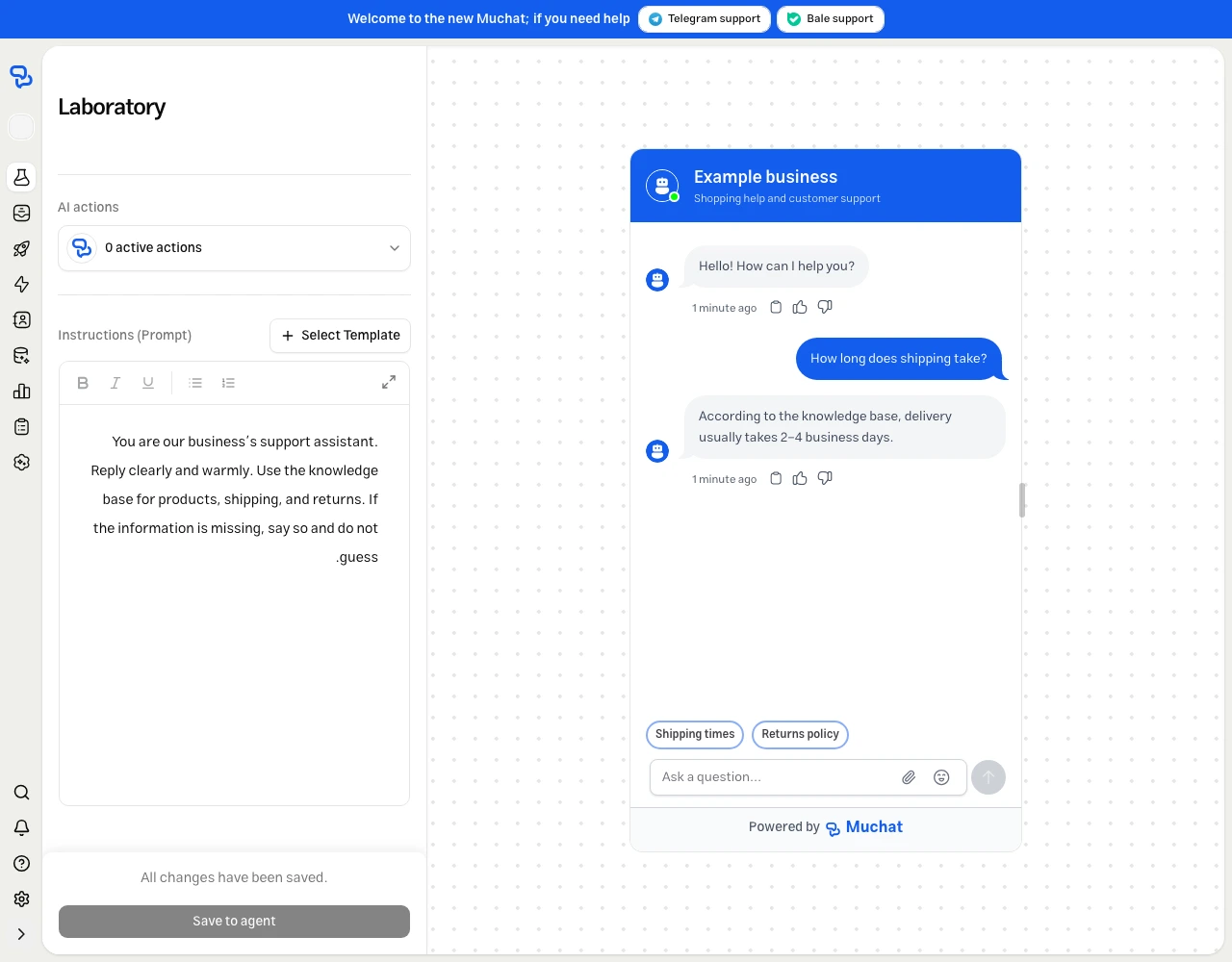
For a walkthrough of this section, see testing and response settings.
Improve readability of data sources
The quality of MuChat's answers depends heavily on the data sources you provide. MuChat needs clear, readable text to answer detailed questions about your business, so check the content of web pages and files before adding them.
Some websites aren't scraper-friendly. If MuChat struggles to answer questions based on your website, review the source content. When needed, add the information using Text, or upload a readable file in a supported format such as TXT, Markdown, or DOCX.
Product: Widget123, colors not specified, possibly red or blue. Discount details unclear. Weight: Approx. 1 kg or 1.5 kg? Shipping: Delivery time uncertain, could be fast or delayed. Availability: Global shipping not confirmed. Packaging: Uncertain if it comes in a box. Assembly: Information unclear. Limited stock? Not confirmed.
Product: Widget123
Colors: Red, Blue
Discount: 50% off
Weight: 1.5 kg
Shipping: Estimated delivery within 1-2 weeks (depends on location)
Availability: Ships worldwide
Packaging: Comes in a standard-sized box
Assembly: Some assembly required
Order Now: Limited stock available, don't miss out!
The product is a thing. Its color is unspecified, and its size is unknown. The product might be useful, but it's not clear. Its availability is uncertain, and shipping times are not mentioned. There might be a discount, but it's not specified. Assembly instructions? Unclear. Get it soon? It's unclear when stock might run out.
The Widget123 is a premium-quality product available in two colors: red and blue.
It offers a 50% discount, making it an excellent deal.
The product weighs 1.5 kg and is shipped worldwide.
You can expect delivery within 1-2 weeks, depending on your location.
The item comes in a standard-sized box and requires minimal assembly.
Act fast, stock is limited!
Add suggestable images
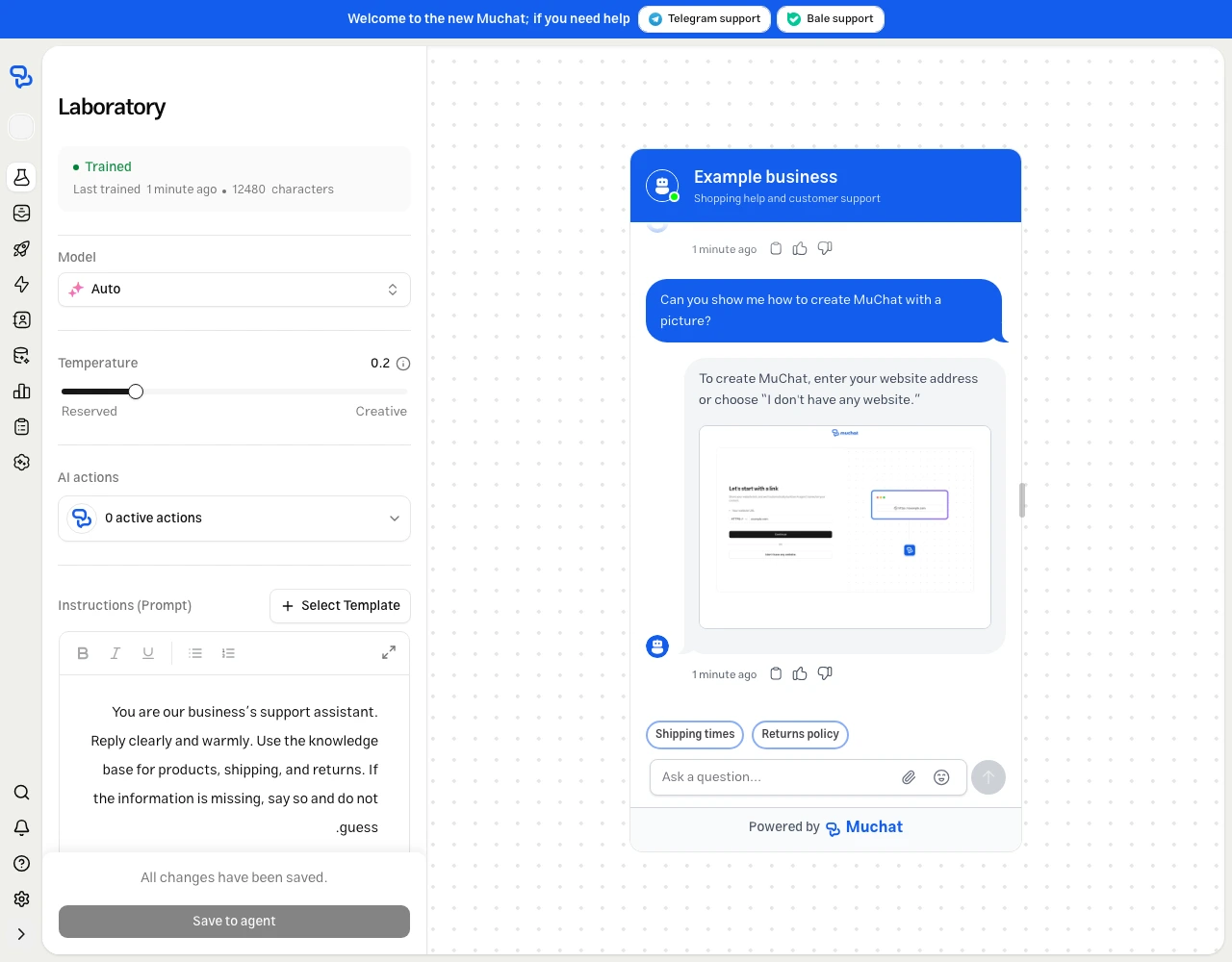
To display an image in MuChat's response, ask it to send a direct image link in Markdown format. The image address must be public and open in a browser without signing in.
You can add an instruction like the following to show an image relevant to the user's request. Replace the example URL with your actual image address:
When the user asks for a product image or illustrated guide, use a valid link
from the sources and display the image in this format:
After adding the instruction and image link, check the result in the Laboratory:
Choose the right AI model
Selecting the right model affects answer quality and speed. Match it to your use case: answering frequent questions, explaining a complex topic, and following detailed instructions place different demands on a model.
In Laboratory, use Model to choose from the models available to your account. Consider answer quality, speed, and credit usage together, then revisit the choice as your business needs grow.
Compare models with the same questions
Test a few real customer questions with one model. Then change the model, select Reset test, and ask the same questions again. Compare:
- Response quality and accuracy
- Response time and speed
- Tone and personality
- Handling questions that aren't covered by your sources
Correct answers with Improve response and Q&A
Two methods let you add correct information to the knowledge base so MuChat can use it in future answers.
To add Q&A, open Datastores, select a knowledge base, and choose Create Datasource → Q&A. Enter the question and its accurate answer, then select Add. This becomes a source MuChat can use when answering related questions.
To improve a response, open Inbox from the agent menu and select a conversation. Choose Improve response below MuChat's answer. Review the question, write the complete corrected answer, and select Save.
Next steps
Instructions
Define MuChat's role, tone, and response boundaries clearly.
Data sources
Add, organize, and train on the content MuChat learns from.
Models comparison
Compare available models using the same questions.
Review conversations
Follow customer conversations and improve quality by correcting answers.