AI Agent Management
Playground
Test MuChat before deploying it and adjust its model, instructions, and actions in one place.
Overview
The Playground lets you preview and interact with MuChat from your users' perspective, and adjust its model, instructions, and actions while you check the result.
Select your agent and open Laboratory from its sidebar. Response settings sit alongside the conversation preview, so you can test changes without switching pages.
What you can do:
See MuChat the way a visitor will, change its behavior and responses in place, and test the result before anything goes live.
Use the Playground to:
- Preview MuChat's behavior in real time
- Test conversations and responses
- Change the model, temperature, instructions, and active actions, and check how those changes affect the responses
The widget's appearance, initial messages, and suggested questions come from its widget settings. To edit them, open Deploy from the agent menu and select Manage on the Chat Widget card.
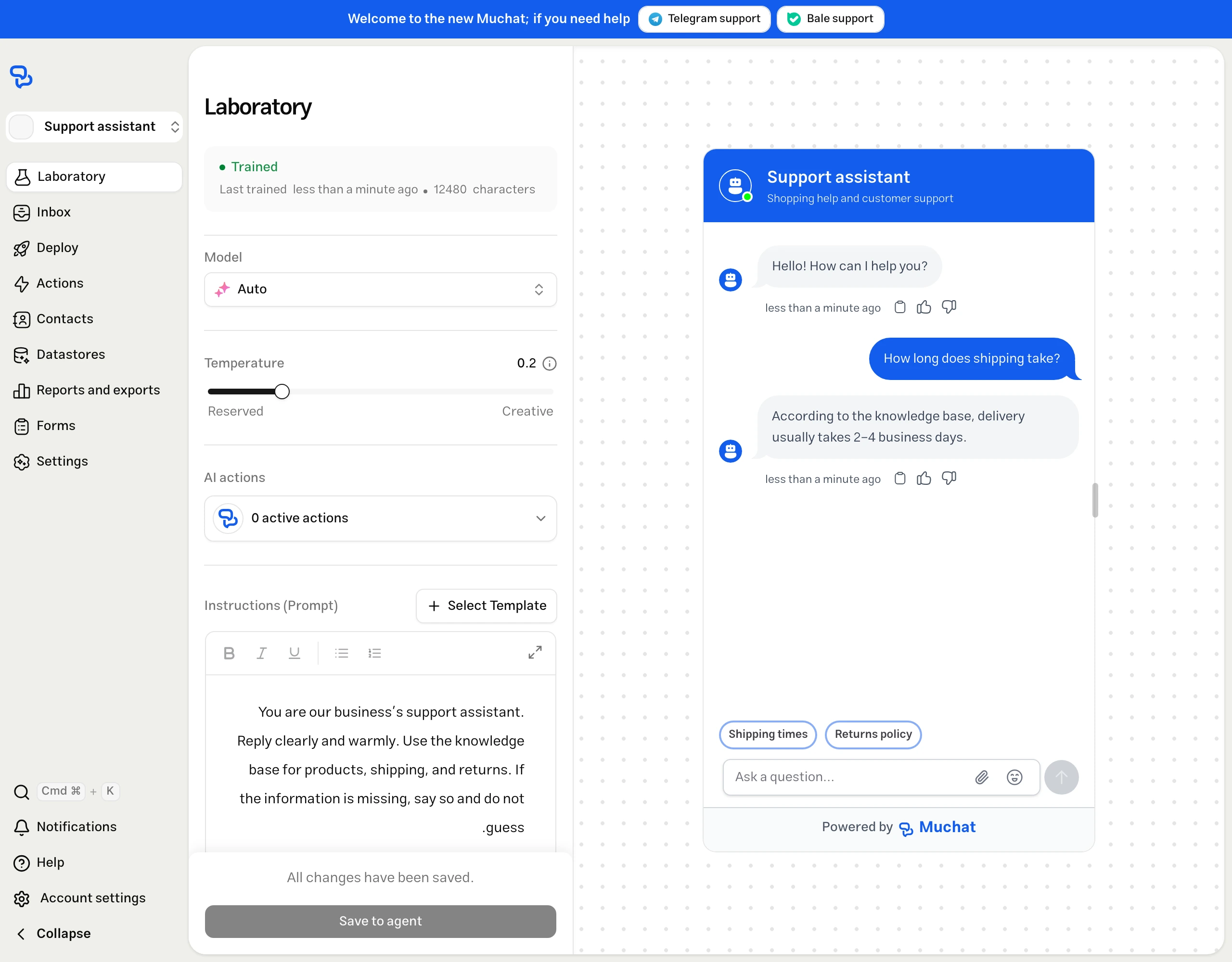
Tabs and settings
On larger screens, settings and the conversation appear side by side. On smaller screens, switch between the Laboratory and Preview tabs to move between settings and the conversation.
The Playground includes these settings:
| Section | What it controls |
|---|---|
| Training status | Shows the agent's training status, last training time, and total characters. Add or edit sources in Datastores. |
| Model | Choose the response model from those available to your account. |
| Temperature | Adjust response variety between 0 and 1. Lower values produce more consistent responses; higher values allow more varied wording. A lower value alone does not guarantee factual accuracy. |
| AI actions | Enable or disable existing actions for testing. |
| Instructions (Prompt) | Define MuChat's role, tone, language, and response boundaries. |
Create or edit actions under Actions in the agent menu. Then return to the Laboratory and enable the action you want to test under AI actions.
Enabling or disabling actions that MuChat chooses while answering takes effect on the next message.
If a startup form is required, complete it first to make the message composer available.
Instructions and saving changes
Use Instructions (Prompt) to describe how MuChat should behave for your business. Start with Select Template and adapt the text, or use the expand icon to edit longer instructions in a larger space.
After changing the settings, check the result in the same preview:
| Test state | When changes apply |
|---|---|
| Before the conversation starts | The preview and startup forms update automatically. |
| During a conversation | The updated model, temperature, and instructions are used for the next message. Earlier responses are not regenerated. |
| After Reset test | The conversation starts again with the current Laboratory settings, including the updated startup forms and event-triggered actions. |
After editing the settings, the Settings synced notification at the bottom means your changes are ready to test. If the conversation has started, you will see Settings ready to test with Your changes will apply to the next message instead.
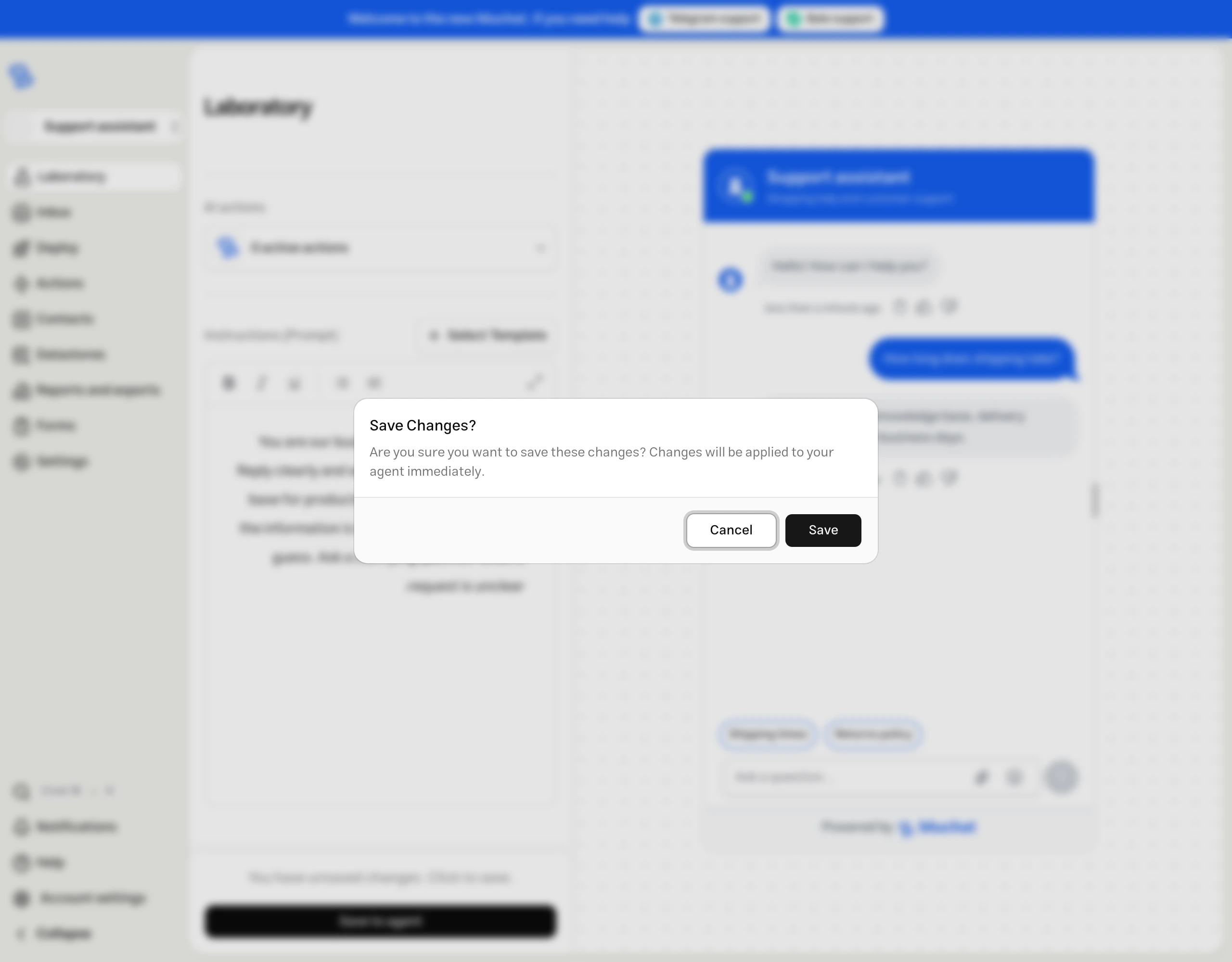
Test conversations
Write and send a question in the preview to see MuChat's response with the current settings. Use questions your customers actually ask to check the experience:
- Real questions: ask about your products, services, or policies, and compare the answer with your knowledge base sources.
- Follow-up questions: continue the conversation to check that MuChat follows the context, tone, and instructions.
Once a conversation has started, select Reset test at the top of the conversation to start again with the current Laboratory settings. Use it to compare models and prompts from the same starting point, or to see changes to startup forms and event-triggered actions.
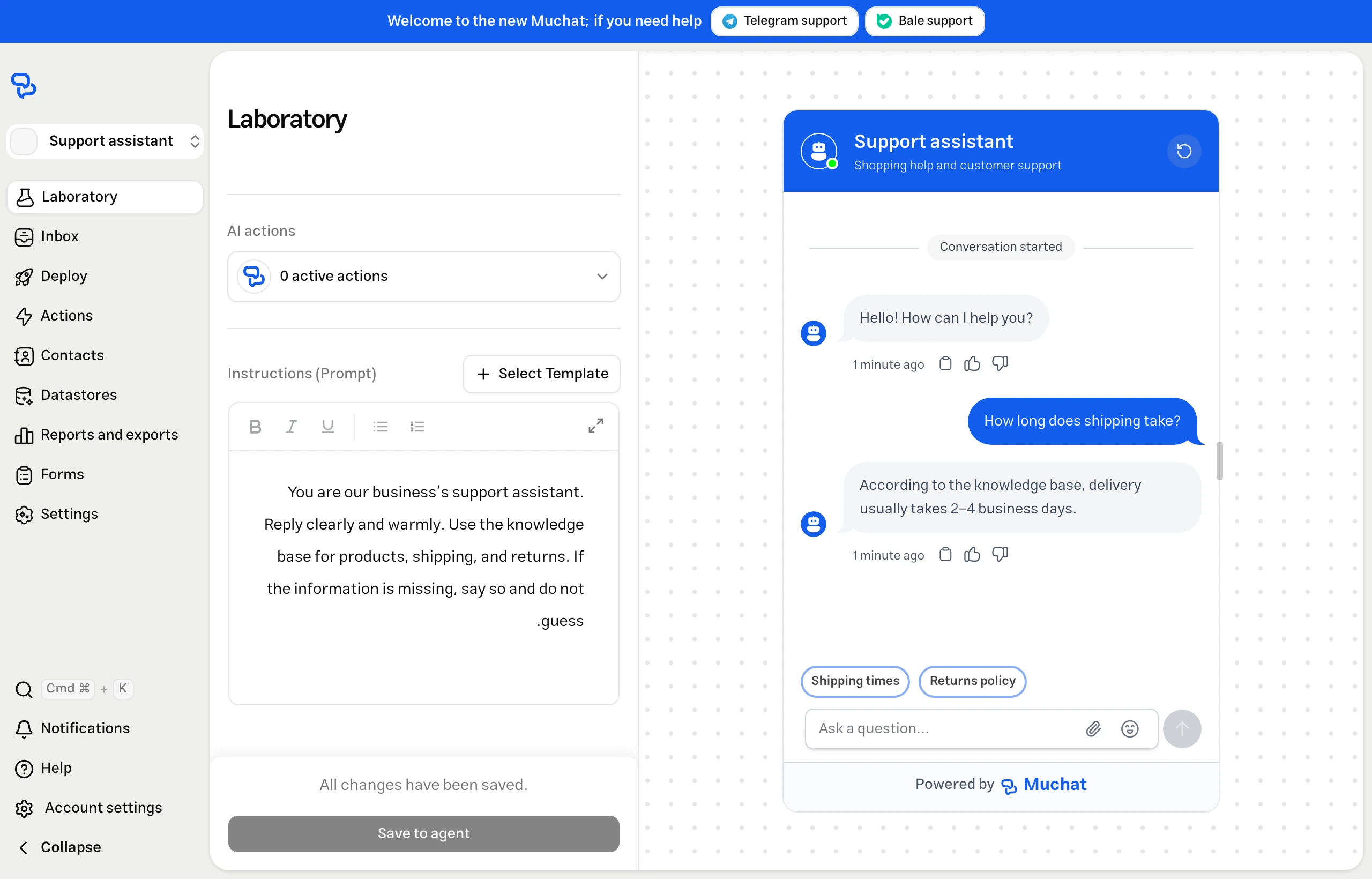
Preview
The conversation preview appears within the Laboratory. On smaller screens, open the Preview tab to see and chat with MuChat.
To check the display and conversation experience, try:
- Preview size: on larger screens, drag the handle on the side of the preview to change its width and see how messages look at different sizes.
- Widget appearance and content: check the initial messages, suggested questions, and colors. To change them, use widget appearance settings, then return to the Laboratory.
Deploying
After testing, open Deploy from the agent menu to choose your deployment method. For widget code, select Manage on the Chat Widget card, then open Deploy above its preview.
| Option | What it does |
|---|---|
| Website widget | Adds a floating chat bubble to your website. |
| Website iframe | Embeds the conversation as an inline section of your website. |
| WordPress | Connects the widget to your WordPress site using the MuChat plugin. Manage this method from the WordPress card on the Deploy page. |
Limitations
- The Playground does not replace testing on your website or final channel. After deploying, check mobile display, widget settings, and action execution where MuChat will actually be used.