AI Agent Management
Response settings
Define MuChat's role and tone with instructions, choose a model and temperature, and apply the settings to your agent.
Overview
Response settings define how your agent behaves and answers: its instructions, AI model, and temperature. This page explains each setting, the available models, and the controls for editing, comparing, and saving changes.
You can find these settings in Laboratory. Related features are covered separately:
| Section | What it covers |
|---|---|
| Instructions, model, and temperature | Configuring response behavior; covered on this page |
| Knowledge base | The information and sources MuChat uses to answer questions |
| Actions | Tasks MuChat performs beyond answering questions |
| Laboratory | Test conversations, the preview, and reviewing changes |
Instructions
Instructions shape MuChat's behavior, role, and response guidelines. To edit them, open your agent, go to Laboratory, and find Instructions (Prompt).
General instructions
Make these points clear in the prompt:
- Your business or product context
- MuChat's role and responsibilities
- Response language, style, and tone
- Answer format, such as brief replies or lists
- What to do when a question is unclear or information is missing
For longer text, use the editor's expand icon. When you're done, select Finish editing to return to the settings.
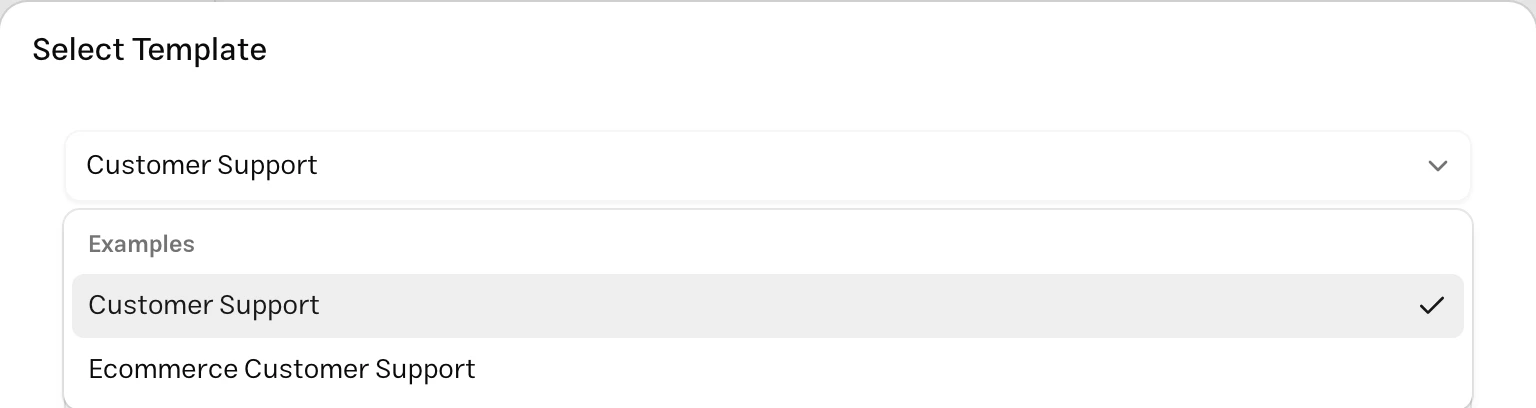
Select Select Template, choose a template, and review its text in the dialog. Use Template replaces the current prompt with the selected template.
Then adapt the business name, MuChat's role, contact details, and response rules. Copy any parts of your current prompt you want to keep before replacing it.
Response rules and boundaries
Write behavioral rules in the same prompt. For example, specify that MuChat should:
- Answer questions within your business's scope
- Use source information for prices, policies, and specifications
- Avoid guessing when an answer is missing
- Ask for clarification when a question is unclear
- Politely guide unrelated conversations back to your business's scope
AI Model
The AI model processes the user's question and the available information to generate MuChat's response. Models differ in instruction following, handling complex requests, speed, and credit usage. Your choice affects both the conversation experience and your account's credit consumption.
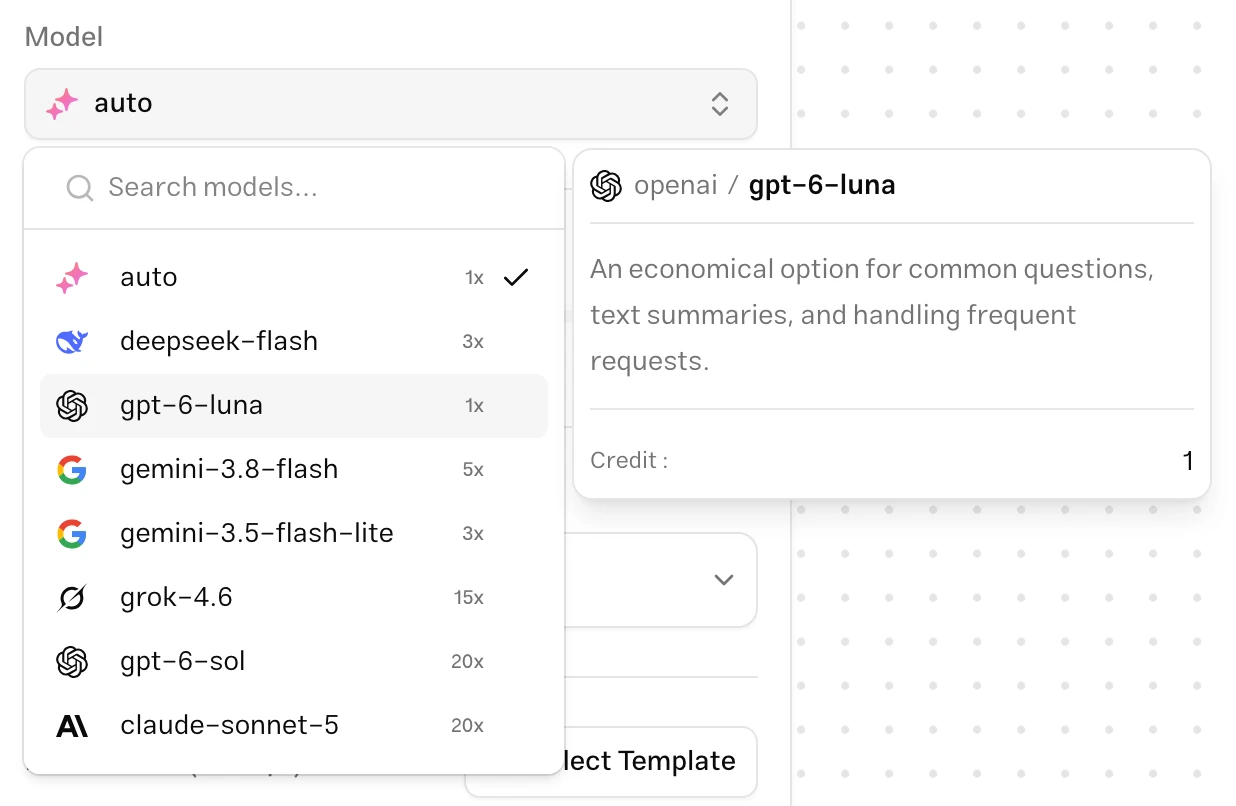
Open Model and select the model you want to use. You can search by name. On desktop, hover over an option to view its description and credit usage.
MuChat's available models, grouped by family:
MuChat's optimized, economical model for everyday questions and customer support. It appears as auto in the model selector.
- auto: 1 credit per message
- GPT-6 Luna: 1 credit per message; for common questions, text summaries, and recurring requests.
- GPT-6 Sol: 20 credits per message; for complex questions, technical topics, and requests that need analysis across multiple steps.
- Claude Sonnet 5: 20 credits per message; for writing and editing, reviewing information, and shaping tone and response structure.
- Gemini 3.8 Flash: 5 credits per message; for answering questions, summarizing information, and organizing scattered content.
- Gemini 3.5 Flash Lite: 3 credits per message; for everyday conversations, short answers, and rewriting text.
- DeepSeek Flash: 3 credits per message; for everyday questions, summaries, and recurring conversations.
- Grok 4.6: 15 credits per message; for brainstorming, exploring open questions, and developing content through conversation.
The number beside a model shows its credit usage per message. On desktop, it appears as a multiplier such as 1x; hover over the model to see the credit amount in its details card. On mobile, the credit amount is written next to the model name.
Models unavailable to your account show a lock icon and cannot be selected. Choose an available model to continue; access to other models depends on your plan's features.
If you use actions, check any warnings for your selected model. If you see "Selected model doesn't support AI Actions", choose a compatible model.
To enable existing actions, see AI actions in the Laboratory.
Temperature
Temperature controls creativity and variation in generated responses. It affects wording and how predictable the response will be:
- Lower, close to 0: the model favors more likely outputs, producing focused, consistent wording. Start low for support and frequently asked questions.
- Higher, close to 1: wording becomes more varied and creative, making the exact response less predictable. Try a higher value for uses that benefit from varied writing.
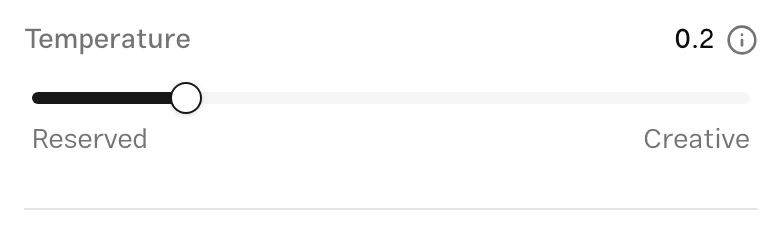
Drag the slider between Reserved and Creative. The range is 0 to 1, in 0.1 increments. The number beside the label shows the current value; the information icon opens an explanation of the setting.
Compare and apply settings
To find a suitable configuration, try a set of real questions with different prompts, models, or temperatures. In MuChat, you compare them in sequence within the Laboratory: test one configuration, keep the results, then try the next with the same questions.
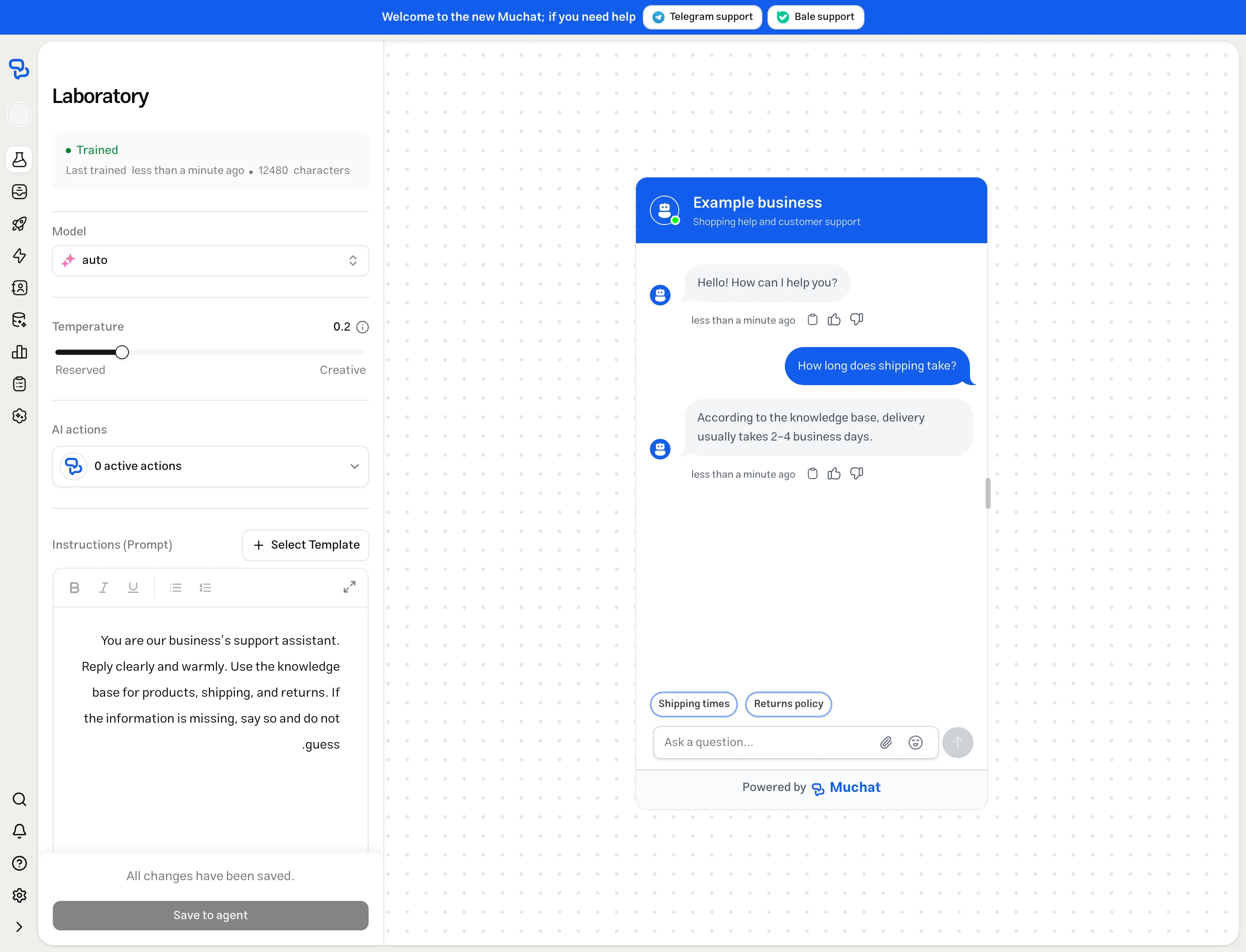
Settings and the conversation preview sit together so you can review the result while editing. Each control has a specific purpose:
Agent controls
Each agent has its own response settings. In the selected agent's Laboratory, these controls are available:
| Control | What it does |
|---|---|
| Training status | Shows source readiness, the last training time, and information volume. Use Datastores to add or correct content. |
| Model | Selects the model generating responses. Its description and credit usage are available in the model list. |
| Temperature | Changes response variation between 0 and 1. |
| AI actions | Enables or disables existing actions. Create and edit them from Actions in the agent menu. |
| Instructions (Prompt) | Edits the text defining the agent's role, tone, and response rules. |
| Select Template | Opens templates to review and replace the prompt text. |
| Editor expand icon | Opens a larger editor for longer prompts. |
| Finish editing | Closes the expanded editor and returns to settings. Use the final save to apply changes to your main agent. |
| Save to agent | After confirmation, saves the current model, temperature, prompt, and enabled actions to your main agent. |
Test and preview controls
Use these controls to review the result of your settings:
| Control | What it does |
|---|---|
| Reset test | Starts a fresh test conversation with the current Laboratory settings. It does not restore the previous model, temperature, or prompt. |
| Laboratory and Preview tabs | Switch between settings and the test conversation on smaller screens. |
| Preview resize handle | Changes the conversation's display width on desktop so you can check message layout at different sizes. |
To compare results:
- Set the model, temperature, prompt, and enabled actions, then ask a few real questions.
- Change one setting at a time. For example, change the model while keeping sources, temperature, and instructions unchanged.
- Select Reset test and ask the same questions in the same order to keep the conversation context comparable.
- Evaluate accuracy, completeness, tone, rule following, speed, and credit usage, then keep the configuration that fits your needs.
For starting conversations, initial forms, and action behavior during testing, see the Laboratory guide.
Troubleshooting
Check that you selected Save to agent after testing and confirmed the save. Editing text or closing the editor alone does not change your main agent's settings.
Models with a lock icon are unavailable to your account. Try a selectable model and review your plan's features if needed.
Temperature changes how varied the wording is. Review the source content and training status, and check that your prompt asks MuChat to answer using sources. For a step-by-step review, see Best Practices.