Quick Start
Build Your First AI Agent
Create MuChat, train it on your business information, and start answering questions from your website visitors.
Overview
In just a few minutes, you'll have a working MuChat answering questions about your business and engaging with your website visitors. Here's what we'll do:
Create and train MuChat
Create your agent and add a website, files, or other information to its knowledge base.
Test and improve answers
Ask questions in the Laboratory and refine the tone and quality of its responses.
Publish on your website
Add the widget code to your site so visitors can start a conversation.
Before you start
Step 1: Create and train your MuChat
Navigate to your dashboard
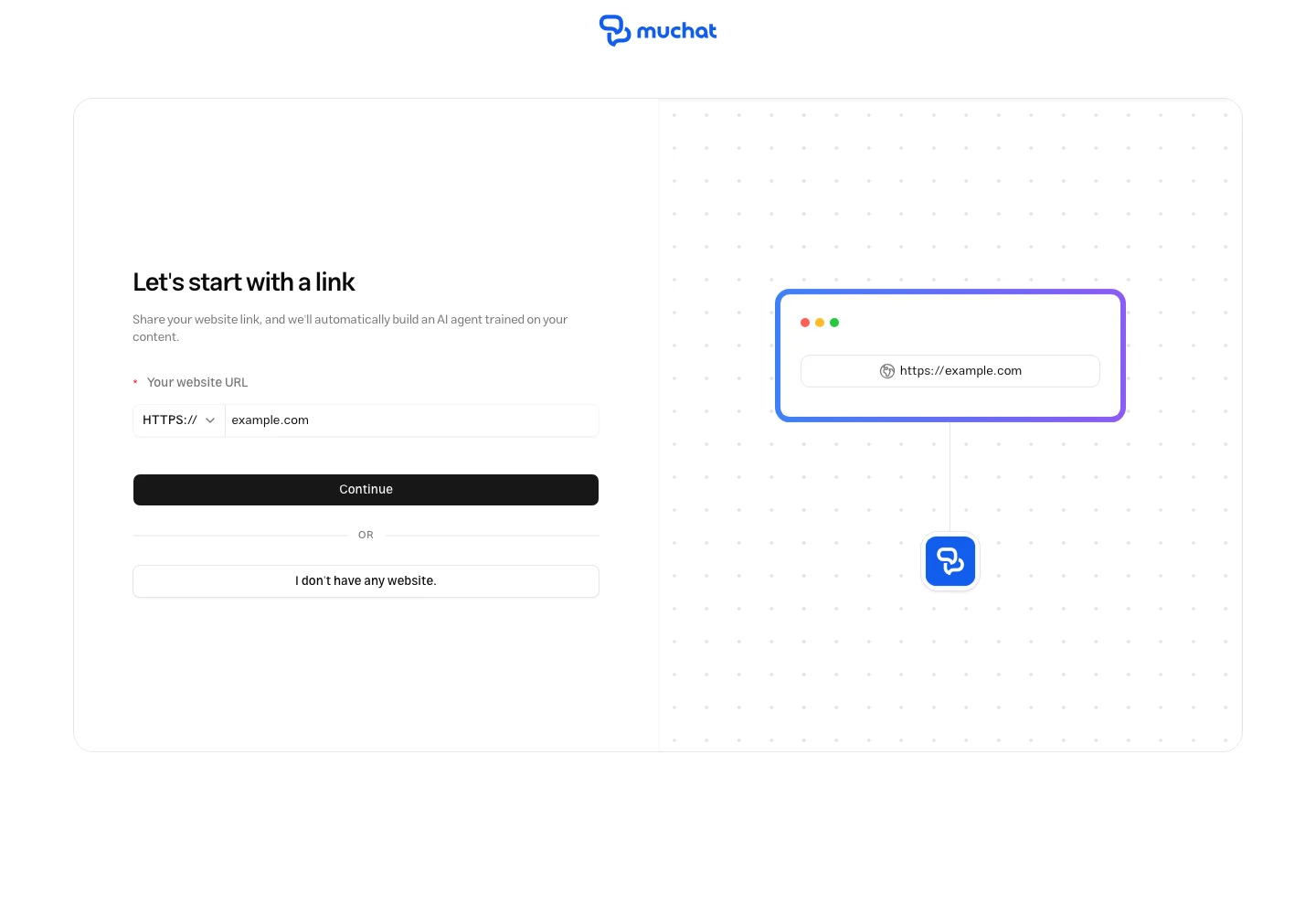
Select Create new agent in your dashboard. Enter your website address and select Continue to retrieve initial business information, a logo, and brand colors from your site.
If you don't have a site, select I don't have any website. and enter the information in the next step.
Review the initial settings
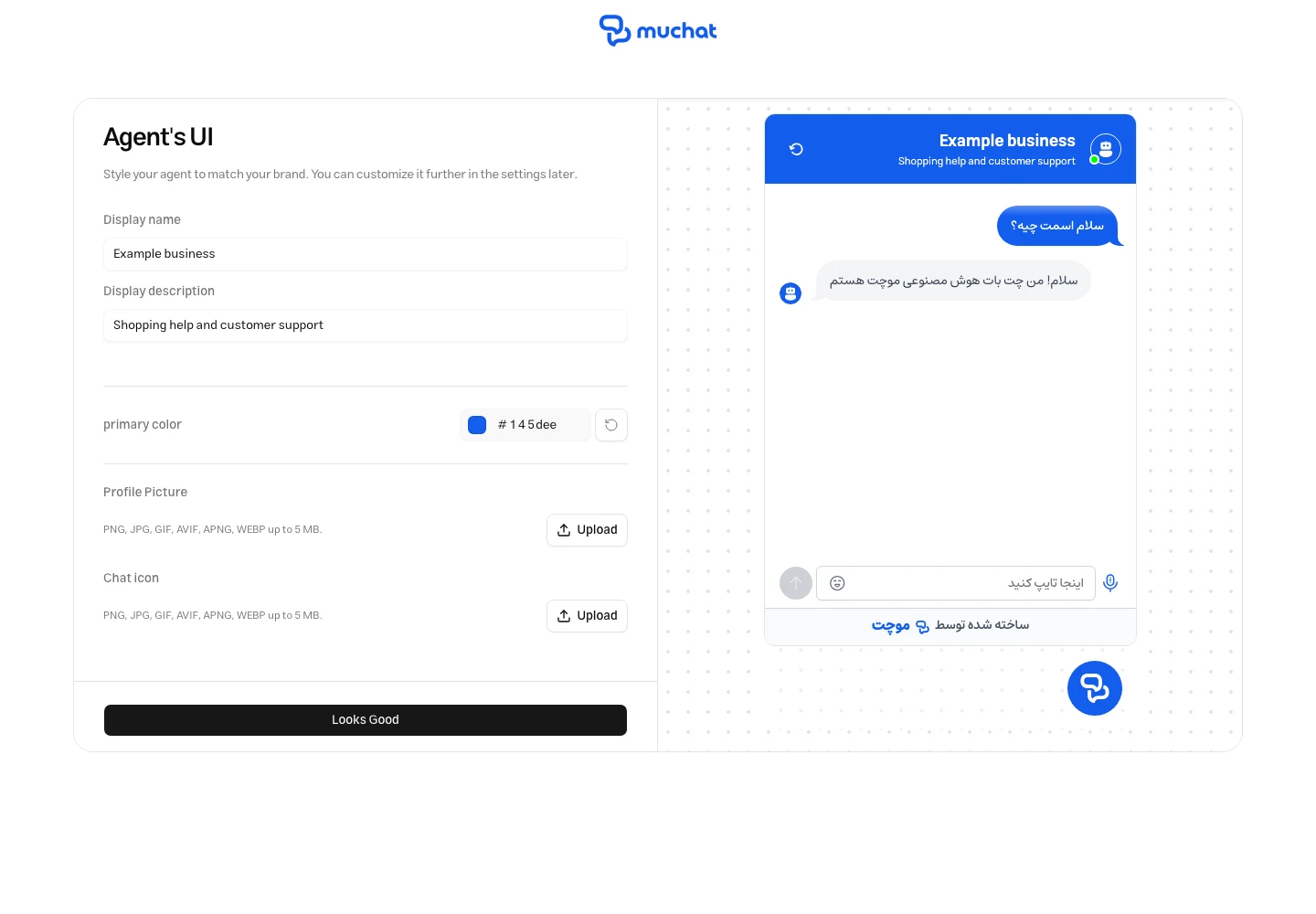
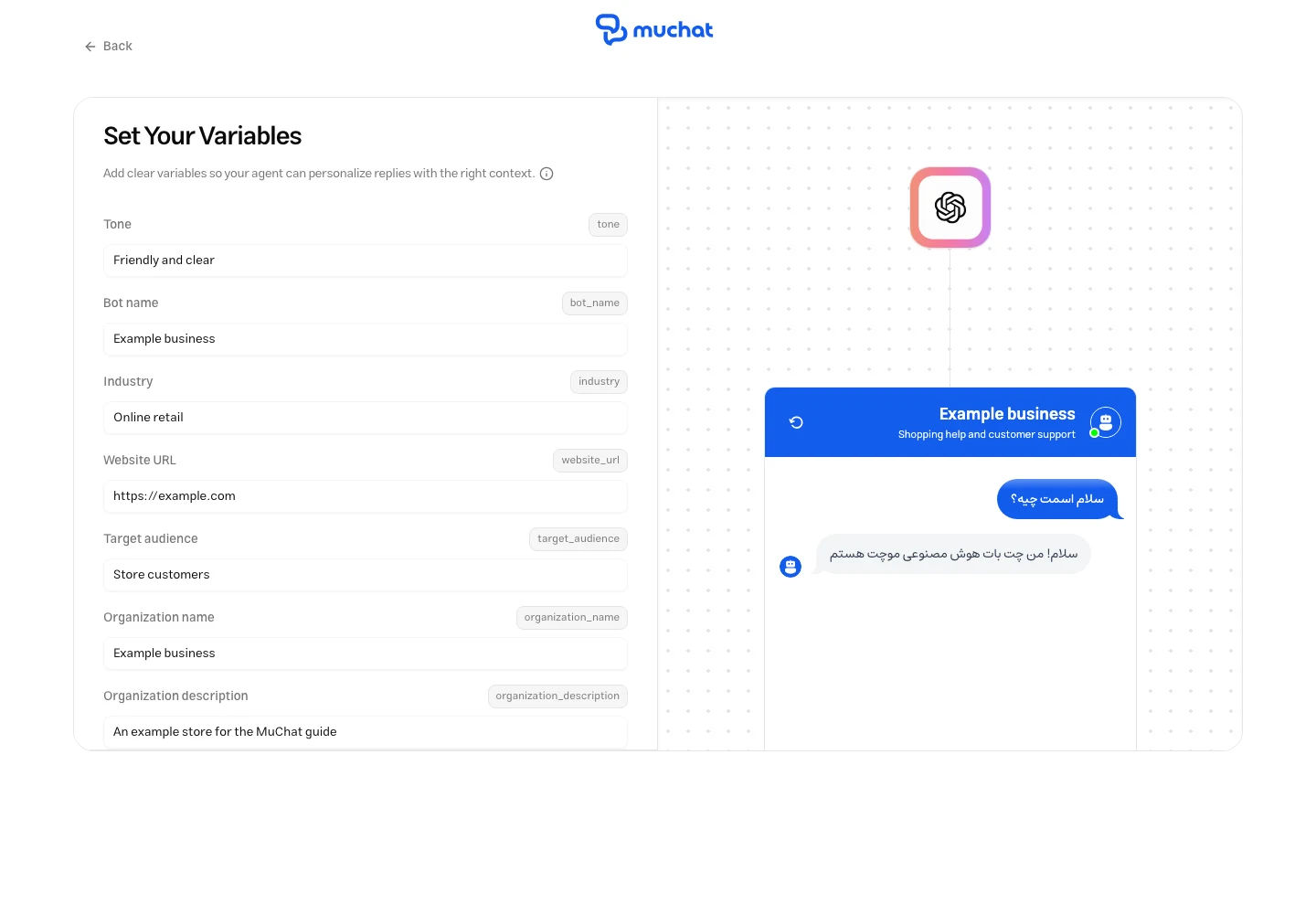
The following three screens appear in order. Review the suggested information and make any changes you need.
Set the title, description, color, avatar, and widget icon in Agent's UI. Review the preview and select Looks Good.
Complete the tone, bot name, industry, target audience, and business details. Select Save to continue.
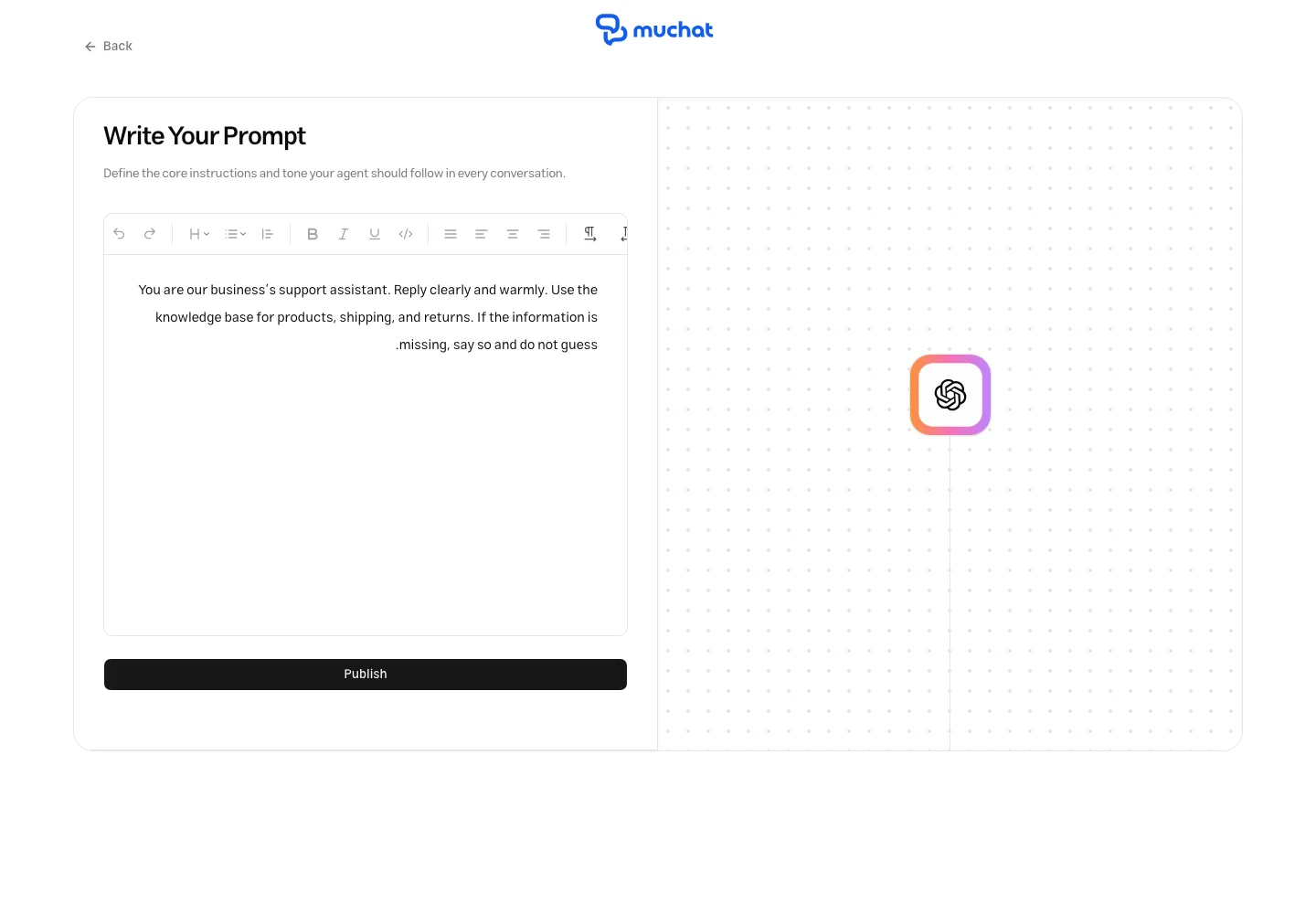
In Write Your Prompt, describe MuChat's role and how it should answer. For example:
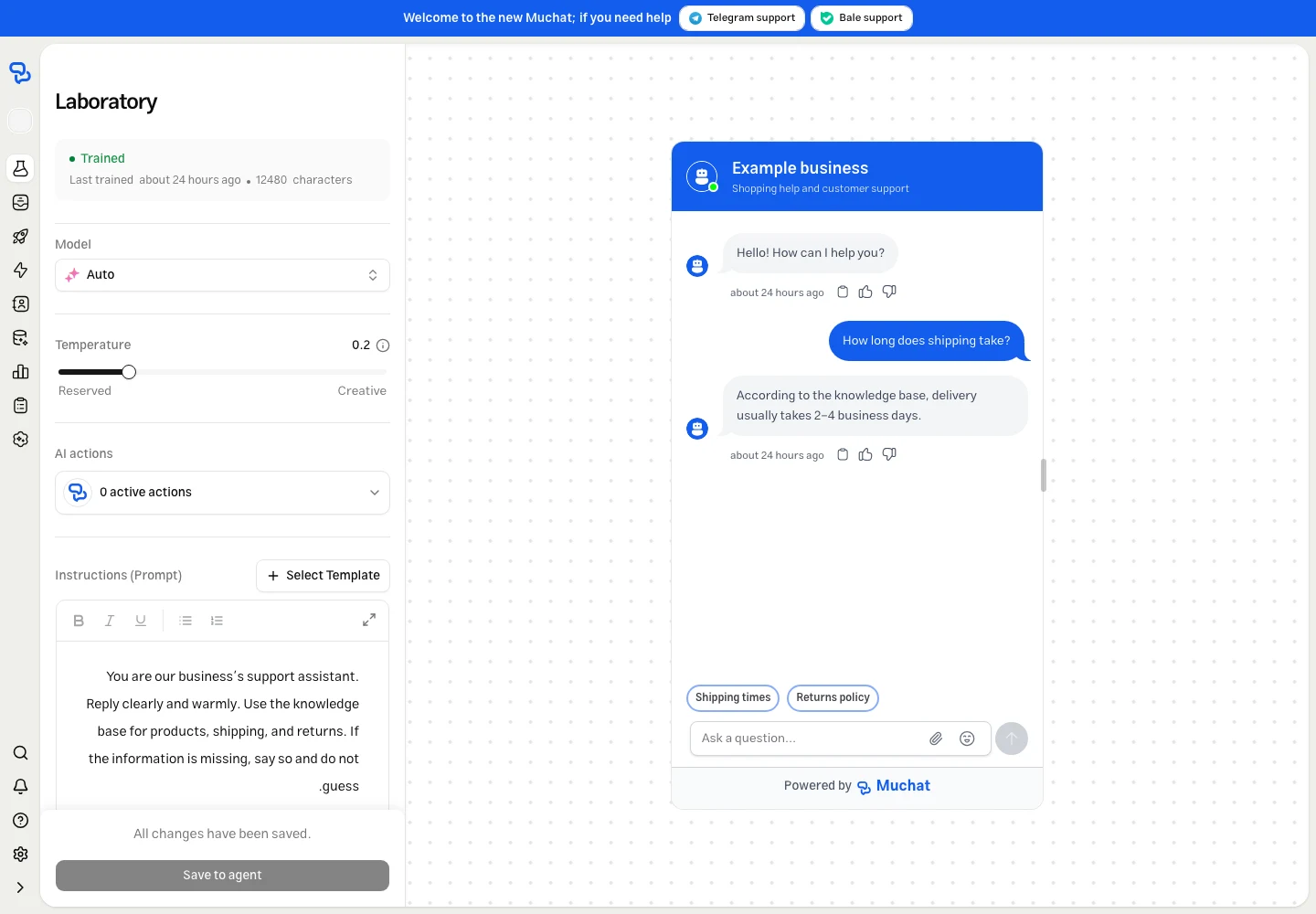
You are our business's support assistant. Reply clearly and warmly. Use the knowledge base for products, shipping, and returns. If information is missing, say so and do not guess.
Select Publish, then choose Continue in the welcome message to open your knowledge base.
Choose your training data
MuChat needs information to learn from. Open Datastores, select a knowledge base, and choose Create Datasource. You can train it using various data sources:
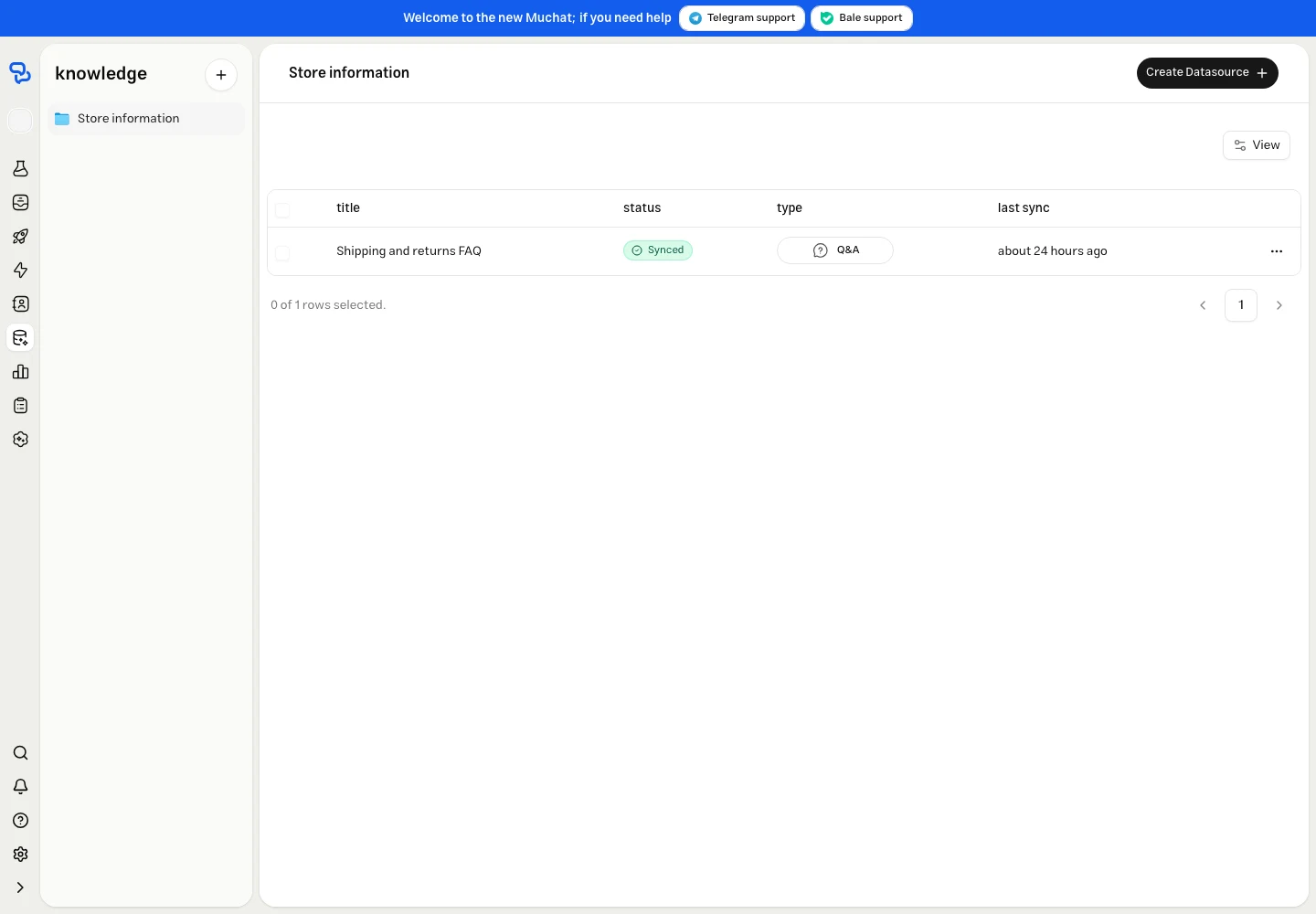
Upload your documents
Train MuChat on your documents. Select File, upload a document, and choose Add. Supported formats are DOCX, MD, TXT, CSV, and JSON.
Best for: Business documents, manuals, FAQs, and product information.
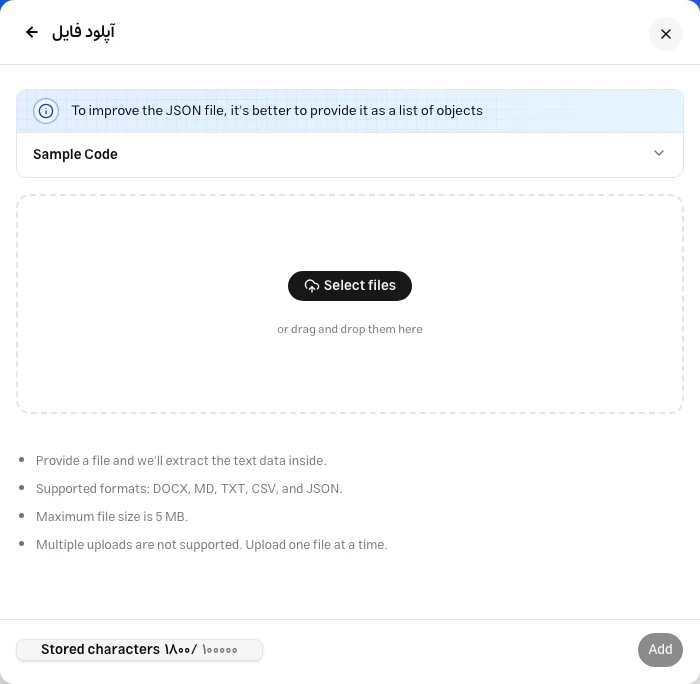
Direct text input
Paste your content directly into MuChat. For information without a separate document or web page, select Text, enter a name and content, then select Train text.
Best for: Support hours, service descriptions, and custom training content.
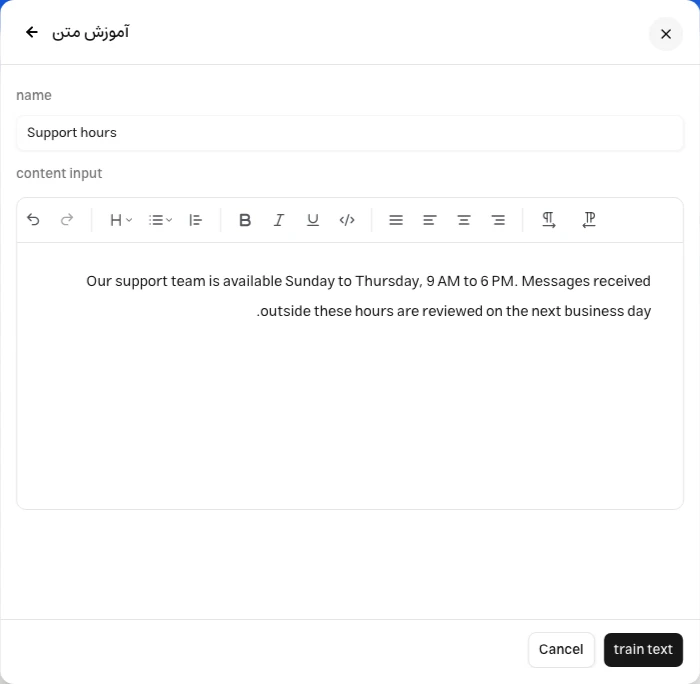
Crawl your website
MuChat discovers your website's pages so you can choose the content to use for training.
Best for: Websites, help centers, product pages, or sitemaps.
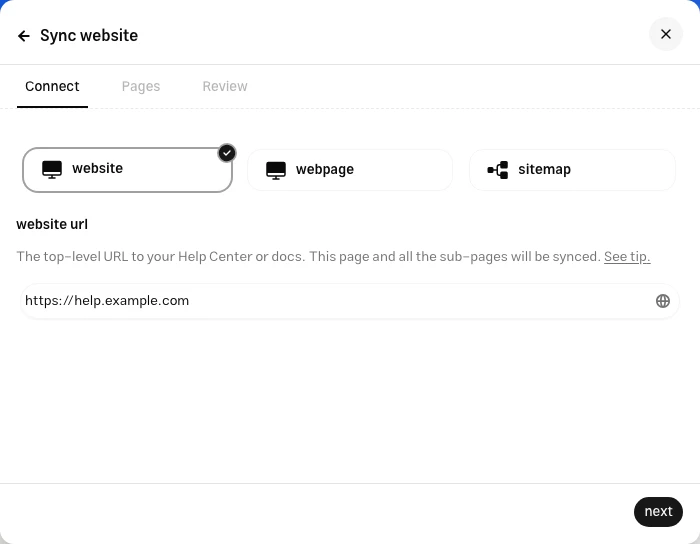
Add your own Q&A
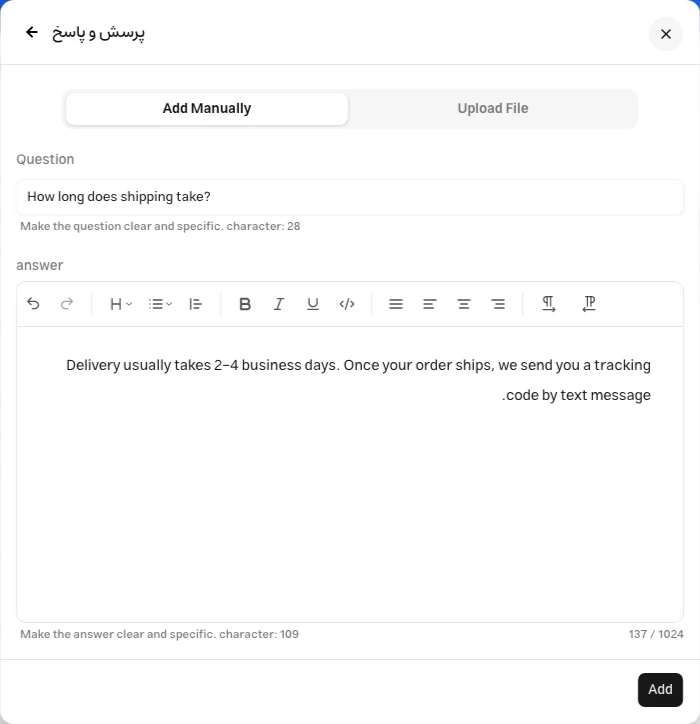
Add frequently asked questions with the answers you want MuChat to use. In Add Manually, enter the question and answer, then select Add.
Best for: Returns policies, shipping information, and specific customer questions.
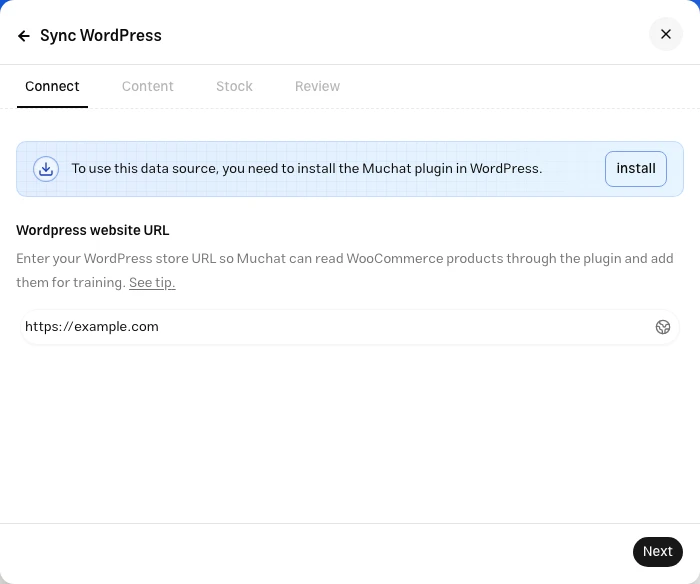
Connect your WordPress content
Add WooCommerce products, pages, or posts to the knowledge base. Enter your site address, select Next, and choose the content type. Finish with Sync WordPress.
Best for: WooCommerce stores and WordPress websites.
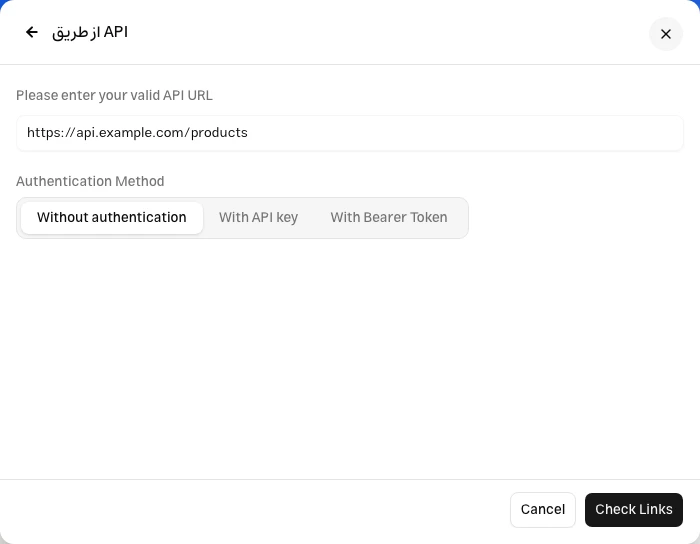
Add information from your own service
Use your system's API as a training source. Enter the endpoint and authentication method, then select Check Links to validate the connection and add the source.
Best for: Custom systems and product catalogs, with help from your technical team.
Step 2: Test and optimize MuChat
Open the Laboratory
Once your sources are ready, open Laboratory from the agent menu. Ask questions similar to your customers' questions and compare the answers with your business information. You can change the model, instructions, and temperature here to test the results.
Fine-tune settings
Test responses with different models
Test with different models
Choose an available model. Ask the same questions with different models and compare:
- Response quality and accuracy
- Response time and speed
- Tone and personality
- Handling questions that aren't covered by your sources
Make your decision
Based on the comparison, select the model that best fits your use case and brand voice.
Define how MuChat should behave and respond to users. These instructions shape its personality, tone, and approach to conversations.
How to write effective instructions:
- Define MuChat's tone: professional, friendly, casual, or another style.
- Define its role: lead collection, support, sales, or another purpose.
- Set clear boundaries about what topics to discuss or avoid.
- Define your brand voice and personality.
- Add specific words you want MuChat to use.
- Define the languages it should respond in, such as the user's language.
- Add any other instructions you want MuChat to follow.
Controls how varied the responses are:
- Low (0.1–0.3): More consistent, less varied responses
- Medium (0.4–0.7): Balanced variation in wording
- High (0.8–1.0): More creative, varied responses
A lower value does not guarantee factual accuracy. Check answers against your sources.
Step 3: Deploy to your website
Open the deployment section
Once you're satisfied with MuChat's responses, it's time to make it live. Open Deploy and select Manage on the Chat Widget card.
Choose your deployment method
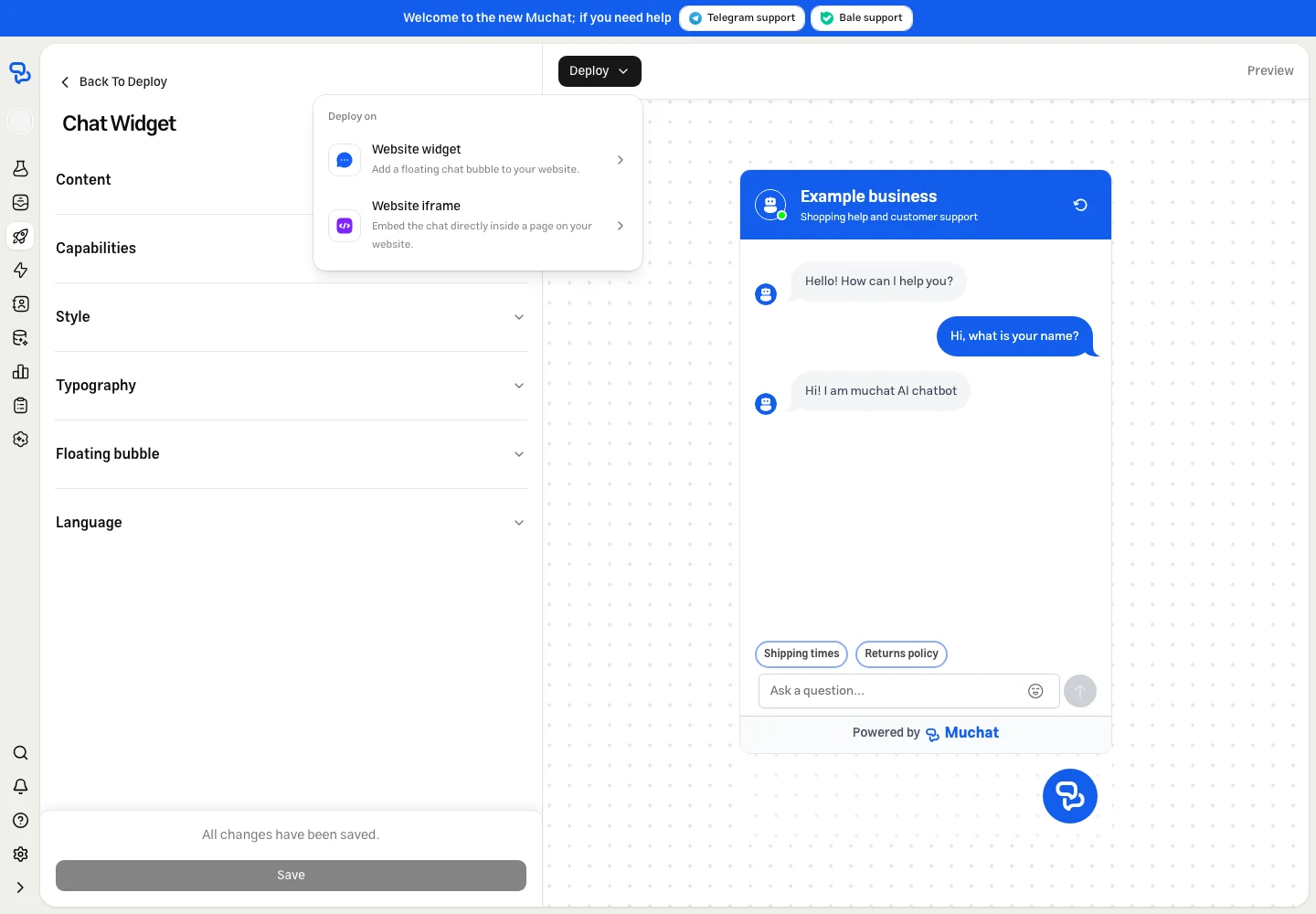
You can display MuChat as a floating chat bubble or in a fixed section of your page. Select Deploy above the preview and choose Website widget or Website iframe.
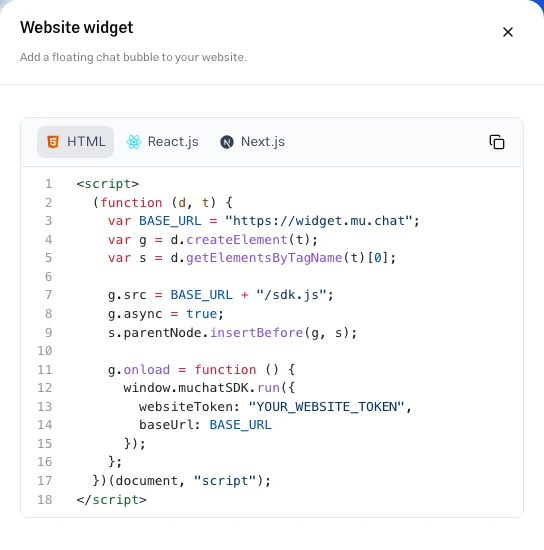
Copy the installation code from the panel. The HTML, React.js, and Next.js tabs provide the example for each setup.
Perfect for most websites
Adds a floating chat icon that visitors can click to start a conversation. The chat window opens when needed and doesn't occupy a fixed section of your page.
Pros:
- Keeps your site's main layout unchanged
- Users can open and close the chat window as needed
- Works well on mobile devices
- A familiar chat experience for visitors
Best for: Business websites, blogs, and e-commerce stores.
For dedicated chat sections
Embeds the full chat interface directly into your page layout. It stays visible in the space you choose, ready for interaction.
Pros:
- Always visible on the page
- More prominent than the chat bubble
- Good for dedicated support pages
- Dimensions can be adjusted to fit your page
Best for: Support pages, help centers, and dedicated chat sections.
Add code to your website
Locate where to add the code
Find where you can add JavaScript to your website. In site builders and content management systems, look for a custom code or scripts section.
Paste the code
Copy your MuChat's installation code and paste it into the section you selected.
Save and publish
Save your changes and publish your website updates.
Verify installation
Visit your website and look for the chat bubble. Open it, ask a question covered by your knowledge base, and check the answer. Test the display and responses on a mobile device too.
Customize appearance (optional)
Want to match your brand? Return to Deploy → Chat Widget → Manage, update the settings, and select Save.
- Upload a custom chat bubble icon and avatar
- Change colors to match your brand
- Customize the welcome message
- Set default questions visitors can click to start a conversation
- Show the welcome message after a delay
- Configure the welcome message on mobile
- Collect user feedback
- Show answer sources and allow visitors to start a new conversation
Next steps
You've created, trained, tested, and deployed your first MuChat. From here:
Best Practices
Improve MuChat's answers with clear instructions, up-to-date sources, and the right model.
Actions
Add human operator requests, customer information collection, and API calls to conversations.
Integrations
Connect MuChat to messaging channels and your business tools.
Reports
Review conversations and customer feedback to improve MuChat's performance.