Getting Started
Iframe Developer Guide
Embed MuChat inside your website or a mobile WebView, identify users with JWT, manage guest sessions and share page context with the supported iframe commands.
The iframe places MuChat directly inside your page. The chat stays open in the space you give it, without a floating bubble. Visitors can read replies, complete forms and use the chat features enabled in your dashboard without leaving the page.
For a guest chat, the iframe tag is enough. Add the connector on this page when you want to identify signed-in users, start a new guest conversation or share the current page with MuChat. The iframe uses its own postMessage contract; the floating widget's window.$muchat methods belong to the chat bubble installation.
When to use the iframe
Use the iframe when:
- The chat sits inline in a help center, a dashboard panel or a dedicated support page.
- You want to control its width, height and surrounding layout.
- Your platform allows iframes but limits third-party installation scripts.
- You want to display a web support page inside a mobile app WebView.
Use the chat bubble for a floating launcher. Use a standalone page when you want to share a separate chat link instead of embedding the chat in your own page.
Quick start
Copy the iframe code
- Open the MuChat dashboard and select your agent.
- Go to Deploy, then click Manage on the Chat Widget card.
- Above the preview, click Deploy and choose Website iframe.
- Copy the HTML code and place it where the chat should appear.
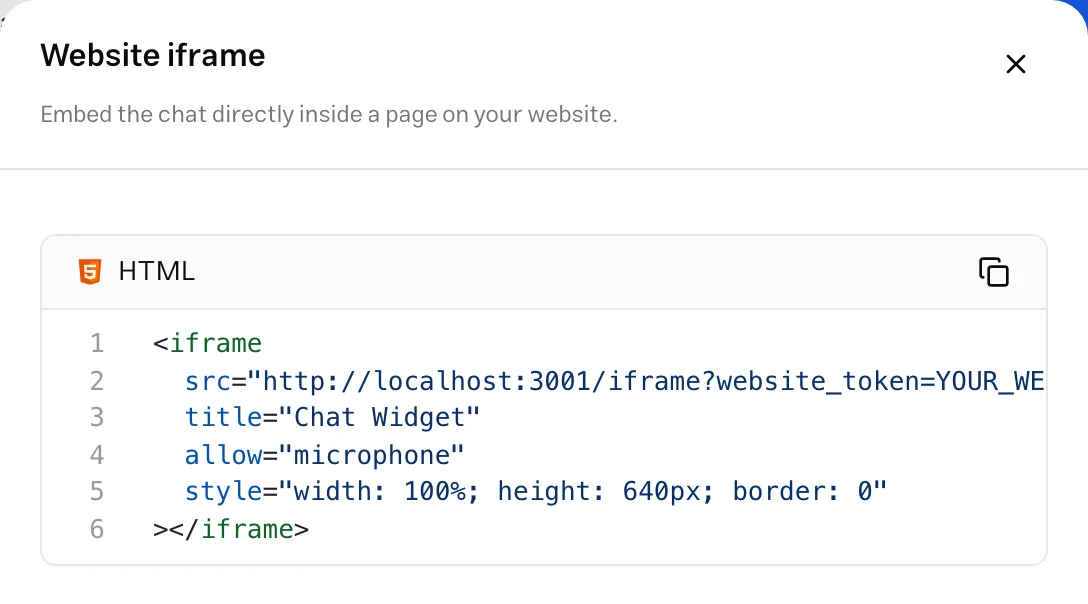
Set the size and add an id
The dashboard's code uses a full-width frame with a height of 640 pixels. Change the dimensions to fit your layout. Add an id if your page needs to send commands to the iframe; keep allow="microphone" if voice messages are enabled.
<iframe
  id="muchat-iframe"
  src="https://widget.mu.chat/iframe?website_token=YOUR_WEBSITE_TOKEN"
  title="MuChat support"
  allow="microphone"
  style="width: 100%; height: 640px; border: 0"
></iframe>
Replace YOUR_WEBSITE_TOKEN with the value after website_token= in your dashboard's iframe code. This is the public widget identifier, not your agent ID, a Chat API key or the secret used to sign user identities.
Connect your page when needed
Guest chat works without JavaScript on your page. For identity, guest reset or page context, load the connector first, then run this code immediately after the iframe:
const chat = connectMuchat(document.getElementById("muchat-iframe"));

chat.on("iframeReady", ({ ok, status }) => {
  if (!ok) {
    console.error("MuChat could not load", status);
    return;
  }
  chat.send({ event: "initConfig", willIdentify: false });
  console.info("MuChat is ready");
});
This example starts a guest session. For a chat restricted to signed-in users, use the identification recipe instead of sending willIdentify: false.
Test it
Open the page and send a question from the iframe. Check that MuChat replies and the frame fits the page on desktop and mobile. With the connector installed, the browser console also reports readiness.
Connect to the iframe
Save this function as connect-muchat.js, or place it in a script before your iframe installation code. It is a small function you include in your own site; it is not a file served by MuChat.
function connectMuchat(iframe) {
  const origin = new URL(iframe.src).origin;
  const prefix = "muchat-iframe:";
  const handlers = {};
  let markReady;
  const ready = new Promise((resolve) => { markReady = resolve; });

  function onMessage(event) {
    if (event.source !== iframe.contentWindow || event.origin !== origin) return;
    if (typeof event.data !== "string" || !event.data.startsWith(prefix)) return;
    let message;
    try {
      message = JSON.parse(event.data.slice(prefix.length));
    } catch { return; }
    if (!message || typeof message.event !== "string") return;
    const { event: type, ...data } = message;
    if (type === "iframeReady" && data.ok) markReady(data);
    for (const handler of handlers[type] ?? []) handler(data, message);
  }
  window.addEventListener("message", onMessage);

  return {
    ready,
    send: (message) => ready.then(() => {
      iframe.contentWindow.postMessage(prefix + JSON.stringify(message), origin);
    }),
    on: (type, handler) => (handlers[type] ??= []).push(handler),
    disconnect: () => window.removeEventListener("message", onMessage)
  };
}
It does four things for you:
- Sends commands only to the origin read from the iframe's
src, and checks both the source window and origin of incoming events. - Encodes and decodes the iframe's
muchat-iframe:prefix and JSON payload. - Holds outgoing commands until the first successful
iframeReadyevent. - Calls each registered handler with the event fields as the first argument and the full decoded message as the second.
| Connector API | Purpose |
|---|---|
chat.ready | A promise that resolves on the first iframeReady with ok: true. |
chat.send(message) | Posts a command after initial readiness. Its promise confirms posting, not successful execution. |
chat.on(event, handler) | Registers a handler for an iframe event. Multiple handlers can listen to the same event. |
chat.disconnect() | Removes the connector's message listener. It does not remove or close the iframe. |
Using a module bundler? Add export before function connectMuchat, then import it into your component.
Timing rules
- Install the connector before the iframe announces
iframeReady. For plain HTML, load the helper first and connect immediately after the iframe. The React example installs listeners before adding the iframe to the page. - Use
iframeReady, not the iframe'sloadevent. Loading the document does not mean its command listener is ready. - In an embedded frame, MuChat waits 1 second for the first
initConfig. Send it in youriframeReadyhandler. WithwillIdentify: true, the chat waits for successful identification. Withfalse, or if no initial configuration arrives in time, guest access follows the channel's access settings. - Late or repeated
initConfigmessages do not change that initial decision. Put configuration in the readiness handler so it runs for each new iframe document. - A guest reset reloads the iframe and sends
iframeReadyagain. The connector'sreadypromise stays resolved after its first success; use the new event to initialize the reloaded document.
Readiness signals
| Event | Meaning | Use it to |
|---|---|---|
iframeReady with ok: true | The iframe is ready to receive commands. It does not confirm that the conversation has finished rendering. | Send initConfig, set-user and change-url. |
user-identified with verified: true | The server accepted the user's JWT and the iframe applied the resulting session. | Confirm sign-in in your page or reveal a frame you deliberately hid. |
error | User identification failed. code describes the error; status is included when available. | Show a retry state or obtain a fresh token. |
Without the connector
The connector is optional, but your code must follow the same contract:
- Wait for a message from the iframe's
contentWindowand origin. - Accept only strings starting with
muchat-iframe:and parse the remaining JSON. - Read the event name from
event, nottype. Event fields sit besideeventin the decoded object. - To send a command, prefix
JSON.stringify(message)withmuchat-iframe:and use the iframe's origin astargetOrigin.
Do not send a plain JavaScript object or use the floating widget's message prefix. The direct iframe ignores those formats.
Common tasks
The recipes below use const chat = connectMuchat(iframe) from Connect to the iframe. Choose the initialization flow that fits your page rather than attaching several conflicting readiness handlers.
Identify a logged-in user
Send initConfig immediately, then obtain the JWT from your authenticated server endpoint and send set-user. This keeps the chat waiting while the token is fetched.
chat.on("iframeReady", async ({ ok }) => {
  if (!ok) return;
  await chat.send({ event: "initConfig", willIdentify: true });

  try {
    const response = await fetch("/api/muchat/user-token", {
      credentials: "same-origin",
      cache: "no-store"
    });
    if (!response.ok) throw new Error("Could not get the user token");
    const { token } = await response.json();
    if (typeof token !== "string" || !token.trim()) {
      throw new Error("Missing user token");
    }
    await chat.send({ event: "set-user", user_jwt: token });
  } catch (error) {
    console.error("MuChat sign-in could not start", error);
  }
});

chat.on("user-identified", ({ verified }) => {
  console.info("MuChat user verified:", verified);
});
chat.on("error", ({ code, status }) => {
  console.error("MuChat identification failed", code, status);
});
/api/muchat/user-token is an endpoint you implement in your own application, returning { "token": "SIGNED_USER_JWT" } for the signed-in user. It is not a MuChat API endpoint. Sign the token on your server with the widget identity key.
The result comes through user-identified or error; awaiting chat.send is not an identification receipt. Send a new account's JWT after the current identification attempt finishes.
Reset the conversation on every load
For guest-only pages that intentionally start fresh on each page load:
let hasReset = false;

chat.on("iframeReady", ({ ok, verified, require_verified_user }) => {
  if (!ok || verified || require_verified_user || hasReset) return;
  hasReset = true;
  chat.send({ event: "reset" });
});
The guard matters: reset reloads the iframe and triggers iframeReady again. This flag belongs to the host page, so the reload of the frame does not reset the flag. Do not use this recipe alongside user identification.
Reset the conversation from a button
<button id="reset-chat" type="button">Start a new chat</button>
<script>
  document.getElementById("reset-chat").addEventListener("click", () => {
    chat.send({ event: "reset" });
  });
</script>
The button starts a new guest session. Reset is ignored for verified users and while identification is in progress. It is not a way to sign a user out.
Show the chat only when it's ready
The iframe already handles its loading and identity states. If your design also hides the frame until sign-in is confirmed:
const chatFrame = document.getElementById("muchat-iframe");
chatFrame.style.visibility = "hidden";

chat.on("user-identified", ({ verified }) => {
  if (verified) chatFrame.style.visibility = "visible";
});
Use this with the identification recipe. For guest access, show your container on successful iframeReady if needed, while allowing the iframe to display its own loading state. There is no separate conversationReady event.
Build your own open and close button
Control the host container to show or hide an inline chat:
<button id="toggle-support" type="button" aria-controls="support-panel" aria-expanded="false">
  Chat with support
</button>
<section id="support-panel" hidden>
  <iframe
    src="https://widget.mu.chat/iframe?website_token=YOUR_WEBSITE_TOKEN"
    title="MuChat support"
    allow="microphone"
    style="width: 100%; height: 640px; border: 0"
  ></iframe>
</section>
<script>
  const button = document.getElementById("toggle-support");
  const panel = document.getElementById("support-panel");
  button.addEventListener("click", () => {
    panel.hidden = !panel.hidden;
    button.setAttribute("aria-expanded", String(!panel.hidden));
  });
</script>
This example changes visibility without removing the iframe. Hiding it does not end the session or automatically stop an active microphone recording. When the user leaves a support screen entirely, remove the iframe and disconnect any connector you created.
Give MuChat context about the page
Send the current page's URL and title when the iframe is ready, and again after navigation:
function sendPageContext(referrer = document.referrer || null) {
  return chat.send({
    event: "change-url",
    page_context: {
      url: window.location.href,
      title: document.title,
      referrer
    }
  });
}

chat.on("iframeReady", ({ ok }) => {
  if (ok) sendPageContext();
});
window.addEventListener("popstate", () => sendPageContext());
popstate covers browser back and forward navigation. For a router that uses pushState or replaceState, call sendPageContext from its completed-navigation hook, after updating the page title. You can pass the previous URL as referrer.
MuChat may obtain the initial page from the parent's document or referrer, but a cross-origin frame often receives only the origin. Sending change-url provides the full current page explicitly.
When page context is enabled for the channel’s AI, MuChat uses the page title, origin and path; query strings, fragments and referrers are excluded from that AI projection. Page information is browser-supplied context, not verified account data.
Log the user out
When the user signs out of your application, remove the account's chat from the page:
chat.disconnect();
document.getElementById("muchat-iframe").remove();
For account pages, enable Allow access only to authenticated users and render the chat after your application knows who is signed in. On the next sign-in, supply that user's JWT again. The iframe has no logout command: an empty set-user is ignored, and guest reset does not clear a verified session or revoke issued access tokens.
Track readiness and sign-in
Listen to the supported events to record successful initialization or identity errors in your application's monitoring. The direct iframe does not expose public events containing each user message, streamed reply or tool call. Do not attach the floating widget's muchat:opened and muchat:closed events to an inline frame.
Set the chat language and appearance
Open Deploy → Chat Widget → Manage in the dashboard. Set the language, text direction, theme, colors, avatar, welcome messages and suggested questions there, then save.
The inline frame uses those chat settings. Its width, height and surrounding layout belong to your page. The direct iframe does not accept runtime display commands such as setOptions or a language override in the URL.
Fit the chat to mobile screens
Use the viewport meta tag in your page and let the iframe fit its container. For example:
#muchat-iframe {
  width: 100%;
  height: min(720px, 80dvh);
  min-height: 420px;
  border: 0;
}
Remove or update the inline height style if you apply this CSS. Test the chat with the mobile keyboard open, long replies and forms. There is no need to post the parent window's width; the frame's own dimensions control the available space.
Feature support
Works in the iframe
| Feature | How it works |
|---|---|
| Text conversations and replies | Available inside the chat when the channel is active. |
| User identity | Signed user JWT through set-user. |
| New guest session | reset; ignored for verified users or during identification. |
| Current-page context | change-url, with AI sharing determined by the channel’s configuration. |
| Welcome messages, suggestions and appearance | Configured in Chat Widget settings. |
| Attachments, voice messages and source links | Available according to the channel's enabled features and limits. Microphone access also needs browser permission. |
| Forms, contact collection and AI actions | Configured in the dashboard and executed through the chat. |
| Conversation continuity | The iframe keeps its session using browser cookies; see Conversation history. |
Embed script and host-page controls
| Feature | Inline chat alternative |
|---|---|
| Floating bubble, position and popup welcome messages | These belong to the floating widget's wrapper. The inline frame stays inside your page. |
window.$muchat.open(), close() and toggle() | Show or hide your own host container. |
| Sending a message from a site button | The direct iframe has no sendMessage command. Use the floating widget's supported SDK if you need this integration. |
| Initial messages, language and runtime styling | Save the shared chat settings in the dashboard. The host page controls frame dimensions. |
| Reply and tool-call events | Not part of the direct iframe's public event contract. Use the REST API for a custom conversation interface. |
Messages you can send
Commands use an event field. The connector handles the prefix and serialization.
event | Fields | Effect |
|---|---|---|
initConfig | willIdentify | Chooses the initial guest or identification flow. |
set-user | user_jwt | Submits the user's signed identity token. |
reset | None | Starts a new guest session by reloading the iframe. |
change-url | page_context | Updates or clears the parent-page context. |
initConfig
willIdentifybooleanSend true when a user JWT will follow. Send false for guest access. The first valid configuration must arrive within 1 second of iframeReady; later configurations are ignored.
chat.send({ event: "initConfig", willIdentify: true });If willIdentify is true but the token request fails, show a retry or sign-in state in your page. Do not expect a second initConfig to reopen guest access.
set-user
user_jwtstringRequiredA non-empty JWT signed on your server with this widget channel's identity secret. Leading and trailing whitespace is removed. An empty value does not log out the user.
chat.send({ event: "set-user", user_jwt: userJwt });A successful server response updates the iframe's session and contact, then emits user-identified. Identification errors emit error; there is no automatic retry. While an attempt is pending, wait before submitting a different user's JWT.
reset
chat.send({ event: "reset" });The iframe removes its own guest-session cookie and reloads. This discards the frame's local conversation state, draft and connection. It does not delete conversations saved on the server. The command has no effect before successful initialization, for a verified contact or while identification is pending.
change-url
page_contextobject | nullRequiredUse an object with url and optional title and referrer, or null to clear the page context used for subsequent interactions.
URLs must be HTTP(S), contain no embedded credentials and be at most 2048 characters. The title may be at most 500 characters. Send only the page information the chat needs.
To clear the current context:
chat.send({ event: "change-url", page_context: null });Clearing it does not erase context already stored with previous messages. The full page-context recipe shows how to update it.
Events you receive
With the connector, chat.on(event, (data, message) => ...) receives the event fields directly as data and the full decoded message as message.
event | Fields | Meaning |
|---|---|---|
iframeReady | websiteToken, ok, status, verified, require_verified_user | The iframe announces readiness. Only ok: true resolves the connector's queue. |
user-identified | verified | A successful identification response was applied. Check verified: true. |
error | action, code, optional status | Identification failed. action is set-user. |
chat.on("iframeReady", ({ ok, status, verified, require_verified_user }) => {
  console.info("MuChat readiness", { ok, status, verified, require_verified_user });
});
chat.on("user-identified", ({ verified }) => {
  console.info("MuChat identity confirmed", { verified });
});
chat.on("error", ({ action, code, status }) => {
  console.error("MuChat action failed", { action, code, status });
});
The connector already decodes the prefix and JSON. Read data.verified or destructure verified; do not look for data.data. A failed page load may prevent any event from arriving, so also check the frame and the browser's Network panel.
Identity and user data
Identification ties a signed-in website user to the widget's contact and conversation. The JWT is verified on the MuChat server using the identity key for the same widget channel. The public website_token selects the widget; it does not prove who the visitor is.
Choose when to identify
Pick the flow that fits your application:
- Render a signed token into an authenticated page. Your server checks the login, signs the JWT and includes it in the HTML. Send
initConfigandset-userfrom the readiness handler. See the PHP example. - Fetch the token in the browser. Send
initConfigwithwillIdentify: trueimmediately, then fetch the token from your authenticated endpoint. See Identify a logged-in user. - Render after the user's state is known. In React, wait until your application has a token for the signed-in user or has confirmed guest access. The example installs the listener before mounting the frame.
JWT
In Website widget, open User identification to obtain the identity signing key. Keep that secret on your server. The iframe uses the same channel key as the floating widget; it does not need a separate iframe key.
The payload includes the required string user_id and supported contact fields, for example:
{
  "user_id": "customer-42",
  "name": "Example User",
  "email": "user@example.com",
  "phone_number": "+989120000000"
}
Use a stable, non-empty identifier for the signed-in account. The server also supports fields such as locale, country_code and defined contact custom_attributes; custom fields must exist for the agent and match their configured types. Missing or null claims do not erase existing contact values.
Sign with HS256 and add a short expiration. The following examples use one hour. Install jsonwebtoken in your server project for the Node.js example; the PHP function uses built-in functions. Call either function only after your own application has authenticated the user.
import jwt from "jsonwebtoken";

export function createMuchatToken(user) {
  const secret = process.env.MUCHAT_IDENTITY_SECRET;
  if (!secret) throw new Error("Missing MuChat identity secret");

  return jwt.sign(
    { user_id: String(user.id), name: user.name, email: user.email },
    secret,
    { algorithm: "HS256", expiresIn: "1h" }
  );
}<?php
function createMuchatToken(array $user): string {
$secret = getenv('MUCHAT_IDENTITY_SECRET');
if (!$secret) throw new RuntimeException('Missing MuChat identity secret');
$encode = fn(string $value): string => rtrim(strtr(base64_encode($value), '+/', '-_'), '=');
$header = $encode(json_encode(['alg' => 'HS256', 'typ' => 'JWT'], JSON_THROW_ON_ERROR));
$payload = $encode(json_encode([
'user_id' => (string) $user['id'],
'name' => $user['name'] ?? null,
'email' => $user['email'] ?? null,
'iat' => time(),
'exp' => time() + 3600,
], JSON_THROW_ON_ERROR));
$signature = $encode(hash_hmac('sha256', "$header.$payload", $secret, true));
return "$header.$payload.$signature";
}Store the PHP function in create-muchat-token.php if you use the complete PHP example below. In both examples, MUCHAT_IDENTITY_SECRET is a server environment variable containing the secret from the matching widget channel. If you use the optional JWT kid header, set it to that channel key's ID.
Log out
Remove the embedded account chat when the user leaves the signed-in state, as shown in the logout recipe. On account changes, send the new user's JWT and wait for user-identified before treating the switch as complete. Do not display the previous user's chat while your application is deciding which account is active.
Conversation history
The iframe stores its session in a cookie on the widget origin. Over HTTPS, partitioned cookies keep the embedded session scoped to the embedding site when the browser supports them.
| Visitor | What can continue |
|---|---|
| Guest | The conversation associated with the current iframe session on that browser and embedding site. Clearing or blocking cookies can start a fresh session. |
| Identified user | After successful identification, MuChat can reconnect the same contact's conversation within the same widget channel. Local session continuity and the browser's storage policy still matter. |
Guest reset starts a new local session; it does not erase server records. A conversation in another channel or a separate standalone page does not use the iframe's session cookie.
Prefilling forms
| Form or information | Behavior |
|---|---|
| Contact information supplied in a valid JWT | Updates the contact using the supported identity fields. |
| Lead collection form | May be skipped or dismissed when all requested fields are already available as valid contact values. Partially filled data alone is not enough. |
| Other startup forms | Follow the conditions configured for that form. Completed forms remain completed. |
| Browser page context | Supplies current-page information; it is not a way to fill verified contact fields. |
AI actions in the iframe
Configure AI Actions in the dashboard and test them in the playground. The same chat can use those actions when it runs in an iframe, including HTTP integrations with your business services.
Action execution belongs to MuChat's configured workflow. The direct iframe does not forward a CHATBOT_TOOL_CALL to your page or accept a CHATBOT_TOOL_RESULT reply from it. Keep service credentials in the action's server-side configuration.
Forms inside the conversation
Create and configure forms in the dashboard. They render inside the conversation, collect the visitor's answers and follow the conditions and continuation behavior you configured. User identification can affect which startup forms remain necessary.
The parent page does not supply form schemas through GET_FORM_SCHEMA or intercept submissions through an iframe callback. For changes to fields, defaults or conditions, edit the form itself rather than posting an undocumented message to the iframe.
Chat settings and host layout
Chat appearance, language, greeting and suggested questions come from Chat Widget settings. The host page owns the surrounding layout, the iframe's dimensions and any custom open or close container.
Do not copy the dashboard preview's internal configuration messages into your website. The public integration uses the four documented commands; the preview is a separate interface for editing settings.
URL parameters
| Parameter | Example | Purpose |
|---|---|---|
website_token | ?website_token=YOUR_WEBSITE_TOKEN | Selects the widget channel from your dashboard's installation code. |
https://widget.mu.chat/iframe?website_token=YOUR_WEBSITE_TOKENDo not put user_jwt, a signing secret, a user's email or a Chat API key in the URL. Identify through set-user after readiness. The iframe has no supported hostLang query override; choose the chat language in the dashboard.
Complete examples
A complete guest chat page that also shares the current page context. Save the connector from above at /connect-muchat.js on your own site, then replace the website token.
<!doctype html>
<html lang="en">
<head>
  <meta charset="utf-8">
  <meta name="viewport" content="width=device-width, initial-scale=1">
  <title>MuChat support</title>
  <script src="/connect-muchat.js"></script>
</head>
<body>
  <iframe
    id="muchat-iframe"
    src="https://widget.mu.chat/iframe?website_token=YOUR_WEBSITE_TOKEN"
    title="MuChat support"
    allow="microphone"
    style="width: 100%; height: 640px; border: 0"
  ></iframe>
  <script>
    const chat = connectMuchat(document.getElementById("muchat-iframe"));
    chat.on("iframeReady", ({ ok, status }) => {
      if (!ok) {
        console.error("MuChat could not load", status);
        return;
      }
      chat.send({ event: "initConfig", willIdentify: false });
      chat.send({
        event: "change-url",
        page_context: {
          url: location.href,
          title: document.title,
          referrer: document.referrer || null
        }
      });
    });
  </script>
</body>
</html>Add export to the connector function and import it from your project. This component connects and registers handlers before inserting the iframe, then cleans up when the token or account changes or the component unmounts.
import { useEffect, useRef } from "react";
import { connectMuchat } from "./connect-muchat.js";

export default function MuChatIframe({ websiteToken, userJwt }) {
  const container = useRef(null);

  useEffect(() => {
    const iframe = document.createElement("iframe");
    iframe.src = "https://widget.mu.chat/iframe?website_token=" + encodeURIComponent(websiteToken);
    iframe.title = "MuChat support";
    iframe.allow = "microphone";
    iframe.style.cssText = "width: 100%; height: 640px; border: 0";
    const chat = connectMuchat(iframe);

    chat.on("iframeReady", ({ ok }) => {
      if (!ok) return;
      chat.send({ event: "initConfig", willIdentify: Boolean(userJwt) });
      if (userJwt) chat.send({ event: "set-user", user_jwt: userJwt });
      chat.send({
        event: "change-url",
        page_context: { url: location.href, title: document.title, referrer: document.referrer || null }
      });
    });
    chat.on("user-identified", ({ verified }) => console.info("MuChat verified:", verified));
    chat.on("error", ({ code, status }) => console.error("MuChat identity error", code, status));
    container.current.appendChild(iframe);

    return () => {
      chat.disconnect();
      iframe.remove();
    };
  }, [websiteToken, userJwt]);

  return <div ref={container} />;
}
Once your application has resolved the user's state:
<MuChatIframe websiteToken="YOUR_WEBSITE_TOKEN" userJwt={userJwt} />Pass the signed user's JWT, or null for an intentionally guest-enabled page. Do not mount a guest chat while a signed-in user's token is still loading. On sign-out, unmount the component rather than switching its token to null; that does not log out a stored verified session. In Next.js, put "use client" at the top of this component.
This page uses the createMuchatToken PHP function from the JWT section. Adapt $_SESSION['user'] to your application's authenticated session. The signed token is rendered into the page, never into the iframe URL.
<?php
require __DIR__ . '/create-muchat-token.php';
session_start();
$user = $_SESSION['user'] ?? null;
if (!$user) {
    http_response_code(401);
    exit('Sign in to use support');
}
$token = createMuchatToken($user);
header('Cache-Control: no-store');
?>
<!doctype html>
<html lang="en">
<head>
  <meta charset="utf-8">
  <meta name="viewport" content="width=device-width, initial-scale=1">
  <title>MuChat support</title>
  <script src="/connect-muchat.js"></script>
</head>
<body>
  <iframe
    id="muchat-iframe"
    src="https://widget.mu.chat/iframe?website_token=YOUR_WEBSITE_TOKEN"
    title="MuChat support"
    allow="microphone"
    style="width: 100%; height: 640px; border: 0"
  ></iframe>
  <script>
    const userJwt = <?= json_encode($token, JSON_HEX_TAG | JSON_HEX_AMP | JSON_HEX_APOS | JSON_HEX_QUOT) ?>;
    const chat = connectMuchat(document.getElementById("muchat-iframe"));
    chat.on("iframeReady", ({ ok }) => {
      if (!ok) return;
      chat.send({ event: "initConfig", willIdentify: true });
      chat.send({ event: "set-user", user_jwt: userJwt });
      chat.send({
        event: "change-url",
        page_context: { url: location.href, title: document.title, referrer: document.referrer || null }
      });
    });
    chat.on("user-identified", ({ verified }) => console.info("MuChat verified:", verified));
    chat.on("error", ({ code, status }) => console.error("MuChat identity error", code, status));
  </script>
</body>
</html>
Serve this page over HTTPS and configure the signing secret in the server environment. The identity key is never rendered into the HTML.
Mobile apps
A WebView can load your support page and display the same embedded chat, forms and enabled chat features. The examples below load https://example.com/support: replace it with an HTTPS page on your own domain containing the HTML, React or PHP integration above.
How it works
- Guest access: A WebView can load your support page. It can also load the direct iframe URL if direct-link access is enabled and the channel allows guests.
- Signed-in access: Load your own page containing the iframe and connector. Authenticate that page or provide its token through your app's authenticated flow. Do not put the token in the page URL.
- Commands and events: The connector runs in the parent support page. Loading the widget URL directly does not create a parent frame, so it does not activate the iframe's host-message listener. Posting
set-userto that top-level window is not an equivalent integration.
If the support page is restricted to signed-in users, arrange the app's web authentication before showing it. A native application's signed-in state is not automatically shared with a WebView.
Examples
A WKWebView loading your support page. The delegate opens links requesting a new window in the system browser. Wrap the controller in UIViewControllerRepresentable to use it in SwiftUI.
import UIKit
import WebKit

final class SupportViewController: UIViewController, WKUIDelegate {
    override func viewDidLoad() {
        super.viewDidLoad()
        let webView = WKWebView(frame: view.bounds)
        webView.autoresizingMask = [.flexibleWidth, .flexibleHeight]
        webView.uiDelegate = self
        view.addSubview(webView)
        webView.load(URLRequest(url: URL(string: "https://example.com/support")!))
    }

    func webView(_ webView: WKWebView,
                 createWebViewWith configuration: WKWebViewConfiguration,
                 for navigationAction: WKNavigationAction,
                 windowFeatures: WKWindowFeatures) -> WKWebView? {
        if navigationAction.targetFrame == nil,
           let url = navigationAction.request.url,
           ["https", "http"].contains(url.scheme ?? "") {
            UIApplication.shared.open(url)
        }
        return nil
    }
}
For voice messages, add NSMicrophoneUsageDescription to Info.plist, keep allow="microphone" on the embedded iframe and handle WebKit's media permissions as required by your app. Test recording on a real device.
A WebView activity with JavaScript and DOM storage enabled. Add android.permission.INTERNET to your manifest.
import android.os.Bundle
import android.webkit.WebView
import android.webkit.WebViewClient
import androidx.activity.ComponentActivity

class SupportActivity : ComponentActivity() {
    private lateinit var webView: WebView

    override fun onCreate(savedInstanceState: Bundle?) {
        super.onCreate(savedInstanceState)
        webView = WebView(this).apply {
            settings.javaScriptEnabled = true
            settings.domStorageEnabled = true
            webViewClient = WebViewClient()
            loadUrl("https://example.com/support")
        }
        setContentView(webView)
    }

    override fun onDestroy() {
        webView.destroy()
        super.onDestroy()
    }
}
This minimal example loads the page; it does not grant microphone permissions. For voice, declare and request android.permission.RECORD_AUDIO, and handle WebView media permission requests for the trusted chat origin after the user grants permission. Handle links that should open outside the app in your navigation client.
Load your support page with react-native-webview. Install that package in your app before using the component.
import { WebView } from "react-native-webview";

export default function SupportScreen() {
  return (
    <WebView
      source={{ uri: "https://example.com/support" }}
      javaScriptEnabled
      domStorageEnabled
    />
  );
}
Configure platform microphone permissions if you enable voice. Use the WebView's navigation and message handlers for your own page-to-native bridge; MuChat does not expose a separate native iframe SDK.
Load the same support page with flutter_inappwebview. Add the package to your application's dependencies first.
import 'package:flutter/material.dart';
import 'package:flutter_inappwebview/flutter_inappwebview.dart';

class SupportScreen extends StatelessWidget {
  const SupportScreen({super.key});

  @override
  Widget build(BuildContext context) {
    return Scaffold(
      appBar: AppBar(title: const Text('Support')),
      body: InAppWebView(
        initialUrlRequest: URLRequest(url: WebUri('https://example.com/support')),
        initialSettings: InAppWebViewSettings(javaScriptEnabled: true),
      ),
    );
  }
}
Configure the platform's network, microphone and WebView permission handling for the features you enable. Add navigation handlers if reply links should open in the system browser.
Things to know
- Authenticate the support page. For verified chat, its parent page must obtain the right JWT and send it for each new iframe document. Guest WebView examples do not establish native-user identity automatically.
- Storage belongs to the WebView. Do not assume a browser conversation or the app's cookies already exist there. Clearing WebView data can end local session continuity.
- Respect access settings. Embedding your support page still requires its origin in the allowed-domain list. Directly opening the widget URL also depends on direct-link and authenticated-user settings.
- Close the app's screen yourself. The direct iframe does not emit a
closeevent to native code. The app owns its navigation and WebView lifecycle. - Keep tokens out of logs and URLs. Use your authenticated page or an application bridge you control, and test account changes and logout on a real device.
Security
Origins
- Send commands to the origin from the iframe's
src, never"*"when they include identity data. The connector already does this. - Check
event.source,event.originand themuchat-iframe:prefix before accepting messages. The connector does all three. - Restrict who can embed your chat using the allowed domains in the dashboard. The website token itself is public.
Allowed domains
In the Website iframe installation panel, enter each allowed origin on its own line, with its protocol. For example, https://example.com or https://*.example.com. Include the actual port for local testing, such as http://localhost:3000, then click Save.
The iframe sends a frame-ancestors content security policy based on that list. A browser will refuse to embed it on a site outside the permitted origins. If the chat is nested inside additional frames, those ancestor origins must also be permitted.
The Allow access via direct link setting controls whether the chat may open in a separate tab. Turning it off keeps the chat inside an iframe; it does not replace allowed domains or user verification.
Secrets and data
Use the identity key for the same widget channel as website_token. If you rotate it, update your server's secret and optional kid. The previous key has a limited transition period; do not rely on it indefinitely.
Do not treat change-url or browser-provided page information as permission to access an account or perform a protected action. Those decisions belong to your authenticated application and server-side action configuration.
Iframe attributes
| Attribute | Purpose |
|---|---|
title | Gives the embedded chat an accessible name. |
allow="microphone" | Allows the frame to request microphone access when voice is enabled. The browser still asks the visitor for permission. |
style or a CSS class | Controls width, height and border in your page. |
id | Lets your connector locate the right frame when you need commands. |
referrerpolicy | Controls how much parent-page information the browser may supply. Use change-url when you need an explicit URL and title instead of relying on the referrer. |
If you add a restrictive sandbox or Permissions Policy, test that it still allows the chat's scripts, storage, forms, downloads and any enabled microphone access. These restrictions are controlled by the embedding site.
Troubleshooting
See the iframe's console
In your browser's developer tools, open the console's execution-context menu, usually labeled top, and select the frame at widget.mu.chat. Check failed requests in Network as well. For WebViews, use Safari's device inspection tools on iOS or chrome://inspect on Android when web debugging is enabled.
Common problems
- Copy the
website_tokenfrom the same widget's dashboard code and confirm that the Chat Widget channel is active. - Compare your site's exact origin, including protocol and port, with Allowed domains. Check the browser console for a
frame-ancestorsviolation. - Give the frame and its parent a visible width and height. A percentage height needs a parent with a defined height.
- If authenticated-only access is on, send the user JWT and check for successful identification. Opening the URL in a separate tab is also controlled by direct-link access.
- Use one of the four supported
eventvalues with themuchat-iframe:prefix. A plain object or a message usingtypeis ignored. - Wait for
iframeReadywithok: true. The iframe'sloadevent is not a command-readiness signal. - Post to
new URL(iframe.src).originand to the correct iframe window. - Reset is intentionally ignored for verified users and during identification; runtime appearance and message-send commands are not part of this interface.
- Register the connector before the readiness announcement. A listener added after the frame initializes cannot recover an event it already missed.
- Check whether your source-window or origin check rejects the correct frame.
- Inspect the frame itself for a failed page or bootstrap request. A load failure can prevent its listener from mounting.
- Opening the iframe URL as the top-level document does not activate the embedded-host listener.
- Sign with
HS256, the identity secret from this widget channel and a non-empty stringuser_id. - Check the JWT expiration and any
iat,nbfor optionalkidyou supplied. - Send
initConfigpromptly withwillIdentify: true, thenset-userwithuser_jwt. Repeat identification for a new iframe document. - Wait for
user-identifiedwithverified: true.chat.sendcompleting only means the message was posted. - On
error, use the reported code and obtain a valid token before retrying. Do not print tokens or secrets in logs.
The connector passes fields directly: use ({ verified }), data.code or data.ok. Raw messages are prefixed strings, not nested objects under event.data.data. Decode the prefix and JSON if you do not use the connector.
Reset reloads the frame and emits iframeReady again. Keep a flag in the parent page and reset only once, or reset only after an explicit button click. Do not reset in every readiness handler without a guard.
Configure and test it in the dashboard's playground. Actions and forms run inside MuChat's workflow; the direct iframe does not send tool-call or form-schema requests to the parent page. Check the action or form settings instead of waiting for a browser callback.
The browser or WebView may have cleared or blocked the iframe's cookies. Check HTTPS and storage permissions. For signed-in chat, identify the user again with the same widget channel and stable user_id; do not assume guest cookies transfer between embedding sites or devices.
The host page owns any custom open or close button. Change the visibility of your container or remove the iframe when leaving the screen. There is no iframe close command or event, and guest reset does not close it.
Handle new-window and external navigation in the app. For voice, check HTTPS, allow="microphone", operating-system permission and WebView media permission handling. The minimal WebView samples do not automatically grant microphone access.
The iframe talks to its parent support page, not directly to the native app. Run the connector in that page and use your own WebView bridge if native code needs selected events. Directly loading the widget URL does not create a parent frame or enable the host listener.