Manage your MuChat
Data sources
Add files, text, websites, Q&A, WordPress and APIs to MuChat’s knowledge base, and manage training, editing and source synchronization.
Data sources provide the information MuChat uses to answer questions about your business, from service guides and shipping policies to website pages and product information. Manage these sources in Knowledge Base.
Processing starts automatically after you add a source or save changes to its content. Each source’s status shows when it is ready for answers. Processing time depends on the type and amount of content.
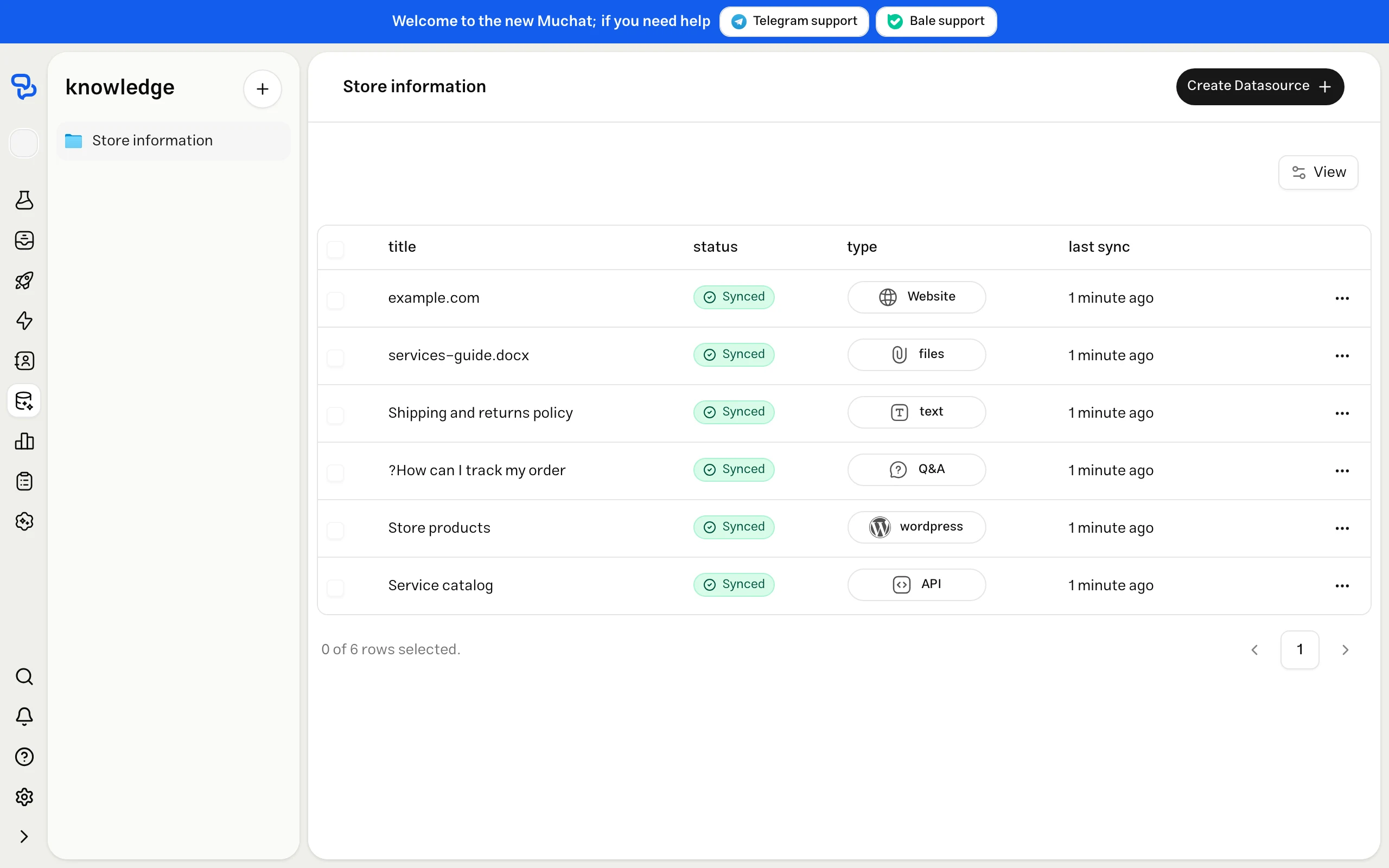
The data sources page
Open your MuChat and select Knowledge Base in the sidebar. Choose a knowledge base, or create one if you do not have one yet. Click Create Datasource to open Add source and choose a content type.
Each row in the source list shows its title, status, type and last sync time.
- Knowledge bases in the sidebar: Organize content by topic or purpose. For example, keep service guides and product information in separate knowledge bases.
- Sources with children: Click a website, WordPress or API source to open its pages or items. Use the breadcrumb above the list to return to the previous level.
- Multiple selection: Select the checkboxes beside sources to access available bulk actions, including sync and delete.
- Table customization and pagination: Choose the columns you need and move between pages to view more sources.
- Usage limits: When adding a source, compare character usage or the number of pages and items with your account’s capacity. The upload form also shows the maximum size of each file.
How training works
MuChat retrieves and processes the source’s content, then prepares it for retrieval and answers. Website, WordPress and API sources can contain multiple child sources. Discovering those items and training their content are separate stages.
| Status | Meaning and next step |
|---|---|
| Pending / Pending resync | The request is queued for processing. |
| Fetching links, products, pages, posts or items | MuChat is retrieving the source’s list of content. |
| Running | Content is being processed. Group sources can also show progress for their children. |
| Synced | Processing has completed. For a group source, also check the statuses of its individual pages or items. |
| Unsynced | This source has not been trained yet. Start synchronization when capacity is available. |
| Error | The source is not ready. Open the error details, fix the content or access issue, and sync again. |
| Usage limit reached | The relevant account capacity is full. Review usage, free capacity or change your plan, then try again. |
Adding sources
Choose a source type based on where the information lives: Text for short content, File for existing documents, Website for published pages, Q&A for specific answers, and WordPress or API for content connected to your own systems.
Files
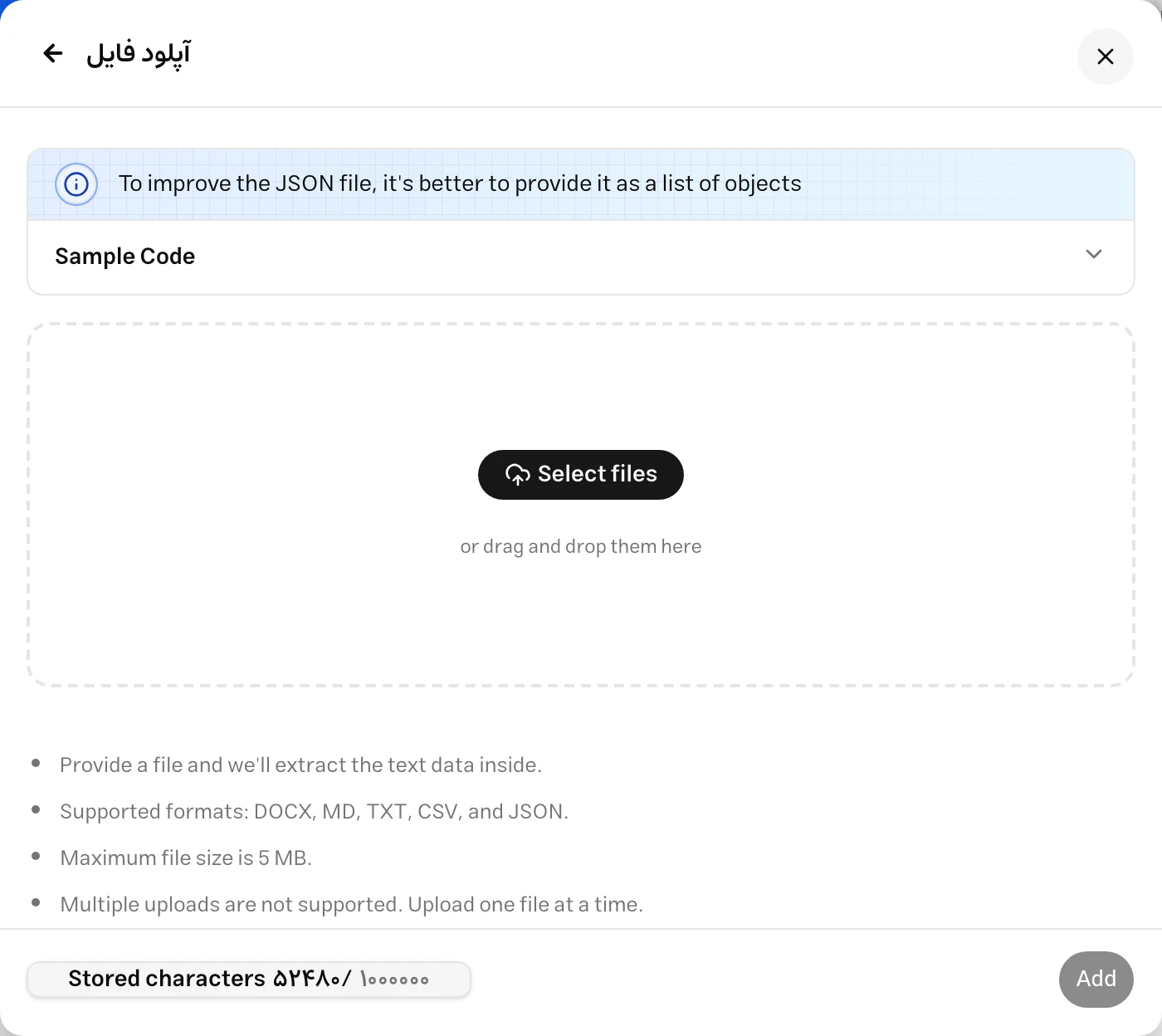
Use File to upload product guides, service descriptions, policies or prepared datasets. The dashboard accepts these formats:
| Format | Use |
|---|---|
DOCX | Text documents and guides written in Word |
MD | Documentation and text structured with Markdown |
TXT | Plain text |
CSV | Tabular data with clear column headings |
JSON | Structured data, preferably an array of objects |
Choose a file
Select File in Add source. Click the file picker or drag a file into the upload area. Upload one file at a time.
Complete the upload
Check the file size limit and stored character usage in the form. Once the upload completes, click Add to create the source.
Check training status
Follow the file’s status in the source list. If processing fails, review its format and content. The file must contain usable text. Convert images or scanned documents to a supported text format before uploading.
Text
Use Text for information that does not need a separate document, such as shipping policies, a service description or internal support guidance. Give the source a descriptive name, then write or paste the information into the content editor.
The editor supports text formatting:
- Headings to separate topics
- Bold, italic, underline and strikethrough
- Numbered and bulleted lists
- Links and the other tools available in the editor toolbar
Keep each source focused on a topic. For example, separate delivery times, order tracking and returns with headings. This makes the source easier to read and maintain while keeping related information together.
When the text is ready, submit it to start training. To make changes later, reopen the source, edit its content and save. You can also manage tags and a related source link in the details view.
Website
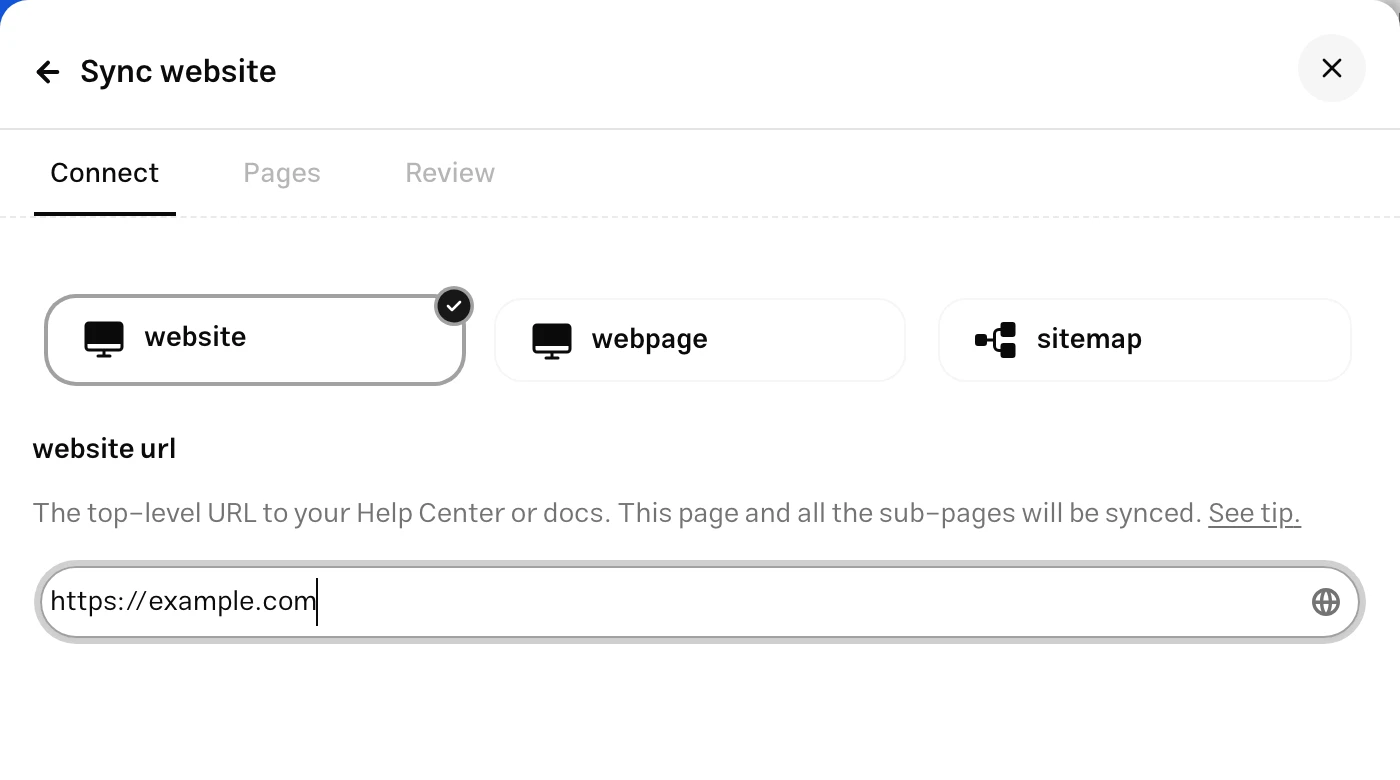
Select Website to add content from accessible pages on your site. The form provides three ways to retrieve pages:
- Website: Enter your site’s address to discover links and choose which pages to include.
- Single link: Provide the exact URL of one page, such as a returns guide. Use this for a specific page.
- Sitemap: Enter a sitemap URL, such as
https://example.com/sitemap.xml, to review and select its links.
Check the address
In Connect, choose a retrieval method, enter the full URL and click Next. Website and sitemap sources move to Pages after discovery. A single link moves directly to review.
Select the pages you need
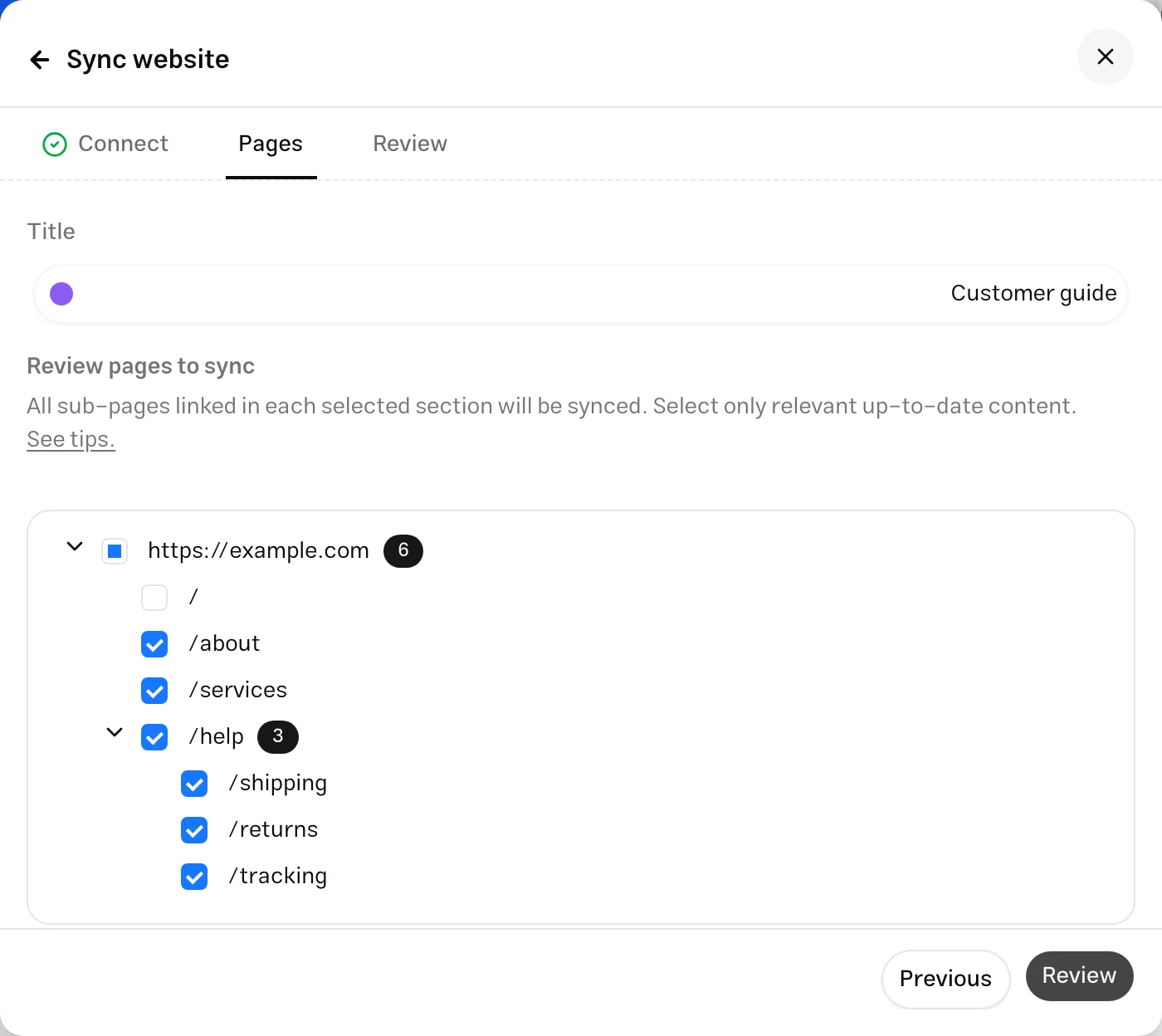
In Pages, review the links and keep the relevant ones. Compare the selected page count and projected usage with your remaining capacity, then click Review.
Create the source
In Review, check the source name, address and page count, then start synchronization. The source appears in the knowledge base while its pages are processed in the background.
Reviewing fetched links
Before creating a source, Pages displays discovered links in a tree. Expand paths such as /help to see their child pages. You can also change the source title at this stage to make it easier to find in the list later.
Selecting a tree section also selects its children. The counter below the tree shows the number of discovered and selected links. If the selection exceeds your account’s capacity, the form shows a limit message. Reduce the selection or increase capacity to continue.
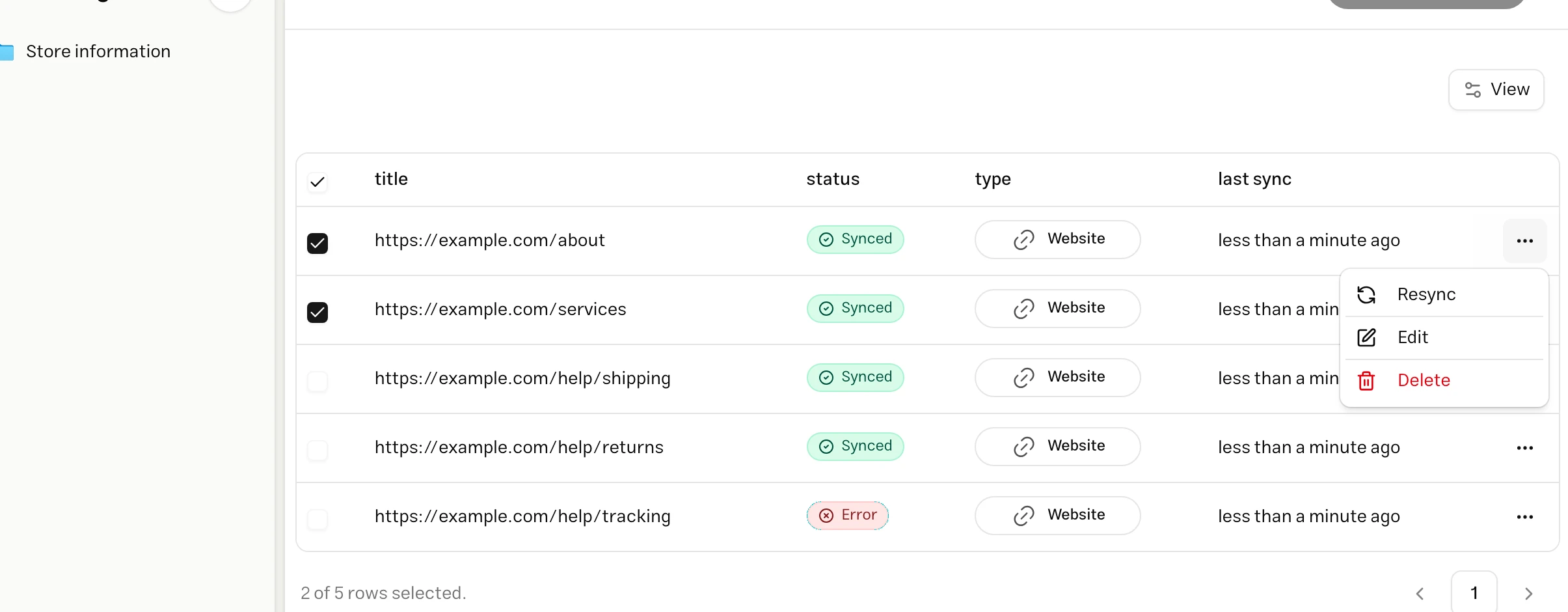
After adding the source, click its row to open its pages. Each page has its own status. If one page fails, inspect and retry that page individually.
Selecting and removing pages
In Pages, clear the checkbox beside any page or section you do not want to import. This defines the content included in that source before it is created.
To remove a page you have already added, open the website’s children and select Delete in that page’s menu. To remove several pages, select their checkboxes and use the bulk action bar. To restore deleted content, add its link again through the website source flow.
Resyncing a website
After changing your site’s content, open the source’s three-dot menu and select Sync. To refresh one page, use the action on that page’s row. For several pages, select them and use Resync in the bulk action bar.
Retrieval and training run in the background. The source first enters the resync queue and shows its updated status when processing finishes. See automatic synchronization for keeping connected content current.
Choosing URLs and troubleshooting
Use the retrieval method and page selection to define the scope of a website source. If link discovery or page training does not complete, check the following:
| Issue | What to check |
|---|---|
| No links are found | Open the site or sitemap URL in a browser. If the sitemap was not found, provide its exact URL or add a single page. |
| Only some pages fail | Open the website’s children, inspect the failed page and its error, and check access to that URL. |
| The site requires login or access verification | Use content accessible for retrieval. You can upload a file or add text for internal information. |
| Content is missing or incomplete | Check server access restrictions and bot protection. If the content cannot be retrieved, add a text version using a file or text source. |
| The page count exceeds capacity | Select the essential pages or increase your account’s capacity first. |
Q&A
Choose Q&A for topics with specific, maintainable answers, such as order tracking, terms of use or service policies. Add individual pairs manually or import several pairs from a file.
Write a clear question
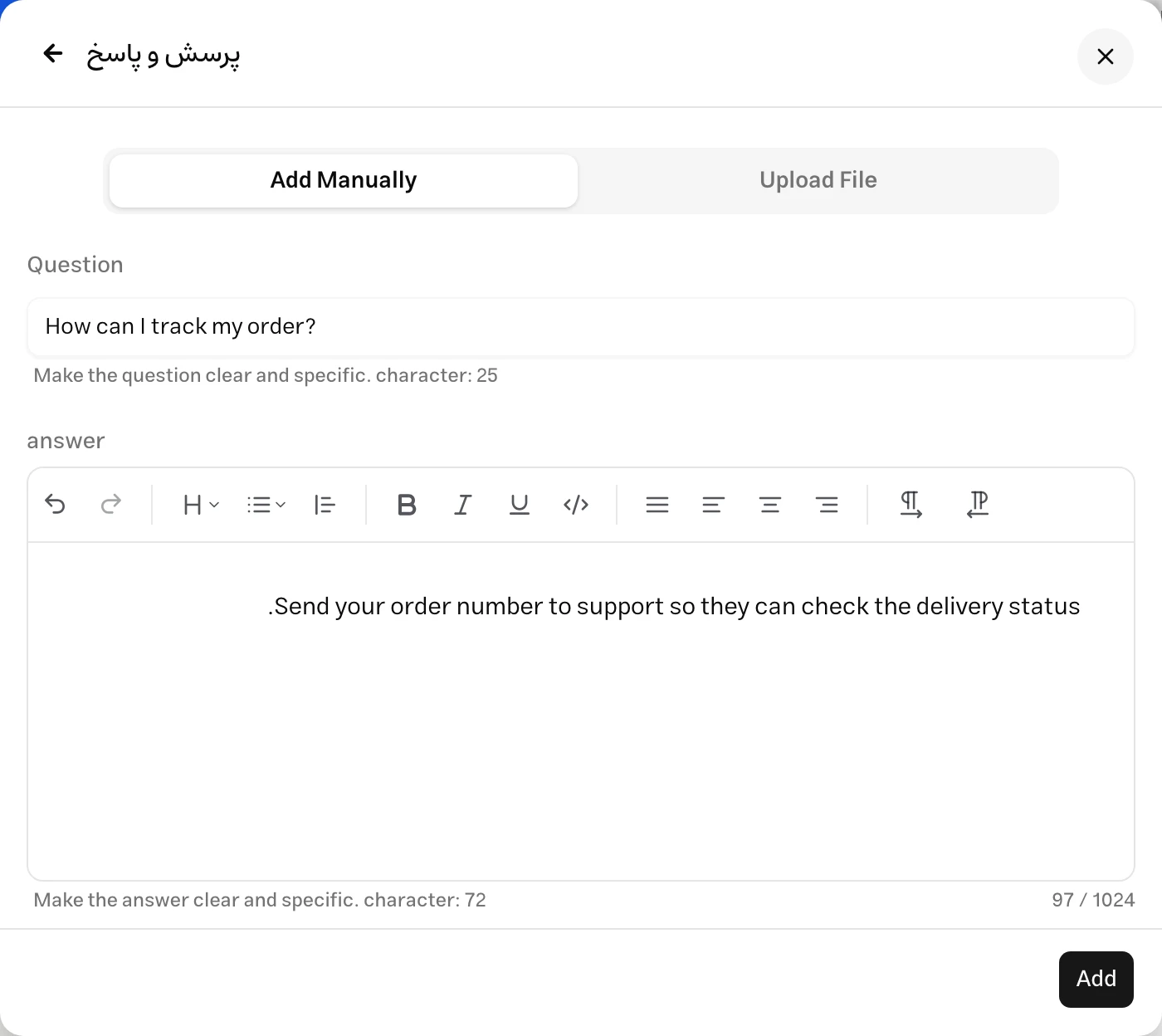
In Add Manually, enter the question. Focus each entry on one question; its source title is generated from the question.
Complete the answer
Write the information needed to answer the question. Answers support the formatted editor. The manual form allows a maximum of 1,024 characters across the question and answer combined, with a counter showing current usage.
Submit the Q&A pair
Submit the pair and follow its training status in the list. You can manage tags and a related link later in the source’s details view. Once training finishes, try different phrasings of the question in the Playground.
Importing Q&A in bulk
Select Upload File in the same panel. Use a CSV file containing question and answer columns. Download the sample provided in the form as a starting point. Each row represents one question and its answer.
question,answer
How can I track my order?,Send your order number to support.
Can I get an invoice?,Contact support to request an invoice.
Keep the column headings unchanged and complete both fields in every row. Save text using UTF-8 encoding. The form displays the file size limit and accepts one file per upload.
After upload and submission, valid rows become Q&A sources. To update an answer, open its entry in the list. Upload a new file to add a new collection; uploading the same file again should not be treated as an automatic replacement of existing Q&A sources.
Reviewing and updating Q&A
Click a Q&A source to view and edit its question, answer and tags. The details panel also shows creation and modification dates and source data statistics.
To find unanswered questions or incomplete answers, review conversations in Inbox. Update an existing answer or add a new source with the missing information, then check the result again in the Playground.
WordPress
The WordPress source retrieves products, pages and posts through the MuChat plugin. For a WooCommerce store, this lets you choose both the content type and the product stock scope.
Prepare the plugin and connection
Install and activate the MuChat plugin on your WordPress site, then complete its connection to MuChat. Choose WordPress in Add source, enter your site’s base URL and click Next to check the connection. The plugin installation option in the form opens the plugin’s page.
Choose a content type
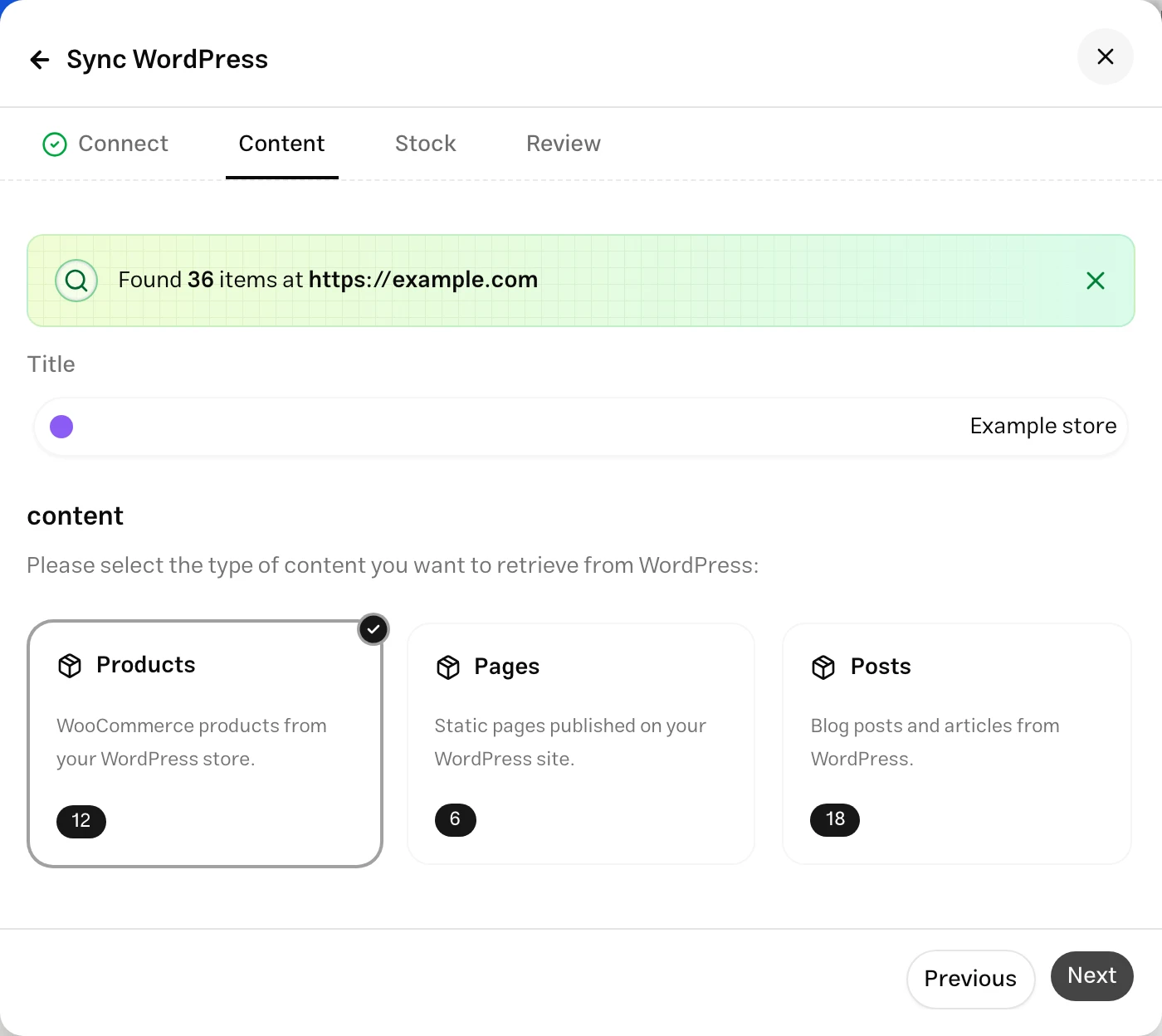
In Content, choose Products, Pages or Posts. The form shows the count and availability of each type. To import another content type, create another WordPress source using the same site address.
Check stock selection and capacity
For Products, choose In-stock products or All products in the stock step. Stock filtering is available when the site provides that information. Pages and posts move directly to the final review.
Start synchronization
Review the selected count and your account’s capacity, then click Sync WordPress. Open the WordPress source in the list to see the individual status of each product, page or post.
Connecting an API
Choose API when information lives in your own application, catalog or internal system. MuChat retrieves structured data from the URL you provide and adds its items to the knowledge base. Access to this source type depends on your account’s features.
Enter the source URL
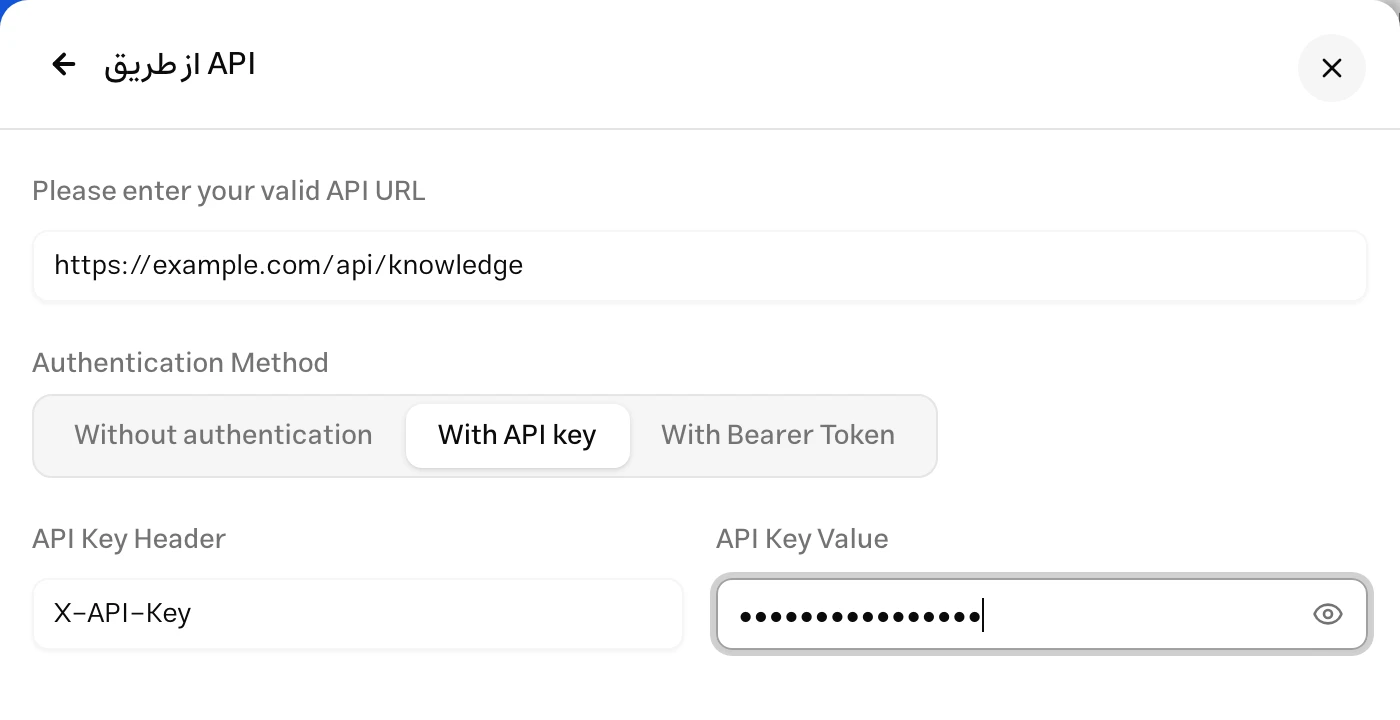
Enter the full API URL. It must return JSON compatible with MuChat’s source format and be reachable from MuChat’s servers.
Configure authentication
Choose Without authentication, API Key or Bearer Token. For an API key, provide the header name, such as X-API-Key, and its value. For Bearer authentication, enter the token value.
Validate and retrieve data
Submit the form to check the connection. MuChat validates the response format, pagination, ordering and date filtering. If validation succeeds, it creates the source. Follow item statuses inside the API source’s children.
Return a JSON object containing an items array and an integer total_count. Each item needs a stable id, a nonempty title and a date_modified timestamp. Use the exact UTC format with milliseconds, such as 2026-10-20T09:30:00.000Z.
Put the content to train on in the item’s fields, for example description for a service description and url for its related link:
{
  "items": [
    {
      "id": "service-1",
      "title": "Order tracking guide",
      "description": "Send your order number to support to track your delivery.",
      "url": "https://example.com/help/tracking",
      "date_modified": "2026-10-20T09:30:00.000Z"
    },
    {
      "id": "service-2",
      "title": "Invoice requests",
      "description": "Contact support to request an invoice.",
      "url": "https://example.com/help/invoice",
      "date_modified": "2026-10-20T10:00:00.000Z"
    }
  ],
  "total_count": 2
}
These query parameters must also affect the response:
| Parameter | Required behavior |
|---|---|
take | Limit the number of returned items. |
skip | Skip the specified number of items at the beginning of the result. |
order_by=date_modified,id | Provide stable ordering by modification time, then ID. |
order=ASC and order=DESC | Apply ascending and descending ordering. |
modified_after | Return only items modified strictly after the given timestamp, and calculate total_count for the filtered result. |
Have at least 2 items available during validation. MuChat checks requests for two items and pagination between them. Update date_modified whenever content changes so the next sync can detect the update.
Other content sources
Notion and Google Drive are currently disabled in the source picker. To use their content, upload an export in a supported file format or add the relevant text as a text source.
For knowledge learned from support tickets, turn the final, generally useful answer into Text or Q&A. Describe the issue and verified solution clearly instead of importing the complete conversation history, so the resulting source stays maintainable.
Managing sources
Preview and metadata
Click a source to open its content and details panel. For a group source, first open its children, then choose the page or item.
- Text: Edit the name, content, tags and related link.
- Q&A: Update the question, answer, tags and related link.
- File: Change its name and tags or download the original file. Upload a revised version to change the document’s content.
- Web page: Read the retrieved content and edit tags. Change the page’s text on the original website, then sync it again.
- WordPress and API items: Inspect retrieved content. Make content changes in the connected site or system, then resynchronize.
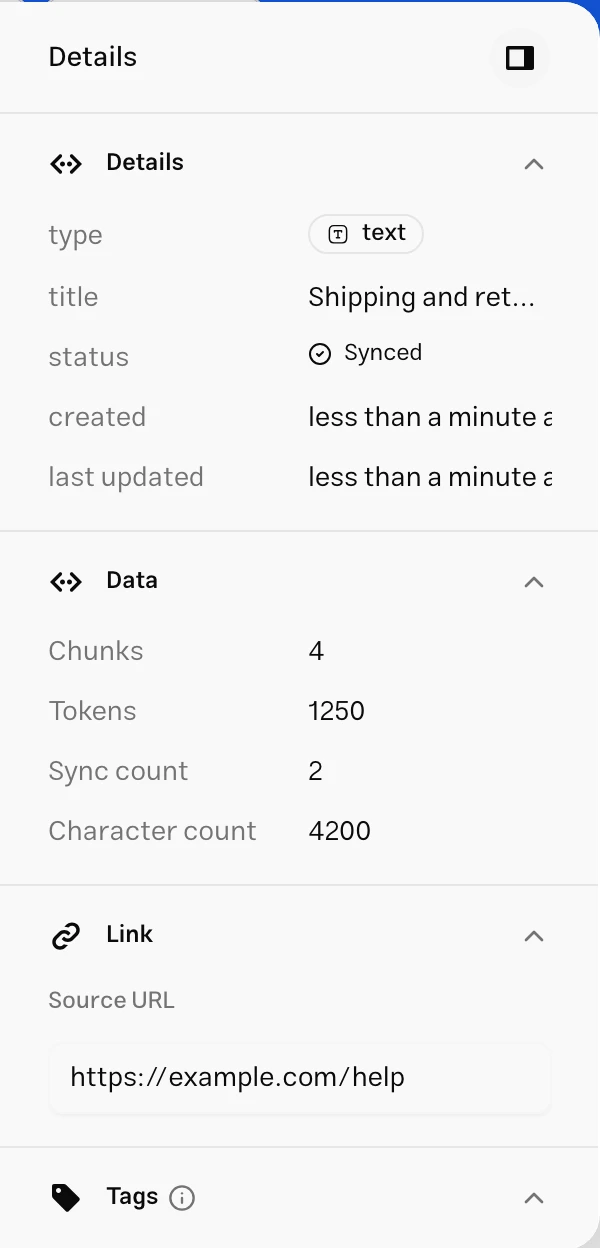
The Details panel shows the source type and status, creation and modification times, character count, tokens, chunks and sync count. A chunk is a portion of text prepared for retrieval; a token is a unit of model text processing. These statistics are separate from the file size limit.
After editing text or Q&A, save your changes and wait for processing to finish. Changing a name or tag alone does not retrieve fresh content from a website or file.
Deleting sources
- One source: Select Delete from its row’s three-dot menu and confirm.
- Several sources: Select their checkboxes and use Delete in the bulk action bar. The operation result shows which items were deleted and which need attention.
- A group: Deleting a website, WordPress or API source also deletes its children. To remove only one page or item, open the group first.
Each bulk request accepts up to 100 sources. Available actions depend on each source’s type and status. Some actions are temporarily disabled during processing.
Saving copies of your sources
Keep the original content so you can edit or reimport it. The right approach depends on the source type:
| Source | How to keep and update a copy |
|---|---|
| File | Open the source and use Download to retrieve the original file. Add a revised version through the file upload flow. |
| Text | View and edit content in the editor, and keep a reference copy in your own internal document. |
| Q&A | Edit existing answers in the dashboard and retain the original CSV for your collection. |
| Website, WordPress and API | Edit content in the connected site or system, then synchronize the source. |
The file source’s download action retrieves the original document. Bulk export of sources to ZIP or Excel is not available here.
Sharing knowledge bases
When several MuChats need the same information, open the existing knowledge base’s settings. Choose the relevant MuChats in the agent selection section and save. A knowledge base must remain connected to at least one MuChat.
Editing its sources updates the shared information for all connected MuChats. If you remove the current MuChat from the selection, the knowledge base disappears from its list. Before deleting a shared knowledge base, check the effect on every connected MuChat.
Auto-resync
Uploaded files, text and Q&A are stored copies of content. Changing a document on your computer or the original CSV does not update the stored source. Edit it in MuChat or upload a new version.
Website, WordPress and API sources connect to content outside MuChat. When automatic synchronization is enabled for your account, connected sources are checked again using these default intervals:
| Source type | Default interval | What is updated |
|---|---|---|
| Website | Once a day | Content at the URLs selected for that source |
| WordPress | Every 30 minutes | The selected content type, within the source’s scope and filters |
| API | Every 60 minutes | New and modified items based on the API response and date_modified |
Scheduled work runs in the background. Completion time depends on the processing queue, content volume and source availability. Feature access, subscription status and remaining capacity also affect synchronization.
A website source rereads the URLs selected for it. Add newly published pages through the source creation flow. For WordPress and API sources, new item retrieval depends on the selected content type, filters and connection contract. Keep each API item’s modification timestamp accurate.