Actions
Actions Overview
Connect Muchat to your APIs and workflows, collect information, and hand conversations to your support team.
Overview
Actions let Muchat do work during a conversation: retrieve current information from an API, save customer details, present a form, or request a human operator.
Use the knowledge base to answer questions from your own content. Add an action when the answer depends on live information or a task that needs to be performed.
When are actions useful?
When a customer asks “What is my order status?”, wants to leave their contact details, or asks to speak with support, Muchat can run the relevant action during the conversation.
Available actions
Open your agent in the Muchat dashboard and select Actions. Select Create action to choose a type:
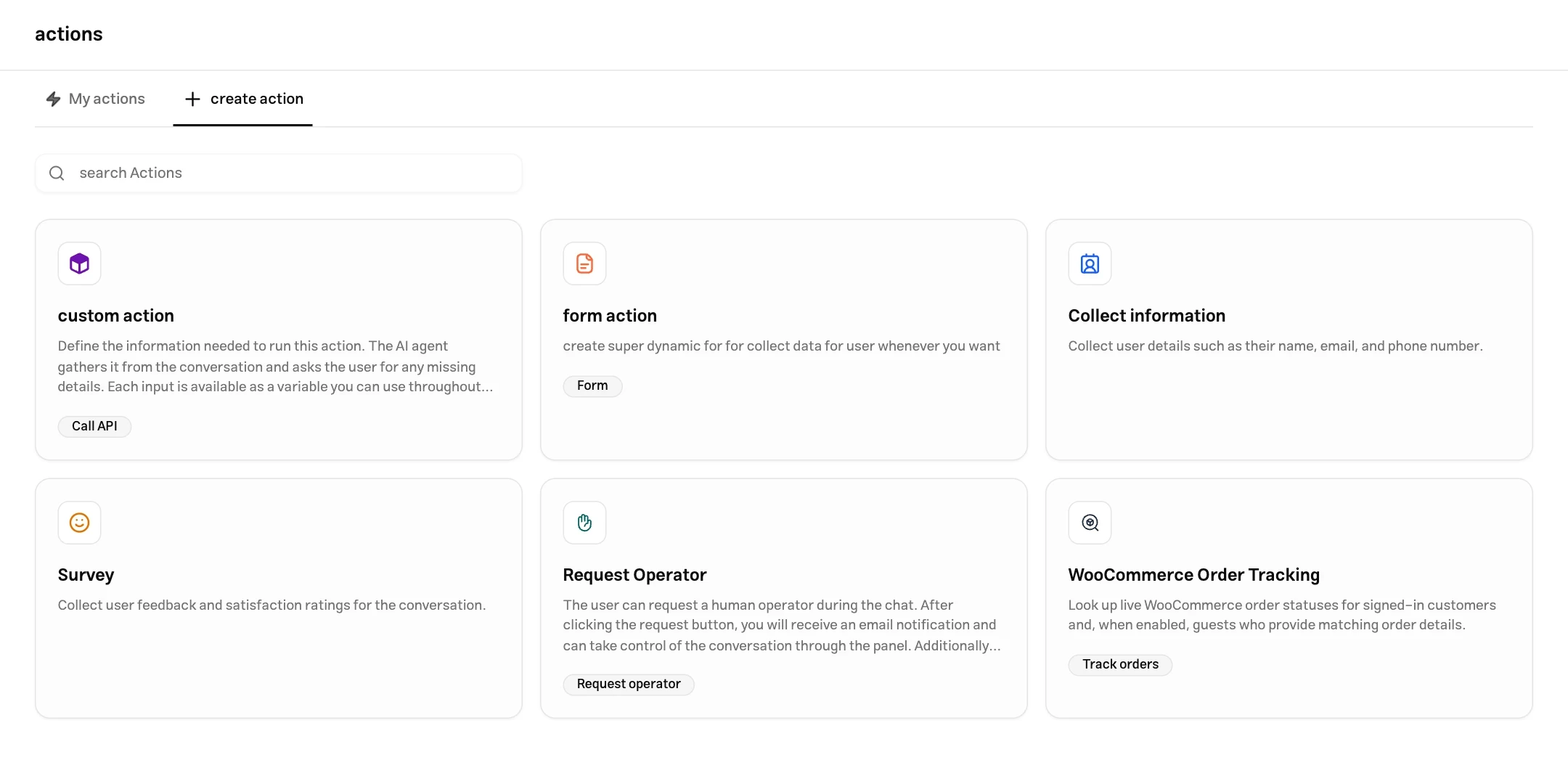
| Action | Purpose |
|---|---|
| Request Operator | Recognize the need for support from the conversation with no request button, and control bot behavior until pickup |
| custom action | Call your API and use its response in the conversation |
| Collect information | Collect names, email addresses, phone numbers, and additional answers with the lead form |
| form action | Collect structured information with a form and a defined trigger |
| Survey | Collect satisfaction scores and feedback after a conversation is resolved |
| WooCommerce Order Tracking | Retrieve order status from a connected store after verifying order ownership |
How actions run
Actions run in two main ways:
- From customer requests and your instructions: Muchat uses the “When to use” description to choose an action. API calls, support requests, and order tracking work this way. Forms can also run from a specific instruction.
- At a defined point in the conversation: Display a form before the conversation or after a specified number of customer messages. The satisfaction survey runs when the conversation is resolved.
Describe what the action does, when it is needed, and which information it requires. For example, “When a customer asks about an order, collect the order number and retrieve its current status” is more useful than “Check orders.”
For Request Operator, customers can describe what they need in the conversation, such as “I want to speak with support.” Muchat uses the meaning of the messages and your action conditions to decide when to register the request. No separate button or special command is needed.
Manage actions
Configure the action
Choose an action type and follow its guide. Set the inputs, form, and trigger to match the task you want to perform.
Check that it is enabled
Find the action in My Actions. You can edit, enable, or disable it from this list.
Test a realistic request
Start a conversation with the relevant conditions in the Playground. Check the action call and result. For forms and order tracking, also test the complete flow on the channel you will use.
Channels
The channel also determines the action experience. Forms appear inside the conversation in the website widget and dedicated page; messaging channels can collect form answers through messages. End-of-conversation surveys are sent as form links on messaging channels.
Test WooCommerce order tracking in the connected store’s widget so customer identification and the conversation’s store context are checked as well. Each action guide explains its behavior. See Channels to set up a channel.