AI Agent Management
Channels
Make your Muchat agent available on your website, a dedicated page, and messaging platforms, and manage each channel’s appearance and connection.
Overview
Use Deploy to set up and manage the ways people reach your Muchat agent: a website widget, a dedicated page, messaging platforms, and connections to other tools.
You can enable one or several channels at the same time. Each channel has its own connection and active status; the website widget and dedicated page also have independent appearance settings. Manage the agent’s model, instructions, and actions in the Laboratory.
What you can do
Make one agent available in several places: add a floating chat to your website, share a standalone conversation link, and connect the messaging platforms you need.
Open your agent in the dashboard and select Deploy. The All Channels page shows a card for each channel:
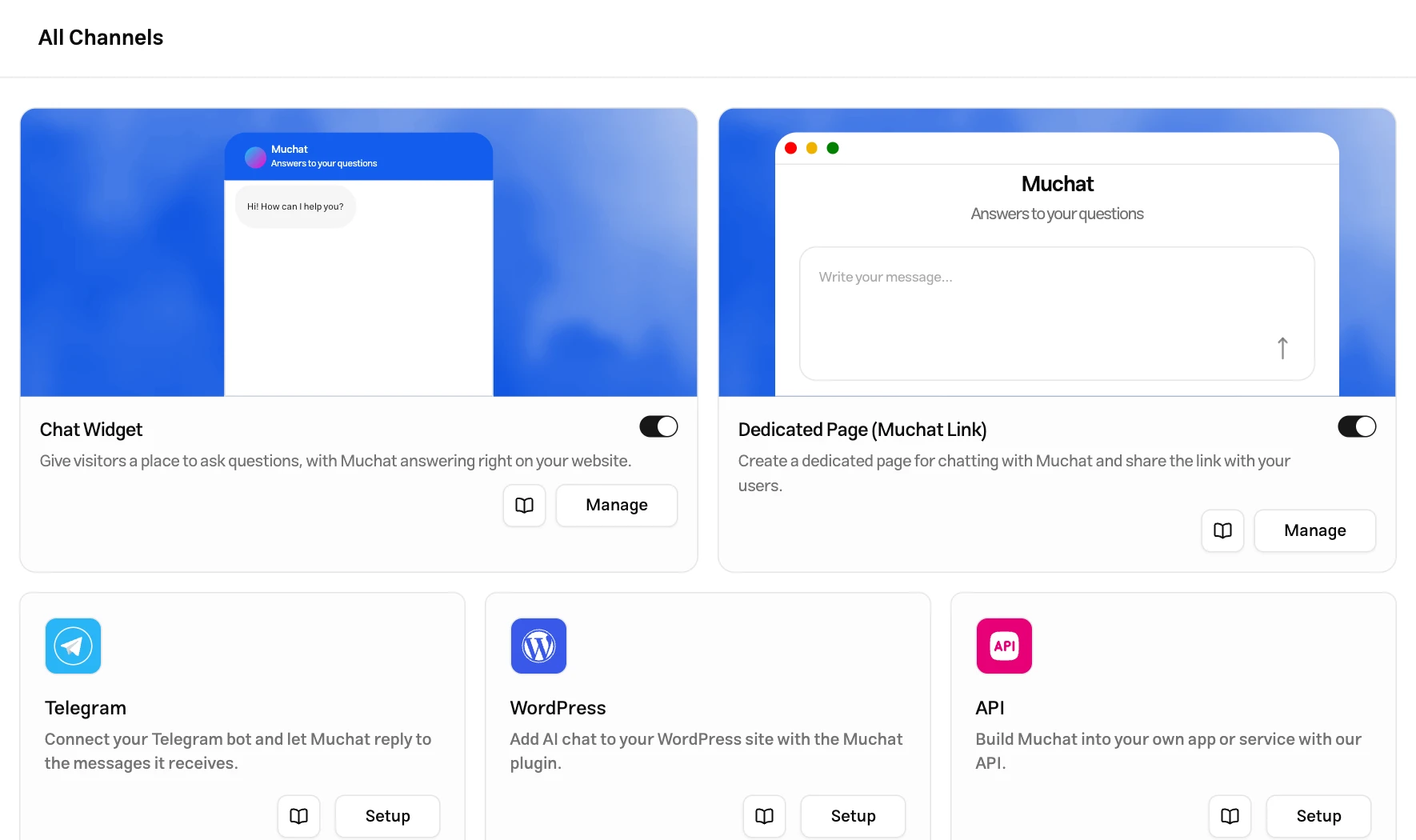
| Card status | What to do |
|---|---|
| Setup | The channel has no connection yet. Select the button and follow the connection steps. |
| Manage | A connection exists. Review or edit its settings and status. |
| Upgrade Account | Your plan does not include this channel. The upgrade dialog shows the required plan. |
Available channels
| Channel | What it is |
|---|---|
| Chat Widget | A floating website chat, with an iframe option for embedding the conversation inside a page |
| Dedicated Page (Muchat Link) | A standalone conversation page whose link you can share with users |
| Telegram | Respond through a Telegram bot |
| WordPress | Connect your site through the Muchat plugin and show the widget on WordPress |
| API | Connect the conversation to your own application or service |
| Bale | Connect a Bale bot or a Bale account |
| Connect a WhatsApp account to receive and answer messages | |
| Respond to direct messages on an Instagram professional account | |
| Eitaa | Connect an Eitaa account to chat with users |
| Rubika | Connect a Rubika account to chat with users |
| Goftino | Connect the agent to Goftino live chat |
Chat Widget
The Chat Widget adds a conversation window to your website so visitors can ask questions without leaving the page. Visitors usually open it with a floating button; an iframe lets you place the conversation in a fixed section of the page instead.
Enable the chat widget
Open the widget settings
In Deploy, select Setup or Manage on the Chat Widget card.
Configure and save its appearance
Adjust the display sections for your website and select Save. The preview shows your appearance changes.
Enable the channel and get the installation code
Turn on the switch beside Chat Widget. Above the preview, select Deploy, then Website widget or Inline chat (iframe). Add the code for your chosen method to your site.
Installation steps and copyable examples are available in Chat bubble installation and Iframe installation.
Chat widget settings
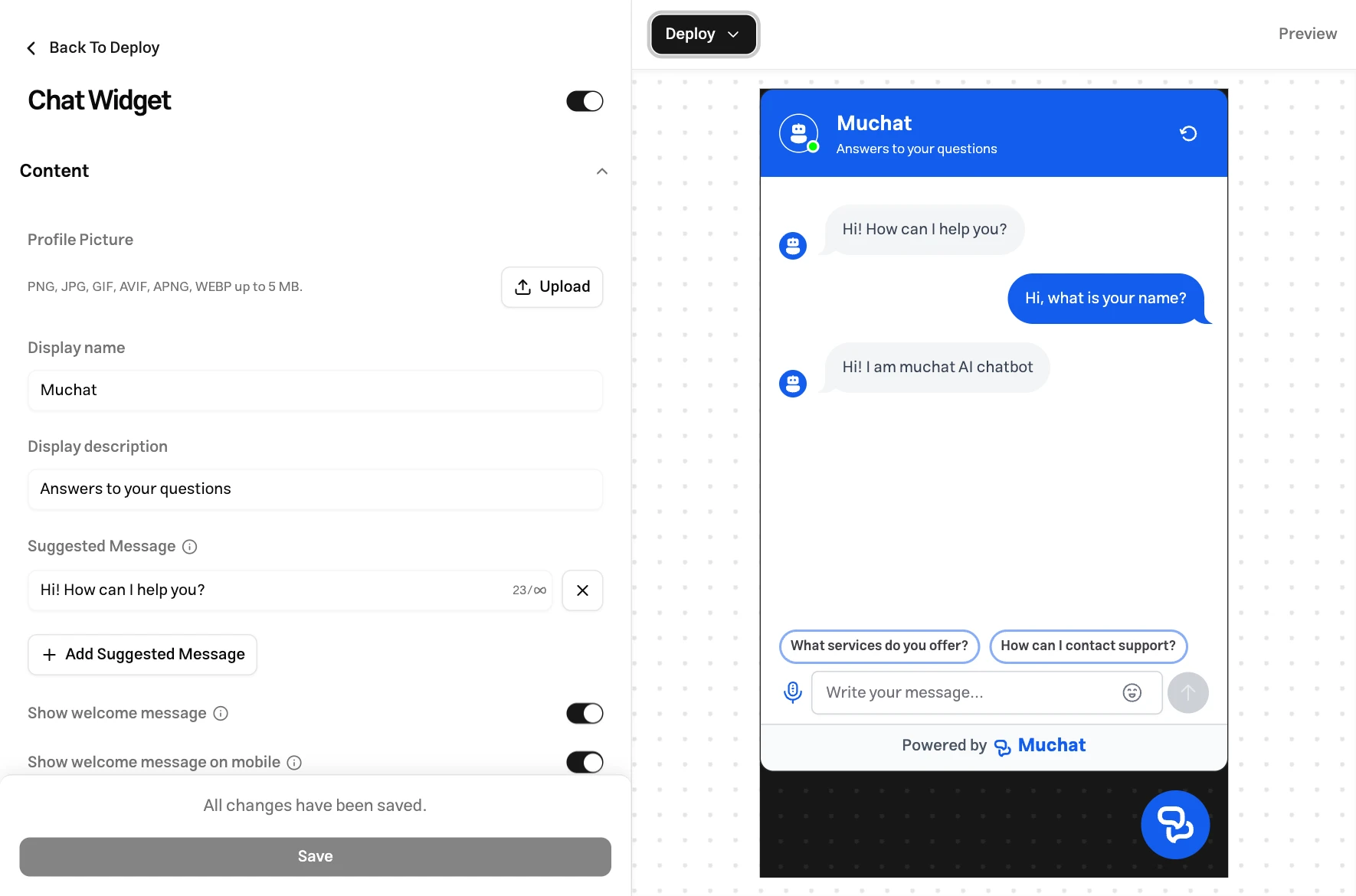
Display settings are organized into six expandable sections. On desktop, the preview sits beside the settings; on mobile, switch between Display and Preview.
| Section | What it controls |
|---|---|
| Content | Picture, name, description, initial messages, input placeholder, and suggested questions |
| Capabilities | Voice messages, starting a new conversation, source display, and branding removal |
| Style | Light or dark appearance and the primary color |
| Typography | The font used in the widget |
| Floating bubble | Position, edge offsets, icon, launcher, and mobile visibility |
| Language | The conversation interface language |
Content
- Profile Picture: The picture that represents your agent in the conversation. This is separate from the floating button’s icon. Upload a
PNG,JPG,GIF,AVIF,APNG, orWebPimage up to 5 MB. - Display name: The name at the top of the conversation window. Leave it blank to use the agent’s name.
- Display description: A short introduction to your agent.
- Suggested Message: The initial messages shown at the start of a conversation. Add up to 4 messages, keeping them concise and relevant to the agent’s purpose.
- Show welcome message: Controls the small initial-message pop-up beside the floating button. Mobile visibility has a separate switch; turning off the main option also turns off the mobile pop-up.
- Input Placeholder: The text shown in the message field before the visitor types.
- Default questions: Common questions that help users get started. Enter each on a separate line; selecting a question sends it as a message.
Capabilities
- Send voice message: Lets visitors record and send a message with their microphone. The recording is transcribed for the agent to answer; access depends on your plan.
- Can reset chat: Shows the restart button in the conversation header. Selecting it creates a new guest session: previous messages and conversation state are cleared from the widget, and the visitor starts again. If a startup or lead collection form is enabled, they must complete it again.
- Show sources: Displays the sources used for an answer when available.
- Remove brand: Removes Muchat branding from the widget. If unavailable on your account, the option shows the required plan or add-on.
To continue the same topic, visitors should send their next message in the current conversation. Closing the window only hides the widget; it does not restart the conversation. Restarting also leaves the recorded history in the Muchat inbox intact.
In a widget where the signed-in user’s identity has been verified with a JWT, guest-session reset is unavailable; their verified identity and conversation are preserved.
Why ending a chat matters
When a request has been handled, an operator can select Resolve conversation in the inbox. Ending the conversation gives that request a clear boundary:
- Reports reflect the request’s actual status. An open conversation is not counted as resolved in the same way as an ended conversation.
- Handling time can be measured. Recording the closing time makes it possible to calculate handling and resolution time.
- End-of-conversation forms run. If you configured a form such as a satisfaction survey for the conversation-ended event, it appears at this stage.
Closing the widget window or restarting as a visitor does not mark the conversation as resolved in the inbox.
Style
- Light or Dark: Choose the widget’s appearance.
- Primary color: Match the conversation interface to your brand or website. Use the reset control beside the color to restore the default.
Check text and button readability in the preview after selecting a color.
Typography
Under Widget font, choose Estedad or Yekan Bakh. Review short and long messages in the preview to check readability and line spacing.
Floating bubble
- Widget Position: Place the floating button on the left or right side of the page.
- Desktop alignment: Set horizontal and vertical offsets from the page edges.
- Chat icon: The image on the floating button visitors use to open the conversation. It supports the same image formats and 5 MB size limit as the profile picture.
- Widget Launcher: Default shows Muchat’s built-in button. Custom uses your own website button connected to the widget’s open method; this requires coding.
- Show chat widget on mobile: Enable or disable the widget on mobile devices. When enabled, you can set separate horizontal and vertical mobile offsets.
Language
Choose Persian, English, or Arabic for the conversation interface. This controls the language of interface text and controls. Write your own initial messages, display name, and default questions in the appropriate language.
Also configure the agent’s instructions to set its response language. On a multilingual website, you can change the widget interface language through your site’s code.
Attachments
Visitors can send images, files, or voice messages in a conversation. Depending on the attachment type, Muchat processes it for the response or saves it in the conversation.
Supported formats
| Attachment | Agent behavior |
|---|---|
Static JPEG, PNG, WebP, or GIF image | The agent can analyze it if the selected model supports images. |
| Recorded voice message | When voice is enabled, the recording is transcribed and the agent responds to the text. |
Files such as PDF, Word, Excel, and animated images | The file is saved in the conversation, but its contents are not read to generate the AI response. |
Limits
These limits apply to the Chat Widget and dedicated page:
| Limit | Value |
|---|---|
| Attachments per message | 1 file |
| File size on Discovery | Up to 1 MB |
| File size on Growth | Up to 5 MB |
| File size on Professional | Up to 10 MB |
| File size on Advanced and Enterprise | Up to 15 MB |
| Voice recording duration in the widget and dedicated page | Up to 60 seconds |
| Image dimensions for processing | Up to 40 megapixels |
The attachment button’s tooltip also shows the maximum file size. Wait for the upload to finish before sending the message. A file exceeding the size limit cannot be sent; choose a smaller file to continue.
Deploy button
The Deploy button above the preview opens installation code and website access settings:
| Method | When to use it |
|---|---|
| Website widget | A floating button for quick access to chat across your website |
| Inline chat (iframe) | A conversation that stays visible inside a page section, with your chosen width and height |
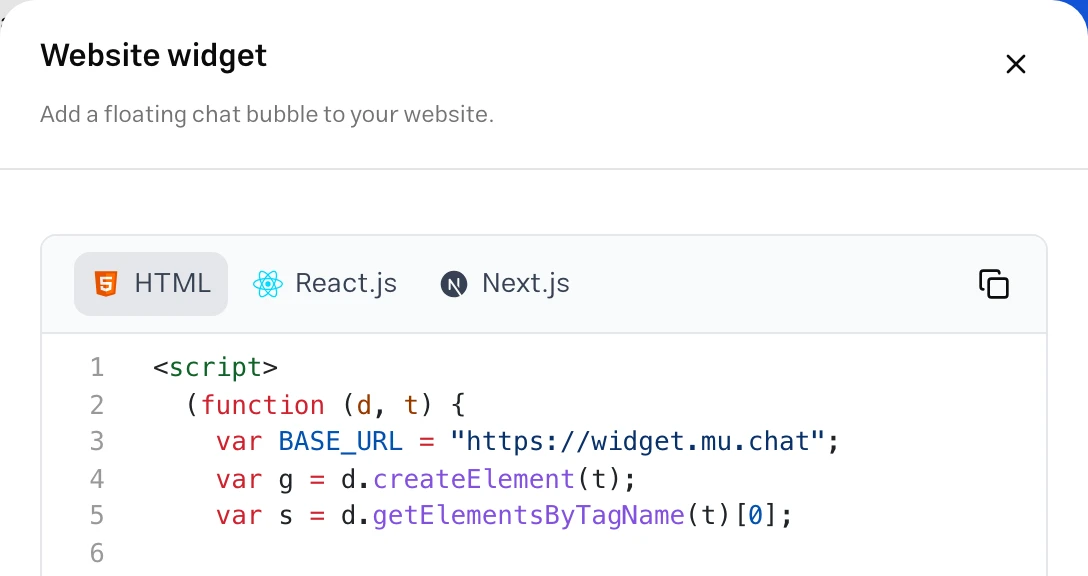
In the installation panel, configure Allowed Domains, control direct-link access, and restrict the conversation to authenticated users. Enter each allowed origin with its protocol on a separate line, such as https://example.com or https://*.example.com for subdomains. Select Save to apply changes in this panel as well.
After installation, open your site and check the floating button, conversation window, and response to a question on desktop and mobile. For authentication and installation code, see Website integration.
Dedicated Page (Muchat Link)
The dedicated page is a standalone page for chatting with your agent. Use it to share a conversation link without installing a widget on a website.
Publish the dedicated page
Open the dedicated page
In Deploy, find Dedicated Page (Muchat Link) and select Setup or Manage.
Prepare the content and appearance
Edit the name, description, initial messages, and other display settings. Use the preview to review different screen sizes.
Publish and open the link
Select Publish. In the publishing panel, review Page URL. If you change it, wait for the availability check and select Save. Then use Visit Pages to open the final link and test the conversation.
Dedicated page display
| Section | Settings |
|---|---|
| Content | Profile picture, name, description, initial messages, input placeholder, and default questions |
| Capabilities | Voice messages, starting a new conversation, source display, and branding removal, subject to account access |
| Style | Light or dark appearance and the primary color |
| Typography | Estedad or Yekan Bakh font |
| Socials | TikTok, Instagram, X, YouTube, GitHub, and website links |
| Language | Persian, English, or Arabic for the page interface |
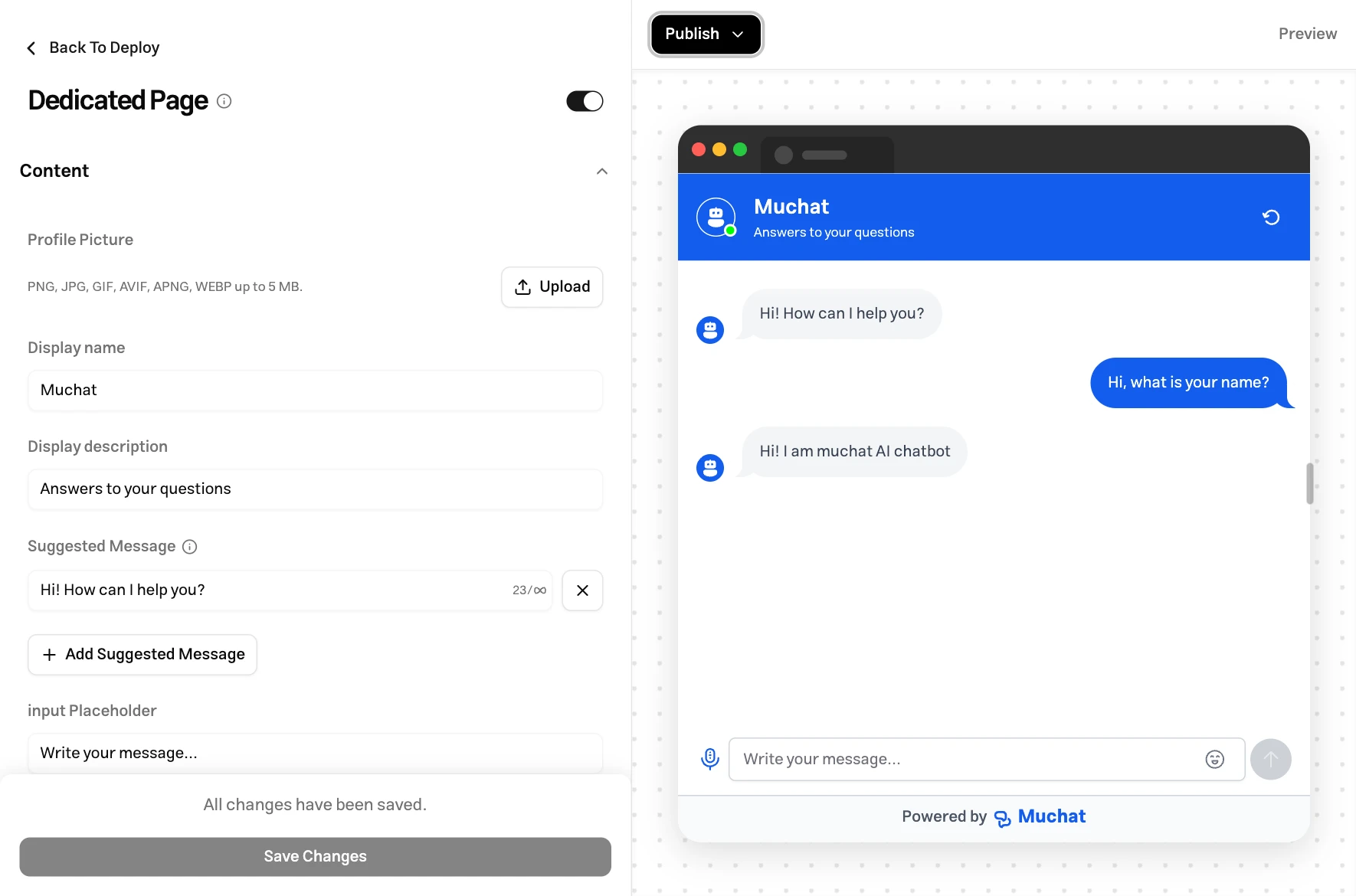
These settings belong to the dedicated page. Select Save after editing them. The attachment processing limits also apply here.
Page URL and access
The public URL has this format. YOUR_SLUG is the editable part of Page URL in the dashboard:
https://widget.mu.chat/standalone?slug=YOUR_SLUG
Copy the final link from the dashboard when sharing it. If you change the URL, update any links you previously sent to users. To stop access, turn off the dedicated page’s active switch.
Messaging and third-party channels
Each card opens the connection settings for that service. On All Channels, choose the service and follow its connection steps:
| Channel | Connection and purpose |
|---|---|
| Telegram | Enter a bot token so users can chat with the agent through that bot. |
| WordPress | Connect the Muchat plugin to your site and review connection status in the dashboard. To add site content to the agent’s knowledge, see WordPress data sources. |
| API | Manage the channel’s access key to connect your application to the agent. |
| Bale | Use Bale bot with a token, or Bale account by signing in to an account. |
| Connect a WhatsApp account by scanning the connection code. | |
| Use the official Instagram sign-in to connect a professional account and grant messaging access. This connection handles direct messages; it does not include post management or comment replies. | |
| Eitaa and Rubika | Sign in with the account’s phone number and verification code. Enter the two-step password if requested. |
| Goftino | Enter your Goftino API key so the agent can answer its conversations. |
After connecting, send a message through the service and check both receipt and response.
Best practices
Start with one channel
Launch one channel, learn from real conversations, then add others.
Tailor each channel
Match the website and dedicated page’s names, initial messages, and suggested questions to their purpose.
Test before sharing
Evaluate answers in the Laboratory, then test message delivery and responses in the channel itself.
Match the channel to the purpose
Use the widget for quick website assistance and the dedicated page for sharing a conversation link.