Inbox
Saved Views
Save frequently used Inbox conditions and build lists for your daily support work.
A saved view is a list of conversations matching a set of conditions. Open it from the Inbox menu instead of rebuilding the filters. For example, create a view for unread conversations or conversations with a particular label.
Built-in views
Four views are available by default:
| View | Conversations shown |
|---|---|
| All | The latest thread of every conversation, in every status |
| Assigned to me | Open and pending conversations assigned to you |
| Waiting for an agent | Conversations in the human support queue |
| With AI | Open and pending conversations with the bot active |
Built-in views cannot be edited or deleted. Create a custom view for a different combination of conditions.
For a variation on a built-in view, create a new view with the conditions you need. For example, select your name as the assignee and add an unread condition.
Create a view
Open Add View
In the Inbox menu, select + beside the custom views section to open Add View.
Choose a clear name
Use a short, specific name such as “Unread” or “Follow up.” Names can contain up to 100 characters.
Build the conditions
Choose a field, operator, and value in Query Builder. Combine conditions using AND or OR. See Filters for details.
Save and check
Select Create Inbox View. The view appears in the menu and its list opens. Check that it selects the conversations you intended.
Views created through this form are personal. The current interface does not offer shared-view selection, configurable columns, or favorites.
What is saved?
| Setting | Where it is kept and what it affects |
|---|---|
| Name and filter conditions | Saved on the view and restored when you reopen or edit it |
| All, Open, Closed, or Snoozed status | Remembered in your browser for that personal view; not part of its saved conditions |
| Sort field and direction | Applied to the list while using the Inbox; not saved with the view's name and conditions |
Personal means the view is for your own use, rather than automatically selecting only your assigned conversations. For that list, add an Assignee condition and select your name.
Status and ordering
After creating a view, choose All, Open, Closed, or Snoozed above the list. Your browser remembers the status for that view without changing its saved conditions.
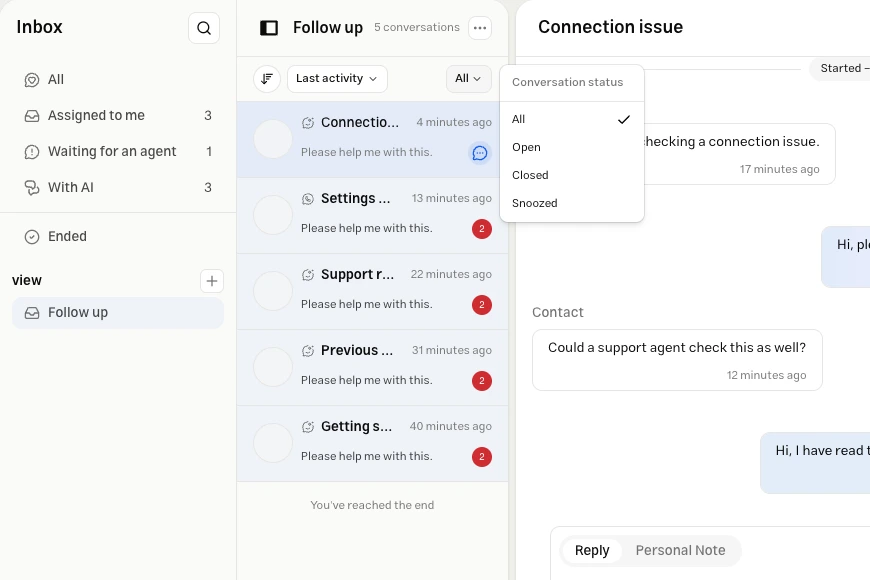
Sort by Creation date or Last activity, ascending or descending. The default is newest activity first. Status and ordering are set in the list toolbar, rather than in the view creation form.
Choose the field from the sort menu, then use the adjacent direction button to switch between Ascending and Descending:
| Field | Direction | Result |
|---|---|---|
| Creation date | Ascending | Threads that began earlier appear first |
| Creation date | Descending | More recently created threads appear first |
| Last activity | Ascending | Conversations inactive for longer appear first |
| Last activity | Descending | Conversations with more recent activity appear first |
Conditions determine which conversations appear; sorting changes only their order. Your chosen ordering stays active when you switch views during the same Inbox session. Check the toolbar when a view needs a particular order.
Edit or delete
Hover over the view and choose Edit from the menu beside its name. Change its name or conditions and select Update View. Removing a condition in the editor also removes it from the saved view. Select Cancel to discard your changes.
Delete removes the view, while keeping its conversations and messages. In the current interface, the view is deleted immediately.
Counters and conversation history
The number beside a view counts matching open and pending conversations. It can differ from the number of rows when the list is set to Closed.
Views evaluate only the latest thread. When a new thread begins, labels and dates on an earlier thread do not determine the current result. Find that thread in the Archive.
Troubleshooting
- If creation fails, check the condition values and the error below Query Builder.
- If the list is empty, select All status first, then check conditions individually.
- Renaming a label in settings keeps its filters linked to that label. Update dependent filters before deleting the label itself.
Tips and practical examples
Build a focused view
Combine channel and date conditions to find the requests relevant to your work.
Example: Channel: WhatsApp AND Created At: (x) days ago, 1, with Open status, for recent requests from the start of yesterday in UTC.
Pair conditions with a sort
Once you have selected the conversations, choose an order that keeps older requests in sight.
Example: Label: Follow up with Open status, sorted by Creation date, ascending, puts older labeled requests first.
Use personal views for your work
Combine assignee and message status to review new messages in your own conversations.
Example: Assignee: your name AND Message status: Unread, with Open status, sorted by Last activity, ascending, puts conversations inactive for longer first.
Keep important requests together
Select High and Urgent in one multi-value condition. Two different priority conditions joined with AND return no results.
Example: Priority: High or Urgent with Open status, sorted by Last activity, descending, puts important conversations with recent activity first.
Opening the latest thread marks messages as read for the team and can remove the conversation from an unread view. Unread does not mean an unanswered request.
To refine a view, start with one condition and All status, inspect the results, then add more conditions. See Filters for date, channel exclusion, and label-combination examples.