Workspace Management
Usage
Review plan and add-on credit usage by agent and time period.
Overview
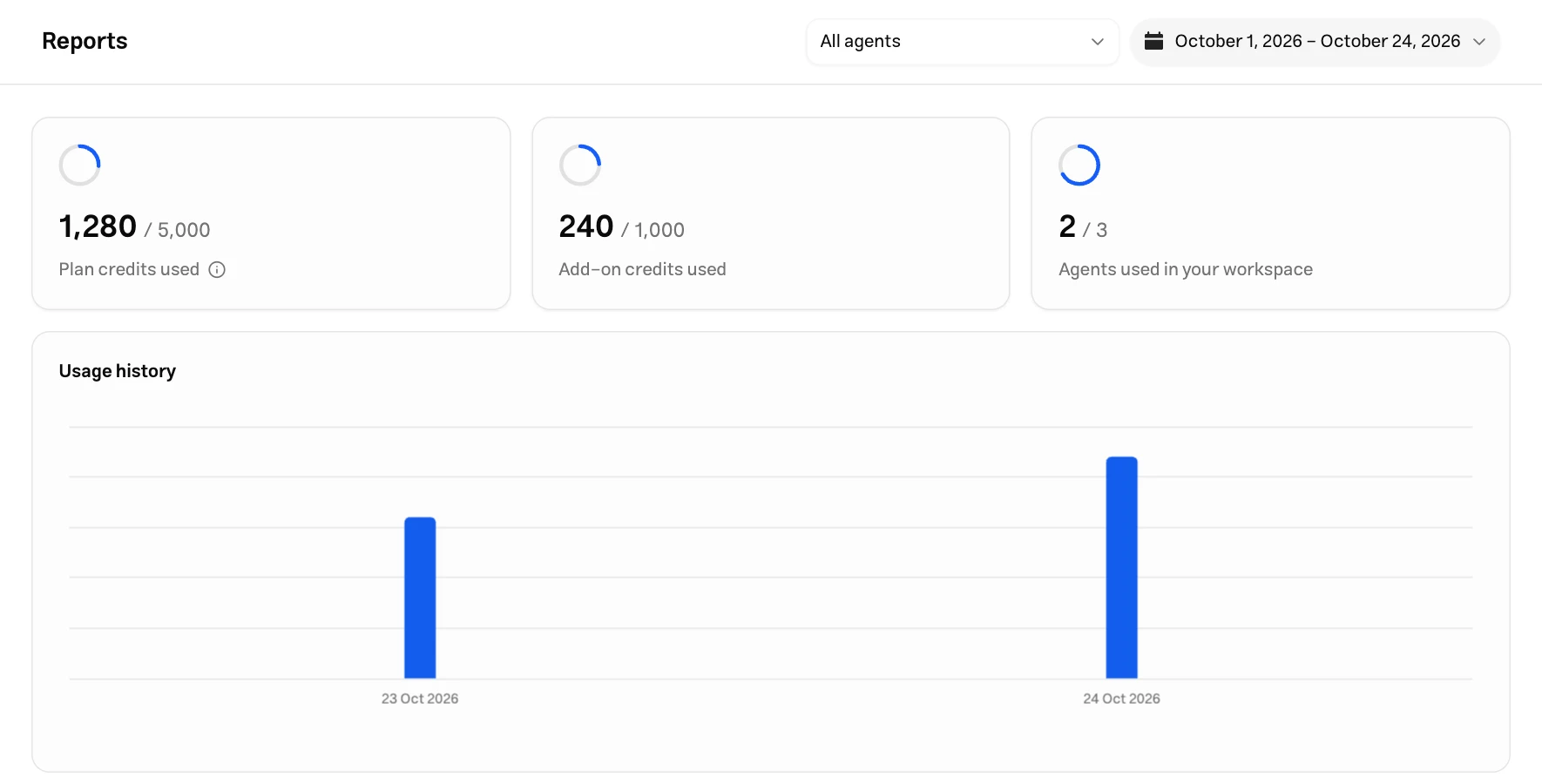
Open Settings → Organization → Reports in the dashboard to see credit usage for the active organization's agents. The default interval runs from the start of the current month through today. You can narrow the report to one agent or a different period.
What you can do
Review plan credits and add-on credits separately, see usage trends, and compare each agent's share.
Configuration
AI agents
Use the All agents dropdown at the top of the page:
| Option | What it shows |
|---|---|
| All agents | All recorded organization usage in the selected interval |
| A specific agent | That agent's usage in the selected interval |
| Deleted agents | Recorded usage from agents no longer in the current list |
Deleting an agent does not remove its past usage from the organization report. Usage that cannot be linked to a specific agent appears as Unattributed usage in the breakdown.
Time interval
Open the date picker next to the agent filter and select a preset such as today or the past week, or choose a custom start and end date in the calendar. The Persian interface uses the Persian calendar and month boundaries; the English interface uses the Gregorian calendar.
Changing the interval updates the credit totals and charts. The report interval does not change your subscription period.
Usage summary
Credits used
Two separate cards are displayed:
- Plan credits used: Credits consumed from your plan allowance during the selected interval.
- Add-on credits used: Credits consumed from purchased credit packs during that interval.
Credits measure AI response usage and are not necessarily equal to the number of conversation messages. Different models can consume different amounts per response; see AI model.
AI agents used
The Agents used in your workspace card shows the current number of agents against total organization capacity. For example, 2 of 3 means you have created two agents and have capacity for three.
This is the organization's current agent count. Changing the date or selecting an agent does not turn it into a count of agents active during that interval.
Usage history
The Usage history chart shows credits consumed during the selected interval. Hover over a bar to see its date and exact usage. Intervals longer than 90 days use monthly aggregation.
If there is no recorded usage for the selected interval, the chart displays an empty state. Change the interval or agent filter to investigate.
Credits used per AI agent
The Credits used per agent chart shows each agent's share of usage in the selected interval. Hover over a segment to see the credit amount. Use this breakdown to identify agents consuming more credits. Click View All to open the complete list.
Usage alert
Muchat creates system alerts for the organization owner when the credit balance drops to 20% and 5% or below, and when credits run out. Delivery methods include email, SMS to a verified number, and web push to connected browsers; each depends on its availability and the account's contact information.
To connect your browser and review contact information, open Settings → Account → Notifications. Credit alerts are system notifications and are not disabled by the optional notification settings.
When the alert is sent
Low-credit alerts are sent to the organization owner as the balance crosses the thresholds above, so they can increase the balance before credits run out.