AI Agent Management
Settings
Manage your agent’s name and image, model and prompt, message limits, labels, and canned responses.
Open your agent in the dashboard and select Settings from its menu. The page has six sections:
| Section | Purpose |
|---|---|
| General | Agent ID, name, image, credits limit message, and agent deletion |
| AI | Model selection and temperature |
| Prompt | Instructions and prompt variables |
| Security | Message rate limits and public or private visibility |
| Labels | Shared labels for organizing conversations |
| Canned responses | Reusable messages for support operators |
For widget appearance, initial messages, and channel connections, open Deploy. Startup forms and data collection are managed in Actions.
General
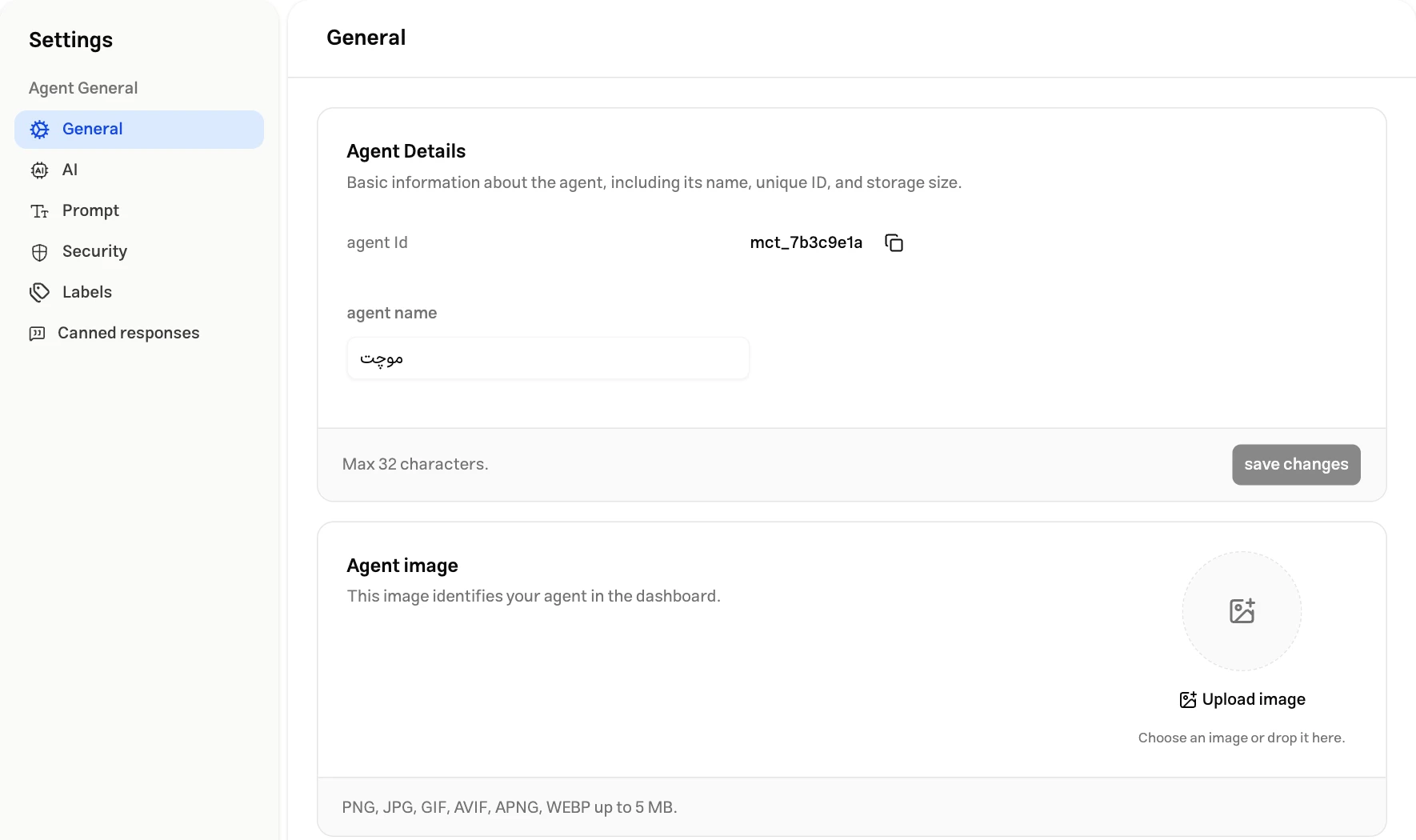
Agent details
The Agent Details card shows the agent’s ID and name:
- Agent ID: The unique identifier for this agent. Use the copy button beside it when you need the ID for an integration or code.
- Agent name: The name used to identify the agent in the dashboard. Edit it and select Save changes on the same card. The name is required and can contain up to 32 characters.
Agent image
Use the Agent image card to upload an image or remove the current one. The image appears in the dashboard and is saved when the upload finishes; this card has no separate save button.
Supported formats are PNG, JPEG, GIF, AVIF, APNG, and WebP, with a maximum file size of 5 MB.
Configure the widget’s display name and picture separately in widget content settings.
Credits limit message
The Credits Limits Message card contains a text field and a Save changes button. You can save your preferred message here.
Delete agent
At the bottom of the page, Danger Zone contains Delete agent. Deleting the agent removes access to it and its connected channels.
Select Delete, review the confirmation dialog, and select Delete again to proceed. Select Cancel to keep the agent.
AI
In AI, choose the response model and Temperature, then select Save changes.
| Option | Description |
|---|---|
| Model | Choose a model from the list. Access to some models depends on your subscription. |
| Temperature | Set a value between 0 and 1. Lower values, such as 0.2, produce more consistent responses; higher values, such as 1, produce more varied responses. A low value alone does not guarantee factual accuracy. |
Saving on this page changes the main agent’s settings. To test models and instructions before applying them, use the Laboratory. See AI model for model descriptions and credit usage.
Prompt
Use Prompt to write the agent’s main instructions: its role, tone, and scope of responses. Edit the text and select Save changes at the top of the page.
See Instructions for guidance on writing instructions.
Prompt variables
Variables let you reuse a value throughout the prompt. To define or edit them:
Open prompt variables
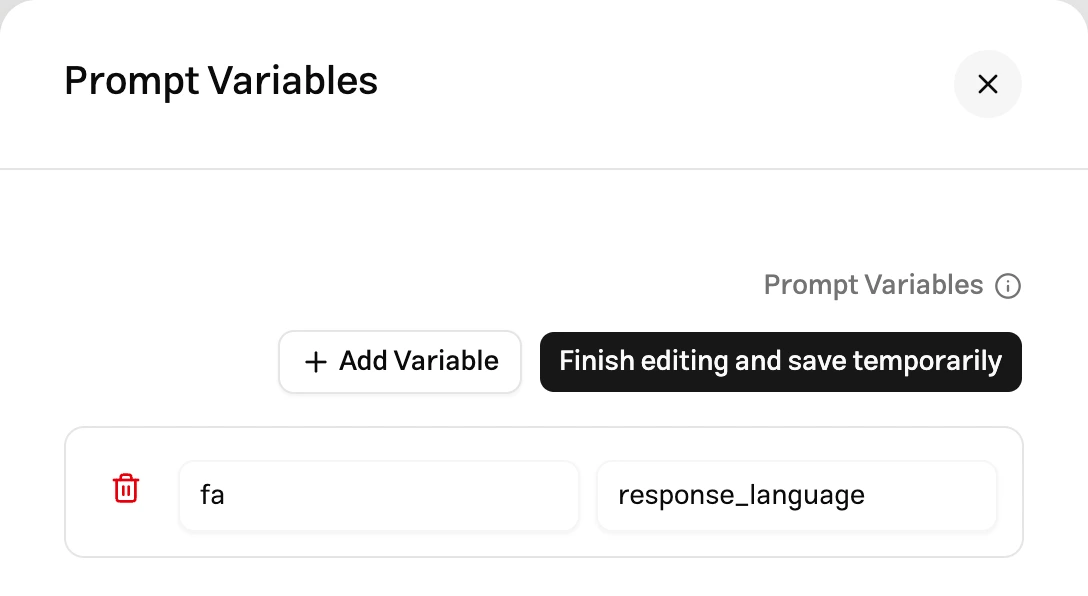
Select Prompt Variables at the top of the page, then Add Variable.
Enter a key and value
Give each variable a nonempty, unique key and the value you want to use. Start the key with an English letter or underscore, followed only by English letters, digits, or underscores. For example, define response_language with the value fa.
Insert the variable into the prompt
Select Finish editing and save temporarily. Then click the variable above the editor to insert it into the text. The example appears as {{response_language}}; its value is substituted when the prompt is prepared for the model.
Save the changes
Select Save changes on the main prompt page to save both the text and the variables.
If a channel has its own custom prompt, that prompt takes precedence over the main prompt for that channel.
Security
Rate limit
Use Rate limit to control how many messages the agent processes from each contact within a time window. Limits are counted separately for each contact on each channel, including the widget, dedicated page, Laboratory, API, and connected messaging channels.
- Enable Rate limit.
- Enter the maximum message count and the time window in seconds. Both values must be whole numbers of at least 1.
- Enter a Limit reached message for the limit warning. This text is displayed in the widget and dedicated page.
- Select Save changes at the top of the page.
For example, in the widget with 10 messages every 60 seconds, a contact who has sent 10 messages in the last 60 seconds must wait until the oldest message leaves that window before sending another. Starting a new conversation with the same contact identity does not reset the count.
To remove the limit, turn the switch off and save your changes.

Agent accessibility
The Agent Accessibility card sets Public or Private visibility. Private visibility restricts retrieval of the agent’s public information to users in the same organization.
After changing visibility, select Save changes.
Labels
In Labels, create shared labels for organizing this agent’s conversations. Each label has a Name, Color, and optional Description.
Select Create label to add one; an empty list shows Create your first label. Enter a name, choose a preset or custom color, optionally add a description, and select Save.
Search the list to find a label. Use a row’s actions menu to edit or delete it. These labels are available when organizing conversations and configuring view and archive filters.
Canned responses
Canned responses are reusable operator messages stored with a Shortcode. Operators can insert them while replying in the inbox.
Create a canned response
Select Create canned response, or Create your first canned response if the list is empty.
Enter the short code and response text
Enter a unique short code, such as welcome, and the response text. The short code can contain up to 100 characters, and the text up to 20,000 characters. Then select Save.
Insert the response into a conversation
Type / in the inbox message editor, then search for and select a response. Its text is inserted into the editor. Review or edit it before sending.
You can use these variables in the response text:
| Variable | Value when inserted into a conversation |
|---|---|
{{contact_name}} | Contact’s name |
{{contact_email}} | Contact’s email |
{{contact_phone}} | Contact’s phone number |
{{operator_name}} | Operator’s name |
To insert a variable in the response editor, type two opening braces and choose a variable from the list. If a value for one of the variables above is unavailable in that conversation, it is replaced with an empty string. Review the message before sending.
Use search and each row’s edit and delete buttons to manage existing responses.