Inbox
Conversation Labels
Label conversations and use filters and saved views to follow up on them.
A label is a short name used to classify a conversation, such as “Follow up” or “Technical issue.” It can describe the request or work your team should track without changing the conversation's assignee or status.
Each agent has its own label catalog. Creating a label for one agent does not automatically add it to another agent.
Add labels to a conversation
Open the conversation
Find Chat tags in the details panel.
Select a label
Select +. Choose from the list or search by name. Selecting a label adds it to this thread.
Continue if needed
The list stays open so you can select more labels. Select a label again or use × beside its name to remove it.
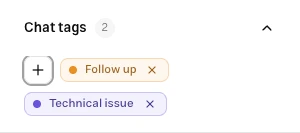
Removing a label from a conversation keeps it in the agent's catalog and does not affect other conversations.
Manage the catalog
Open Settings → Labels to create or edit labels. The Manage tags gear in the picker opens the same page. Each label has a name, color, and optional description. See Label settings for creation and editing steps.
Names can contain Persian text; spaces do not need to become hyphens. Names and colors classify work and do not create automatic assignment rules.
Filter by label
In a custom view, Labels supports these conditions:
| Condition | Result |
|---|---|
| Has any of | At least one selected label is present |
| Has all of | Every selected label is present |
| Has none of | None of the selected labels is present |
| Has no labels | The thread has no active labels |
For example, to find conversations with both “Technical issue” and “Follow up,” select both in one Has all of condition. Has no labels helps find unclassified work.
The current Archive label picker finds threads with at least one of the selected labels. Use a custom view for the advanced all, exclude, and unlabeled conditions.
Labels and conversation history
Labels belong to a particular thread. View filters evaluate the latest thread's labels; archive filters evaluate the historical thread's labels. Labeling an earlier thread does not necessarily put the latest thread into your view.
Permissions and troubleshooting
| Permission | Available work |
|---|---|
| Manage Inbox | View, add, and remove conversation labels |
| Manage agent | Create, edit, and delete labels in settings |
If the picker is empty, create labels in this agent's settings. If adding or removing fails, check the error and retry; a failed change should not be treated as a saved label.