Inbox
Inbox Overview
Review Muchat conversations, improve answers, and continue customer support from the inbox.
Overview
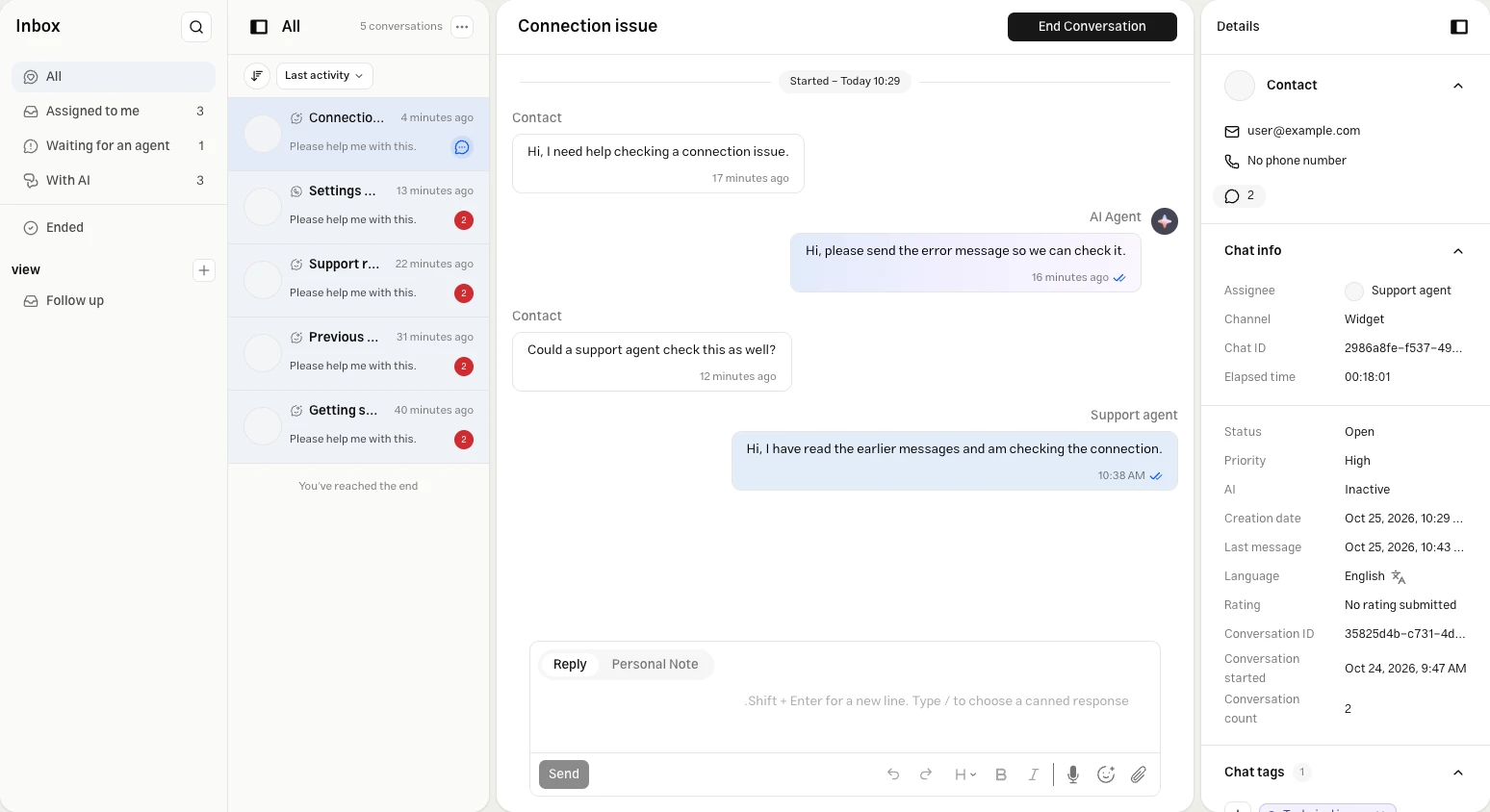
The Inbox brings Muchat conversations and human support together. Customer messages, AI replies, operator replies, and conversation events appear in one place, so you can review AI performance and continue helping a customer from the same workspace.
In the Muchat dashboard, select your agent and open Inbox from its menu.
What you can do
Read real conversations, inspect retrieved sources, save corrected answers to the knowledge base, and take over conversations that need human support.
Conversations
Select a conversation from the list to open its messages and events in the main panel. Customer messages, AI replies, operator replies, submitted forms, and action results help you follow what happened and understand an answer or a handoff request.
Built-in views group conversations by how they are being handled:
| View | Purpose |
|---|---|
| All | Review conversations across all statuses |
| Assigned to me | Open conversations assigned to you |
| Waiting for an agent | Conversations waiting for an operator to accept them |
| With AI | Open conversations being handled by the AI |
Filters
Start with the relevant view, then apply the status or conditions you need to find a conversation.
Status and sorting
In custom views, select All, Open, Closed, or Snoozed above the list. Built-in views use their own fixed status scope. In regular views, you can sort by Creation date or Last activity, in ascending or descending order.
Custom views
For a group of conversations you revisit, choose Add View. Enter a name and use the Query Builder to combine conditions such as creation or update date, assignee, channel, priority, labels, and read status. Conditions can be joined with AND or OR.
After creating the view, select Open, Closed, or Snoozed above its list. This selection is remembered for that view.
Conversation archive
Open the archive from Ended or the magnifying-glass button at the top of the Inbox menu. Use Filter chats to select a date range, channel, assignee, and labels. Dates filter the conversation segment's creation time in UTC.
Regular views show the latest segment of each conversation; use the archive for older segments. Opening an archive entry displays the messages in that segment.
Conversation details
The details panel beside the conversation shows contact and chat information: recorded names and contact details, assignee, channel, ID, status, priority, AI activity, creation time, and last message time. If the customer completed a survey, their rating and feedback also appear here.
For website conversations, Last customer message page shows the recorded page URL and referrer. Use it to see which page the customer was on when they sent their message. No URL is shown if page information was not recorded with the message.
Use Recent Conversations to review the same contact's history. Selecting an older segment takes you to its archive.
Improve response
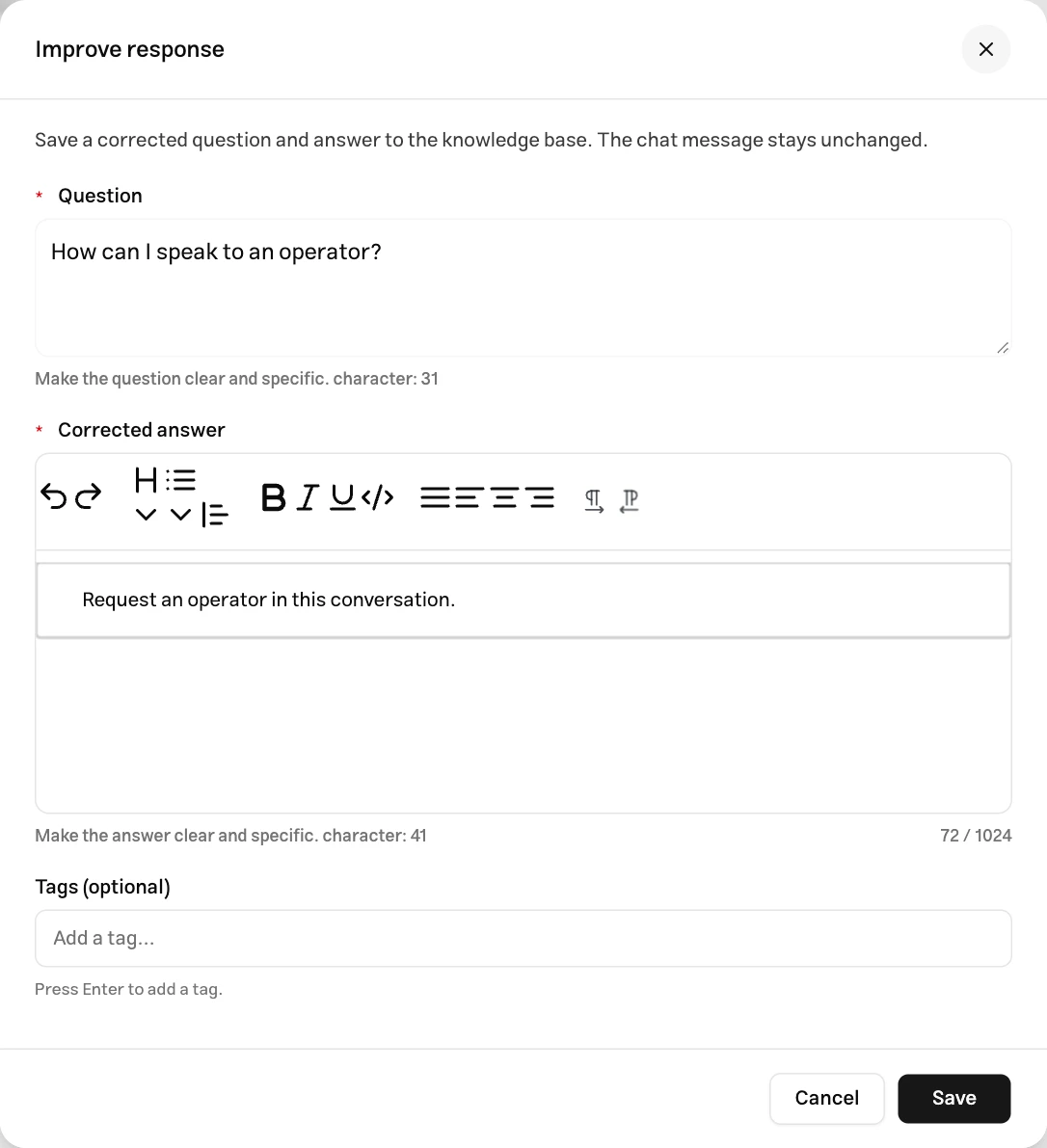
If an AI answer is inaccurate or incomplete, select Improve response beside it. The form provides the related customer question as a starting point. Review the question, write the Corrected answer, optionally add tags, then select Save.
The correction is saved as a Q&A source in a knowledge base connected to the agent and queued for processing. Saving another correction for the same message updates that source; its previous processing must finish before you can edit it again.
Taking over a conversation
To handle a conversation yourself, open it and use Assignee to assign it to yourself or a team member. Assigning a conversation stops AI replies. Sending a public operator reply in a conversation that supports replies also hands control to a human.
If a customer requested support through an action, find the conversation under Waiting for an agent. Whether the AI keeps replying until takeover depends on your Request Operator settings.
Read-only channel conversations do not support replies or status changes. Sending messages from the Inbox is also unavailable for the API channel.
Retrieved sources
Select Retrieved sources beside an AI reply to inspect its basis. This panel shows knowledge base passages retrieved while that reply was generated. Read the content, then use View source or Edit source to inspect the original source.
If no retrieved content was saved for the reply, the panel shows an empty state. Use this information to identify incomplete or outdated content and update your data sources.
Exporting conversations
Downloading conversations as files is not currently available in the Inbox. Open a conversation in the Inbox or archive to review its messages and action results.
Automatic conversation ending
With the default settings, a conversation can end automatically after 15 minutes of inactivity. Conversations waiting for an operator, or whose latest message is an unanswered customer message, are not automatically ended.
Ending and reopening conversations
Select End Conversation when you finish handling a chat. To continue human support in a closed conversation, choose Reopen Conversation. Reopening may create a new segment within the same conversation. In that case, the previous history stays in the ended segment, and you continue replying in the new one.
Continued conversations
If a customer sends another message after a conversation ends, the same segment may reopen or a new segment may start, depending on its state. Use the conversation history, Recent Conversations, and archive to follow earlier interactions.
Search conversations
The magnifying-glass button opens the archive, but searching message text is not yet available. Narrow the list using date, channel, assignee, and label filters instead.
Contact details
Names, email addresses, and phone numbers submitted through the lead form are linked to the contact profile and shown in the conversation details panel. Open Contacts for a list of contacts with recorded information.
Review complete form responses, including additional questions, under Reports → Form submissions. Filter by form or form type and open a response's details.
Collected data
Custom form responses are available under Reports → Form submissions. Each response provides its form, submission time, and submitted information. Open the related conversation in the Inbox to review how the form was completed alongside the messages.
Inbox guides
Filters and views
Combine conditions, dates, and unread messages, then save a reusable view.
Labels
Classify conversations and find requests that need follow-up.
Conversation assignment
Pick up queued requests or assign a colleague to handle them.
Replies and notes
Send public replies, private notes, files, and voice messages.
Satisfaction surveys
Review customer ratings and comments alongside conversation history.
Conversation archive
Find earlier threads and return to the latest one.
Next steps
Best Practices
Use conversation reviews to improve your agent's instructions and sources.
Request Operator
Configure handoff conditions and AI behavior until an operator takes over.
Collect information
Collect the information needed to identify contacts and follow up on requests.
form action
Build custom forms and review submitted responses.