Workspace Management
Workspace settings
Manage organization details, members, your plan, capacity, billing history, and API keys.
In Muchat, workspace settings appear under Organization. First select the organization at the top of the dashboard sidebar, then open Settings.
| Dashboard section | Purpose |
|---|---|
| Organization Settings | Name, website, picture, and invoice recipient information |
| Members | Invitations, permissions, and removing memberships |
| Current Plan | Subscription status, period, capacity, and upgrade options |
| Orders | Orders, payment status, and invoices or pro forma invoices |
| Reports | Credit usage by agent and time period |
| API Keys | Create, copy, and delete keys; under Developer |
General
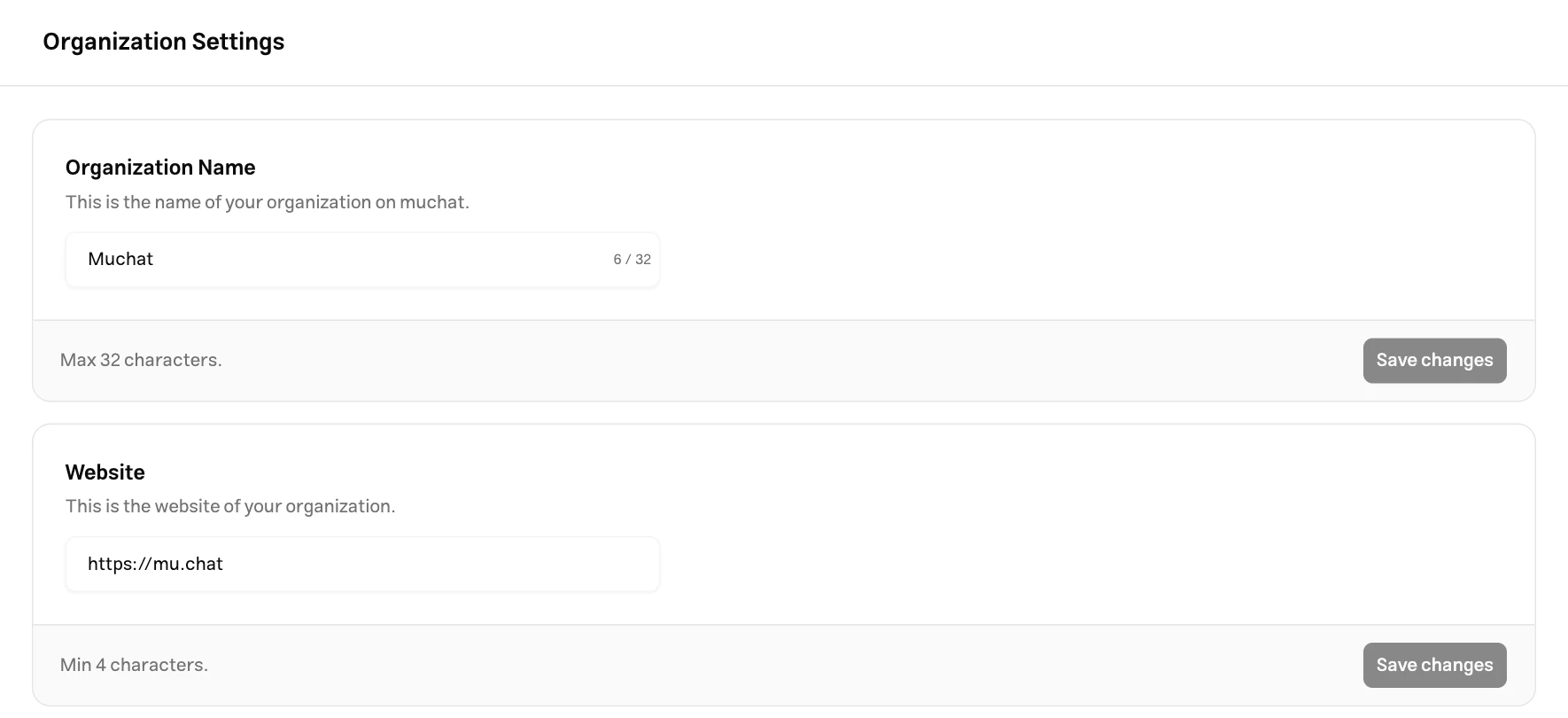
Open Organization Settings to update the active organization. The name, website, and extra information cards each have their own Save changes button.
- Organization Name: The name used to identify the organization in the dashboard. Enter between 3 and 32 characters in the form and save your changes. This is separate from the agent or widget display name.
- Website: Enter the organization's website URL and save that card. Saving this URL does not import the website into a knowledge base; see Data sources to train on a website.
- Organization Picture: An owner or admin can upload, replace, or remove the picture. Accepted formats are
PNG,JPEG,GIF,AVIF,APNG, andWebP, up to 5 MB. The picture is saved when uploading finishes.
Invoice recipient information
In Extra Info, select Natural (Individual) or Legal (Company) and complete the corresponding fields:
| Type | Information |
|---|---|
| Natural (Individual) | First name, last name, economic code, national ID, mobile number, postal code, and address |
| Legal (Company) | Company name, registration number, economic code, national ID, phone number, postal code, and address |
Click Save changes in that card. If the form reports an error, correct the indicated field. Extra information is required when requesting an official invoice; review it before placing an order.
Members
The Members page is managed by the organization owner and lists team members and pending invitations.
Number of members
The Organization Members indicator at the top of the page shows memberships against the plan limit. The owner and pending invitations count toward this total. When capacity is full, Add Member is disabled.
Delete invitations you no longer need to free their capacity. If you still need more members, review team capacity in Current Plan.
Invite Members
Open the invitation form
Click Add Member on the Members page.
Enter the member's identifier
Under User Email or Phone Number, enter the email or mobile number the person will use to sign in to Muchat. Each invitation is for one person; reopen the form to invite another.
Choose permissions
Select the areas the member needs under Permissions. Can manage agents is selected when the form first opens; review all options before sending.
Send the invitation
Click Send Invitation. The row displays Awaiting acceptance until the person accepts the invitation in their account. They cannot access the organization while it is pending.
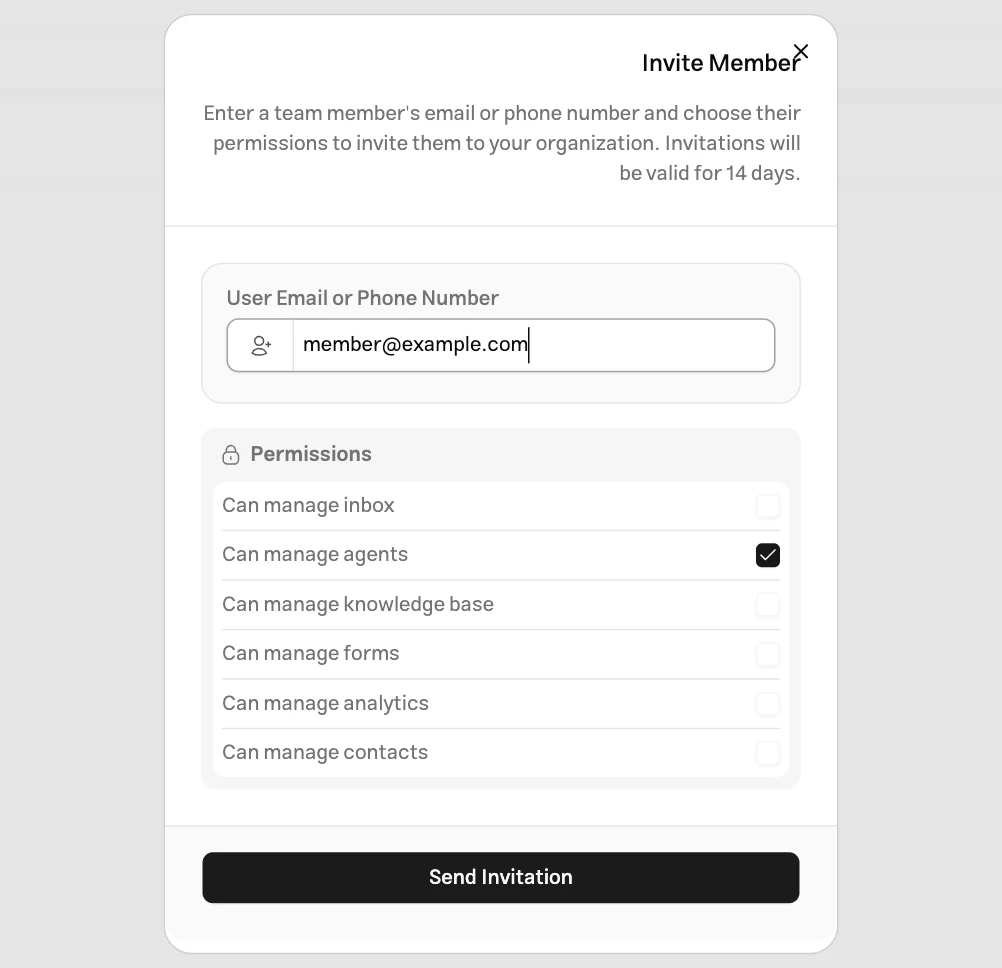
Change member permissions
Open the three dots menu on the member's row and select Edit. Adjust permissions and click Save changes.
| Permission | Area |
|---|---|
| Can manage inbox | Handling conversations in the inbox |
| Can manage agents | Managing the organization's agents |
| Can manage knowledge base | Managing sources and knowledge bases |
| Can manage forms | Managing forms |
| Can manage analytics | Reports and statistics, when included in the plan |
| Can manage contacts | Managing contacts |
Changes in this form apply to the member’s access to organization areas. See workspace management to learn about roles.
Remove workspace member
Choose Delete from the member's three dots menu and review the confirmation dialog. Confirming removes the person's access to the organization.
Modify Invitations
To cancel a pending invitation, use Delete on that row as well. Deleting the row cancels the invitation. If you entered the wrong identifier, delete the invitation and send a new one with the correct identifier.
Plans
Current Plan
Open Settings → Organization → Current Plan to see the plan name, subscription status, period, and included features. Usage and capacity shows total, used, and remaining capacity for items such as AI credits, agents, team members, and data sources. Open each card's details to inspect plan and add-on amounts separately.
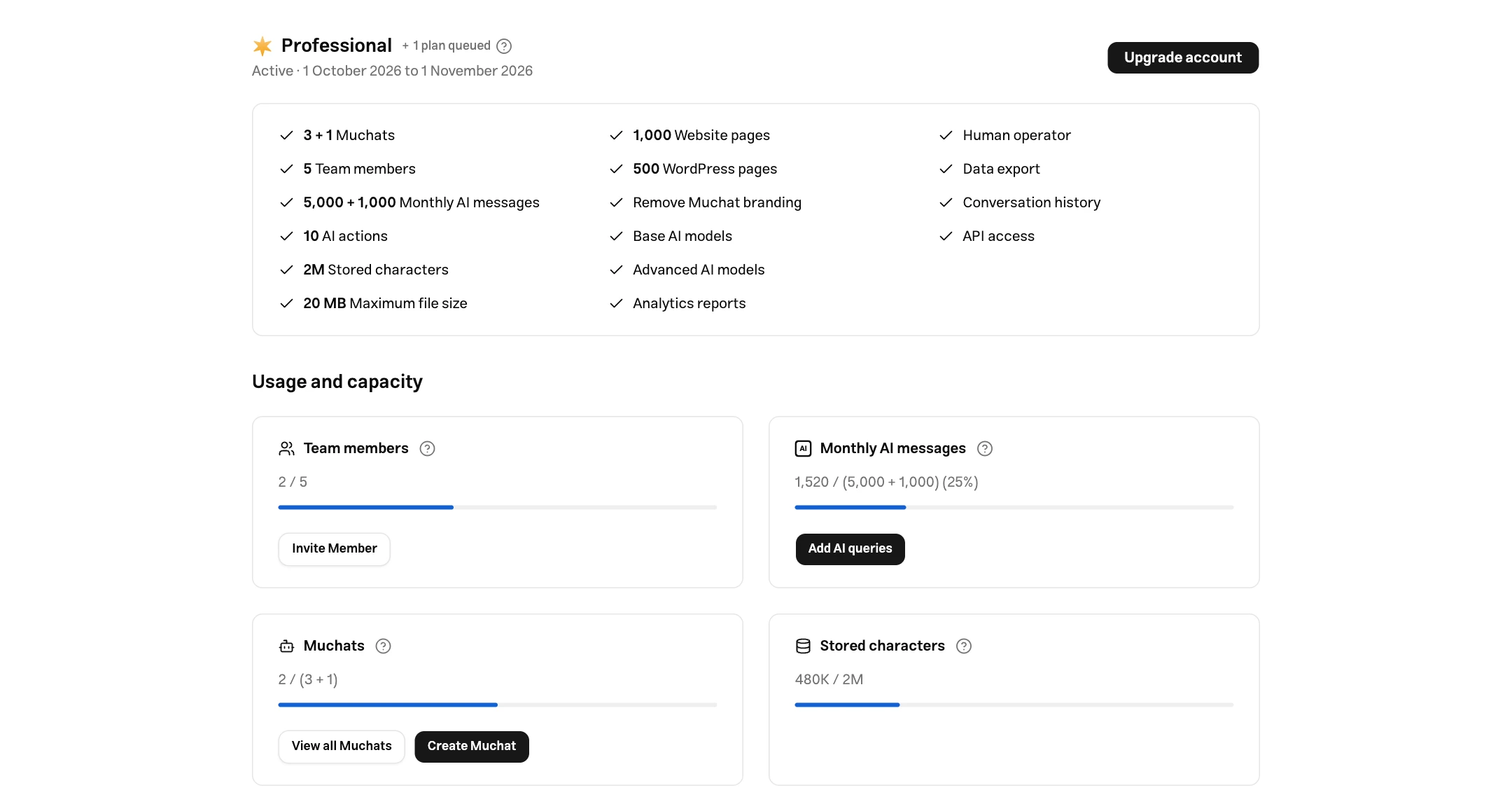
If you have another plan for a later period, Queued plans appears next to the plan name. Open it to see each period's start and end dates. Each plan's features become available when its period starts.
When the subscription enters its renewal window, the banner shows when that window ends. Access to the plan's features closes after that deadline; review renewal to continue.
Available Plans
Click Upgrade account to open plan selection. Features, capacity, available purchase periods, and the final amount come from the current information on that page. For a public comparison, see Pricing.
Before confirming an order, check when the plan activates: immediate activation differs from queuing a plan for the next period. Review the payable amount, discount, tax, and applicable credit in the order summary.
Add Ons
Add-ons increase plan capacity or enable additional features. Select an option and quantity on the upgrade page, then review its price and activation time in the order summary.
To increase agent capacity, check Buy an extra Muchat on the Muchats card. To increase credits, check Add AI queries on the Monthly AI messages card. Choose available options and quantities on the upgrade page. Once an add-on expires, its associated capacity or credits are no longer usable.
Removing Muchat branding depends on your plan or an active add-on. Its display setting is under widget appearance.
Orders and billing
Open Settings → Organization → Orders to see purchases for the active organization. Each row represents an order and its subscription or add-ons.
Order history
The list shows Order items, Start, End, service Status, Payment, Price, and links to the Invoice or Pro forma invoice.
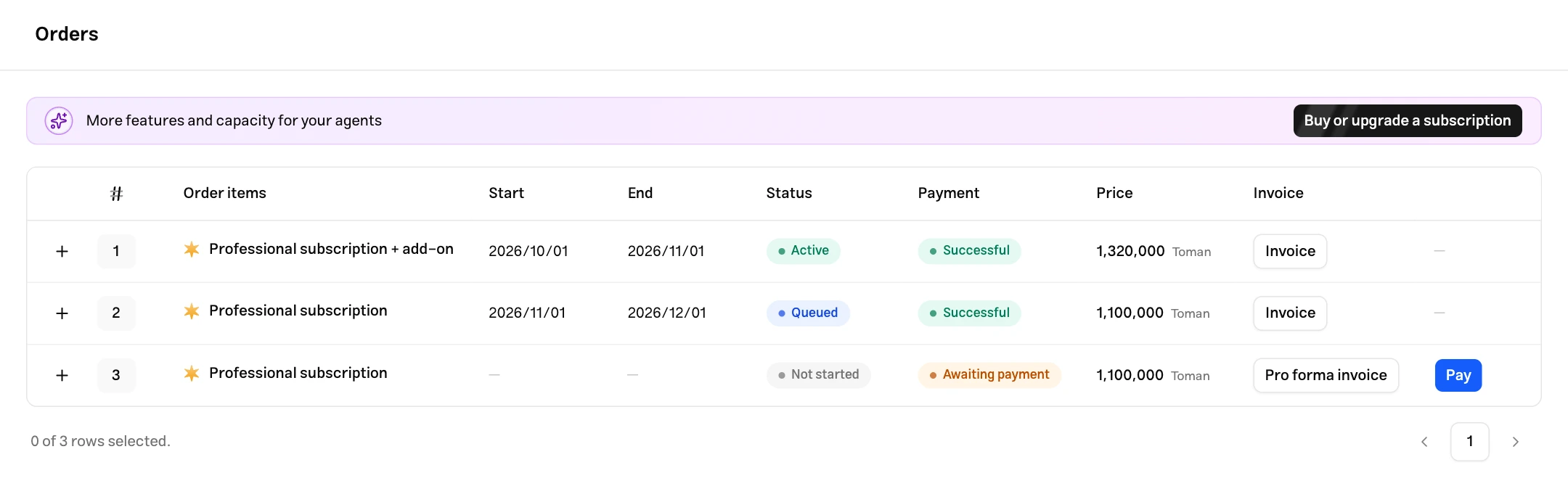
The Status column describes when the service is available:
| Status | Meaning |
|---|---|
| Not started | The service has yet to start; check the order's payment status. |
| Active | The service is currently in use. |
| Queued | The service is queued for a later period and activates on its start date. |
| Ended | The service period has ended. |
The Payment column shows the financial result separately. For example, an order can have a Successful payment status while its service is Queued for the next period.
Order details
Click + beside the row number to open Order details. This shows each purchased item separately: subscription or add-on name, quantity, billing period, start and end dates, amount, and status. Use it to review orders containing a subscription and several add-ons.

Click − on the same row to close its details.
Pay an order
Eligible orders display a Pay button on their row. Click it to open the payment gateway. After you return, the result page shows payment status, amount, and tracking information. If confirmation is still pending, wait for the check to finish, then review the order's status in the list.
Invoices
Open the order's document from the Invoice column:
- Pro forma invoice: Shows order items and the amount for review before payment.
- Invoice: Opens the issued sales invoice with buyer information, line items, discount, tax, and the final total.
To print or save a PDF, click Print / Download at the top of the document, then select a printer or the save as PDF option in your browser's print dialog.
Complete invoice recipient information in the organization's Extra Info before placing an order.
API keys
Open Settings → Developer → API Keys to manage keys for the active organization:
- Click Create API Key to add a new key to the list.
- Use the copy button beside a key to copy its complete value.
- To delete an extra key, click its trash button and confirm. Deletion is disabled when only one general key remains.
API access is a feature of the organization’s plan. See the API section under Channels to set up an integration.