Actions
Request Operator
Set handoff conditions, collect information before escalation, and control bot behavior until an operator picks up.
Overview
The Request Operator action places a conversation in the support queue. The customer stays in the same conversation, and the operator can review its history and submitted information before replying.
Best for
Explicit requests to speak with a person, issues your team needs to investigate, or situations that cannot be resolved with an automated answer.
Common Use Cases
- “I want to speak with support.”
- “This is urgent; I need help from a person.”
- “The bot’s answer hasn’t resolved my issue.”
- “I need support to check a payment or account issue.”
Include the cases relevant to your business in When should the agent request human support? so Muchat knows which requests to hand over to your support team.
How to create the action
Choose the action type
In Actions, select Create action, then Request Operator.
Write the general settings
Enter an Action name. In When should the agent request human support?, describe the handoff conditions clearly. For example: “Request support when the customer explicitly asks to speak with a human or needs an account issue investigated.” Select Next.
Choose the required information
Select No information required to request support directly. To collect information first, select Complete a form and choose an active form in Select a form. The support request is completed after the form is successfully submitted.
Choose bot behavior and save
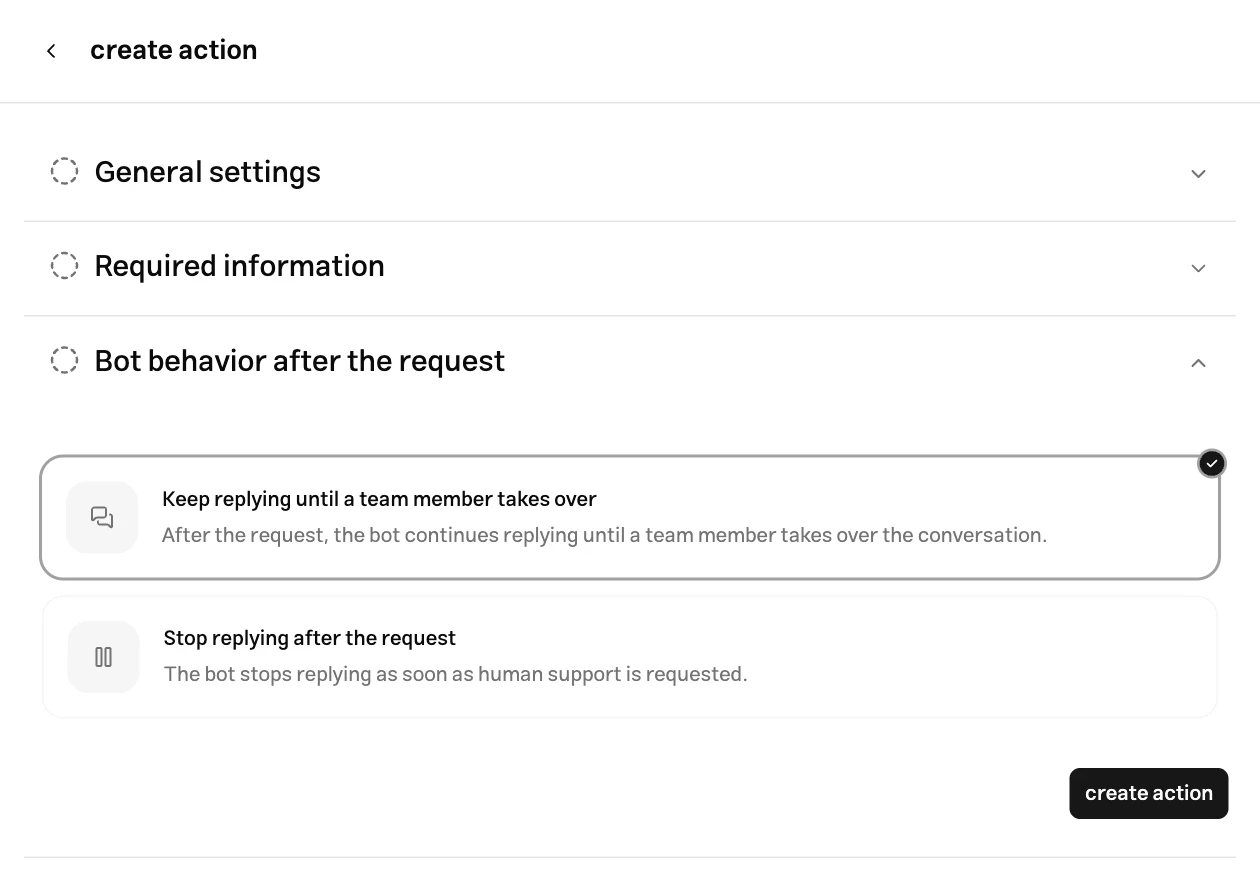
Select one of the two options below and click Create action. Check its status in My Actions.
Bot behavior
| Option | Result |
|---|---|
| Keep replying until a team member takes over | The bot can reply while the conversation is waiting for an operator. |
| Stop replying after the request | The bot stops replying when the request is registered, and the conversation waits for support. |
Customer experience
The customer’s request starts the handoff flow. If you configured a prerequisite form, they must complete it first. Submitting the form does not mean an operator has replied; after the request is registered, the conversation enters the waiting queue.
An operator sees the request in the Inbox, reviews the conversation history and request summary, and picks up the conversation. The bot stops replying when the operator takes over so automated and human replies do not overlap.
Test the action
Open a conversation and say “I want to speak with support.” If you configured a form, first check that the request is not finalized without a successful submission, then complete the form. Verify the waiting queue, the selected bot behavior, and operator pickup in the Inbox.
Also ask a normal question that the knowledge base should answer. An unclear trigger description should not cause every conversation to be handed off.
Troubleshooting
Check that the action is enabled and explicitly mention requests to speak with support in its trigger description. Inspect the action call in the Playground as well: a reply saying “I will transfer you” does not by itself confirm that a request was registered.
The prerequisite form must be active, and all required fields must be submitted successfully. Opening or partially completing the form does not finish the handoff.
This is expected with “Keep replying until a team member takes over.” Choose the stop-replying option and save if you want the bot to stop immediately.
Best Practices
Define clear handoff conditions
Describe which issues need an operator’s investigation and when Muchat can answer on its own. Include example requests in the action’s trigger description.
Let Muchat handle common questions
Use the knowledge base to answer routine questions. Include explicit requests to speak with support in your handoff conditions so customers do not have to repeat themselves.
Collect the details your team needs
Configure a prerequisite form for information your team needs to handle the issue, such as contact details or request specifics. Only require essential fields. See the form action guide to build a form.
Assign responsibility for the queue
Decide which team members review waiting requests and pick up conversations. See the Inbox guide for replying, taking over, and managing conversations.