Actions
form action
Build a custom form, choose when it runs, and review structured responses in reports.
Overview
A form action collects the information you need in a defined structure. Build the form in Forms, then connect it to an action with its own trigger. Create separate forms for request details, topic selection, or feedback.
How to create the action
Build the form
Create a form in Forms. Enter its name, use Add field, and configure each field’s label, description, options, and validation rules. Save and enable the form.
Create the form action
Open Actions, select Create action, then form action. Set the action name, trigger, and whether completion is required.
Select an active form
In the Form step, choose your form. If the list is empty, check that the form is enabled in Forms.
Finish configuration
Select Skip in the optional Webhook step and create the action. Review submitted responses in the form report.
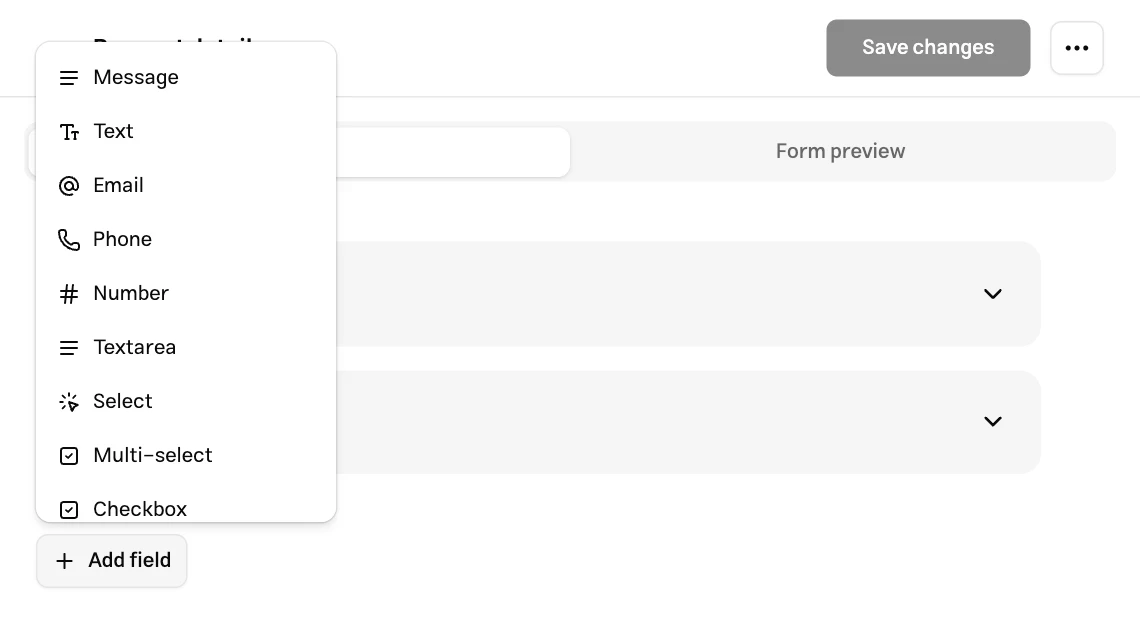
Fields
| Field type | Purpose and settings |
|---|---|
| Display text | Show instructions without collecting an answer |
| Text and multiline text | Short answers or detailed descriptions, with required and text validation settings |
| Email and phone | Collect information in the appropriate format |
| Number | Collect a numeric value with minimum and maximum bounds |
| Select and single-choice options | Choose one predefined answer |
| Multiselect and checkbox groups | Collect several answers and set selection-count rules |
| Checkbox and switch | Collect a two-state answer |
| Date and rating | Collect a date or rating in a defined format |
Write clear question labels. For specific formats, add a brief example in the description or placeholder. A required field needs a valid answer before submission. Only require fields whose absence prevents your team from handling the request.
When to use
- Before the conversation: Collect initial information at the start of a new conversation.
- After a specific number of messages: Run after the customer’s message count reaches the threshold. Bot messages do not count.
- According to instructions in special conditions: Muchat runs the form based on your instructions. For example: “Show the request form when the customer wants their issue registered for review.”
With Required? enabled, the conversation in the widget and dedicated page waits for form completion. This is separate from requiring individual fields inside the form.
Submissions
Open Reports → Form responses and filter by form or form type. Review each successful submission’s answers, contact, and related conversation. An external destination is not needed to store responses.
Forms open inside the conversation in the widget and dedicated page. On messaging channels, Muchat can collect answers through conversation; required answers must be complete before the submission is saved.
Limits
- A form supports up to 50 elements, including display text, and needs at least one active input.
- Choice fields support up to 100 options each.
- Message counts must be positive integers. Trigger instructions support up to 5,000 characters.
- The form attached to an action cannot be replaced after creation. Create a new action to use a different form. You can edit the form’s contents in Forms.
Test the action
Check the trigger
Reproduce the trigger in the Playground. For instruction-based actions, test both a matching request and an unrelated question.
Try incomplete and complete submissions
Leave a required field empty or enter an invalid value. Then submit valid information and check that the conversation continues.
Test the final channel
An editor preview does not replace a complete submission in a real conversation. Complete the form in your connected widget or messaging channel, check that the conversation continues, and find the complete response in the report.
If the form does not run, check that both the form and action are enabled. If the conversation is waiting for a form, inspect required fields and their validation; the required form must be successfully submitted before the flow can continue.