Actions
Collect information
Collect names, email addresses, and phone numbers, and configure form timing and additional questions.
Overview
Use the Collect information action to collect a customer’s name, email address, and phone number for your team to follow up. The lead form can also include additional questions, such as the topic the customer needs help with.
Best for
Collecting contact details for follow-up, learning about your audience, and gathering initial information before a conversation.
How to create the action
Open the information collection form
In Actions, select Create action, then Collect information. If it already exists, edit the existing form.
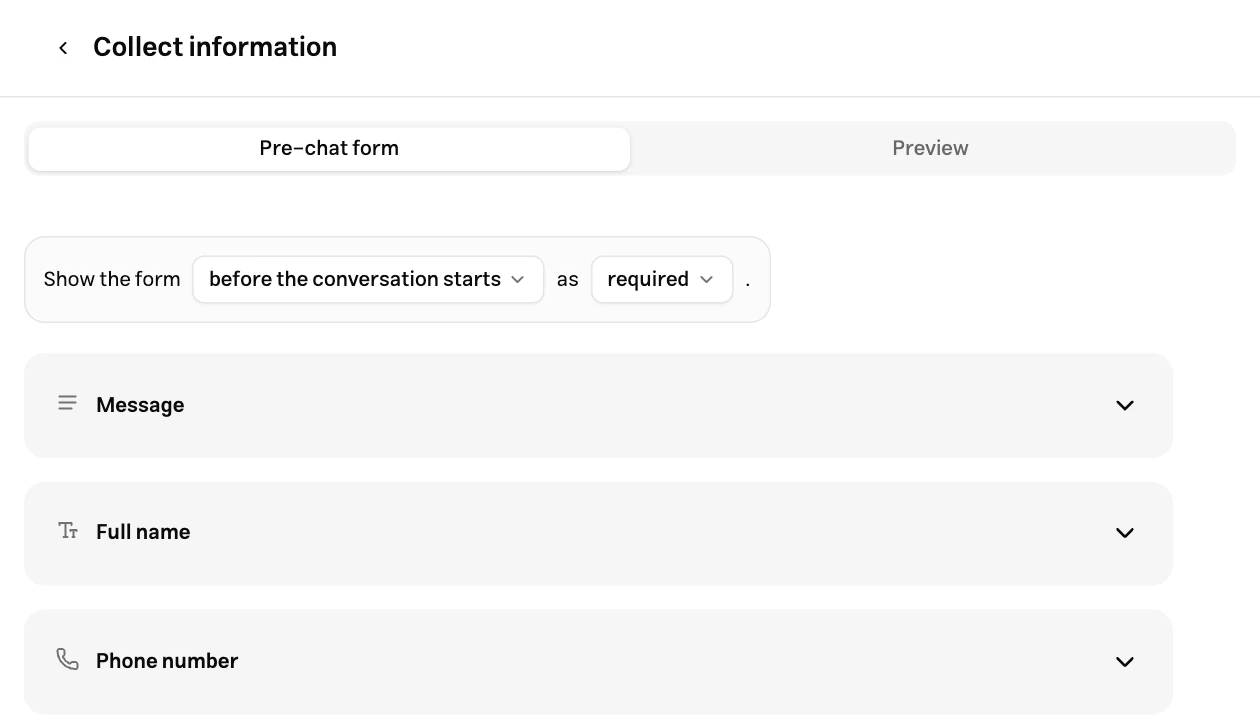
Choose its timing and whether it is required
Use the rule sentence above the fields to choose the trigger and required or optional behavior. The options are explained below.
Edit the fields
Configure each field’s label, help text, and required setting. Use Add element for another contact field or question. Drag the handles to change field order.
Save and test
Select Save changes and publish. Check that the form is enabled in My Actions, then start a new conversation that matches its trigger.
When to use
| Trigger | Behavior |
|---|---|
| Before the conversation starts | Displays the form at the start of a new conversation. |
| After a number of messages | Set the number of customer messages, such as three. Bot replies do not count toward this threshold. |
| Based on a specific instruction | Describe when Muchat should run the form. For example: “Collect contact details when the customer asks for a phone follow-up.” |
There are two separate required settings:
- Required form: In the widget and dedicated page, the conversation cannot continue until the form is completed.
- Required field: This field needs an answer before the form can be submitted. Making the form optional does not make all its fields optional.
Fields
| Type | Purpose |
|---|---|
| Message | Explain why information is being collected or how to complete the form |
| Full name, email, phone number | Save contact profile details; each can be added once |
| Text question | Collect an additional short answer |
| Single-choice options and select | Choose one answer from predefined options |
| Multiple-choice options | Choose several answers from predefined options |
Only require information you need for follow-up. Labels and descriptions should explain what to enter and why it is needed.
Submissions
Details submitted through the name, email, and phone fields are connected to the contact’s profile. Review the complete form response, including additional questions, in Reports → Form responses. Filter by form or form type and open individual response details.
Submit valid information and check both the contact profile and the form response. Opening the form or entering only part of the information is not a successful submission.
Channels
In the widget and dedicated page, customers complete the form inside the conversation. On messaging channels, Muchat can ask for the required information conversationally and save it once the required fields are complete. Test this flow on your connected channel as well.
Limits
- Each agent has one shared lead form. Use a form action for forms with independent purposes and triggers.
- A form accepts up to 50 elements, including display text, and needs at least one active input.
- An instruction can contain up to 5,000 characters. Message counts must be positive integers.
- Existing contact details can be used to populate the form. Use a fresh guest identity to test a new visitor’s experience. See Channels for conversation reset behavior.
Troubleshooting
If the form does not appear, check that the action is enabled, that its trigger is met, and whether contact details already exist. For message-count triggers, count customer messages. For instruction-based triggers, send a clear matching request and inspect the action call in the Playground.