Actions
Survey
Collect a satisfaction score and feedback after a conversation is resolved, then review the results.
Overview
The Survey action asks customers about their support experience after a conversation is resolved. The conversation satisfaction score, or CSAT, is attached to that conversation and can be reviewed alongside written feedback.
Best for
Measuring response quality, finding unsuccessful conversations, and gathering explanations that help you understand why a customer was satisfied or dissatisfied.
How to create the action
Open the survey form
In Actions, select Create action, then Survey. If it already exists, edit the existing end-of-conversation form.
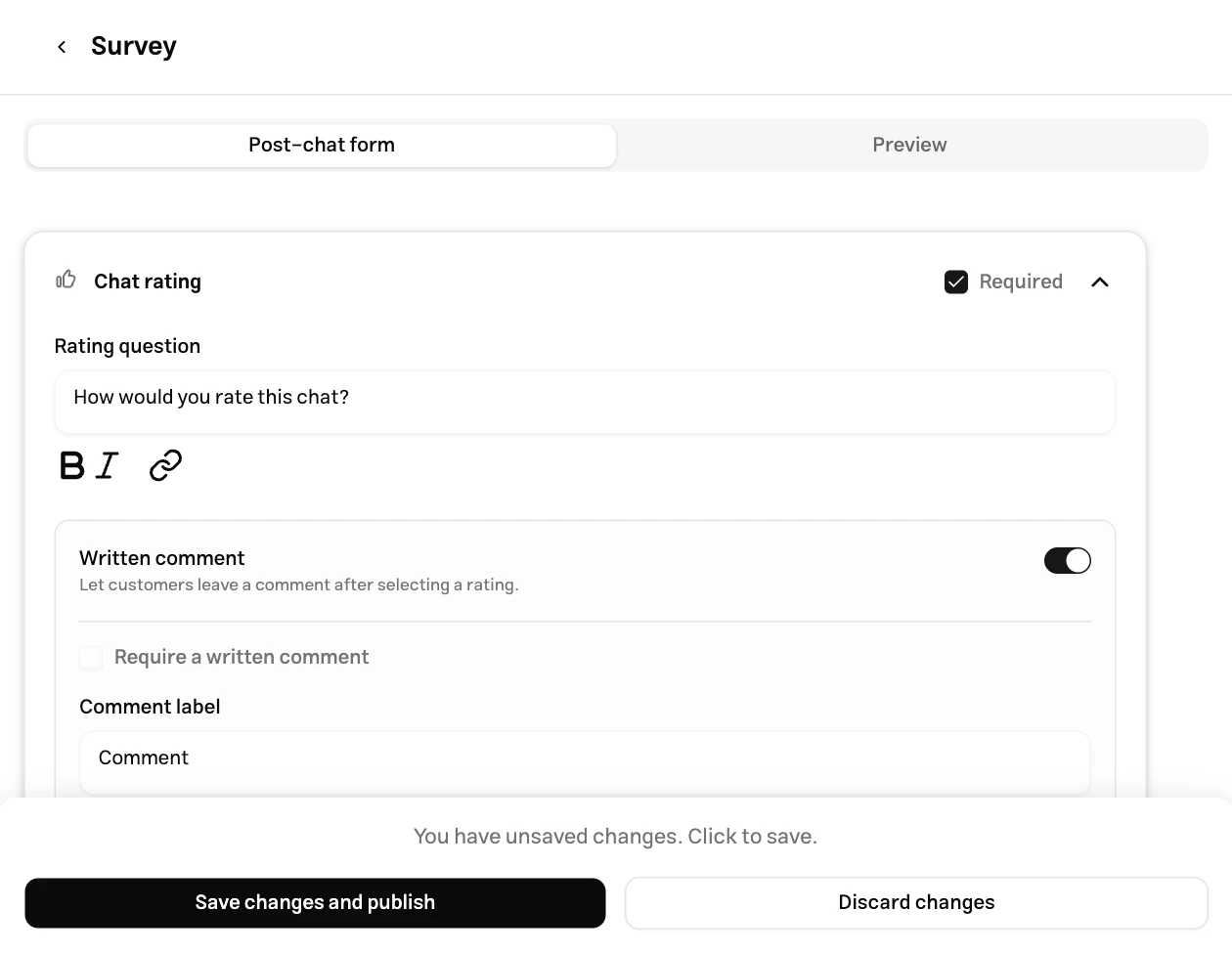
Configure the rating question
In the conversation rating element, write a short, clear question such as “How would you rate this conversation?” Scores are recorded on a scale of one to five.
Choose comments and additional questions
Enable the text comment option if you also want an explanation. Set its label and placeholder, and only require a comment when necessary. Use Add element for additional questions.
Save and publish
Select Save changes and publish and check that the action is enabled in My Actions.
When it runs
The survey runs when the conversation is resolved. For example, an operator can mark it resolved in the Inbox after handling the request. Closing the widget window or leaving the website does not by itself create this event.
In the widget and dedicated page, the form appears in the conversation. On messaging channels, an invitation message includes a form link so the customer can submit feedback.
Results
Review complete submissions in Reports → Form responses, filtered to surveys. Conversation satisfaction scores also contribute to the Support quality report. Read the customer’s comment alongside the conversation history to understand an individual score.
Test the action
Start a test conversation on a connected channel, exchange a few messages, and mark it resolved from the Inbox. Check that the form or link appears, submit a score and comment, and find the response in the form report. The editor preview checks appearance and does not replace this complete test.
Limits
- Each agent has one end-of-conversation survey. Changes apply to that shared form.
- Satisfaction scores are integers from one to five. The CSAT element can be added once.
- Forms support up to 50 elements. Text comments can contain up to 5,000 characters.
Troubleshooting
If the survey is not sent, first check that the action is enabled and the conversation is resolved. Closing the window, assigning an operator, or requesting support does not resolve a conversation. If submission fails, check required fields and whether a text comment is mandatory.