Actions
custom action
Connect your API to Muchat, define inputs, and control which response data the agent can access.
Overview
A custom action calls an API from the server and lets Muchat use its response in the conversation. Use it to retrieve current information, look up records in your systems, or perform a task through an API.
Best for
Tasks available through an API, such as retrieving weather, checking a request’s status, or updating a subscription in your system.
How to create the action
Create an action
In Actions, select Create action, then custom action.
Write the general settings
Enter the name and trigger description, then select Save and continue.
Choose the action type
Select the API call option in Action type, then continue.
Configure inputs and the request
In API, define the information needed and how to send it. See API below.
Test the response
In Test response, run a live request or enter example JSON. Then configure which response fields Muchat can access in Data access.
Save and enable
Select Create action, check its status in My Actions, and test a matching request in the Playground.
General
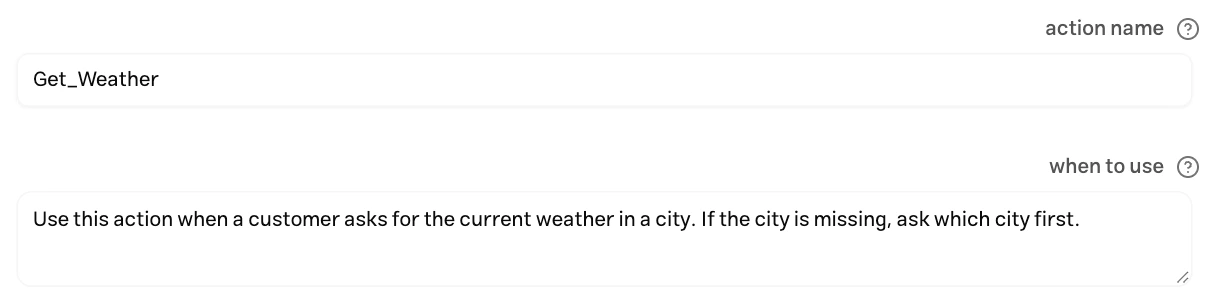
Action name: Choose a name that describes the task, such as Get_Weather.
When to use: Explain what the action returns, which requests should trigger it, and what Muchat should ask if information is missing. For example: “Use this action when a customer asks for the current weather in a city. If the city is missing, ask which city first.”
API
Collect data inputs
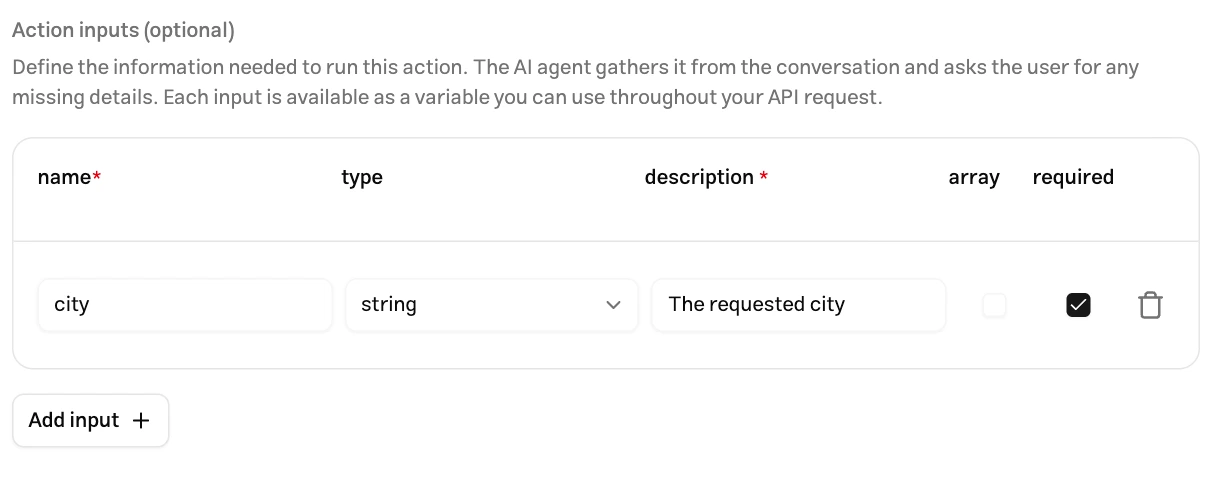
Muchat extracts inputs from the conversation and asks the customer when needed. Each input becomes a variable in the API request.
| Setting | Purpose |
|---|---|
| Name | Variable name, such as city or request_id, for use in the request template |
| Type | Text (string), numeric (number), logical (boolean), or structured (object) data |
| Description | The input’s meaning and expected format, helping Muchat ask the right question |
| Required | Whether the action needs this input to run |
| Array | Whether the input is a list of values of that type |
Input names must be unique. Use English letters, digits, and underscores for variable names, starting with a letter. Leave the input list empty if the API has no variable inputs.
API request
Choose GET, POST, PUT, PATCH, or DELETE and enter the complete API URL. Use double-brace variables, such as {{city}}, in request values:
| Section | Example and purpose |
|---|---|
| URL | A variable in the path, such as https://api.example.com/requests/{{request_id}} |
| Parameters | Query string key-value pairs, such as city with value {{city}} |
| Headers | API headers such as Authorization or Accept |
| Body | JSON data for methods that accept a body |
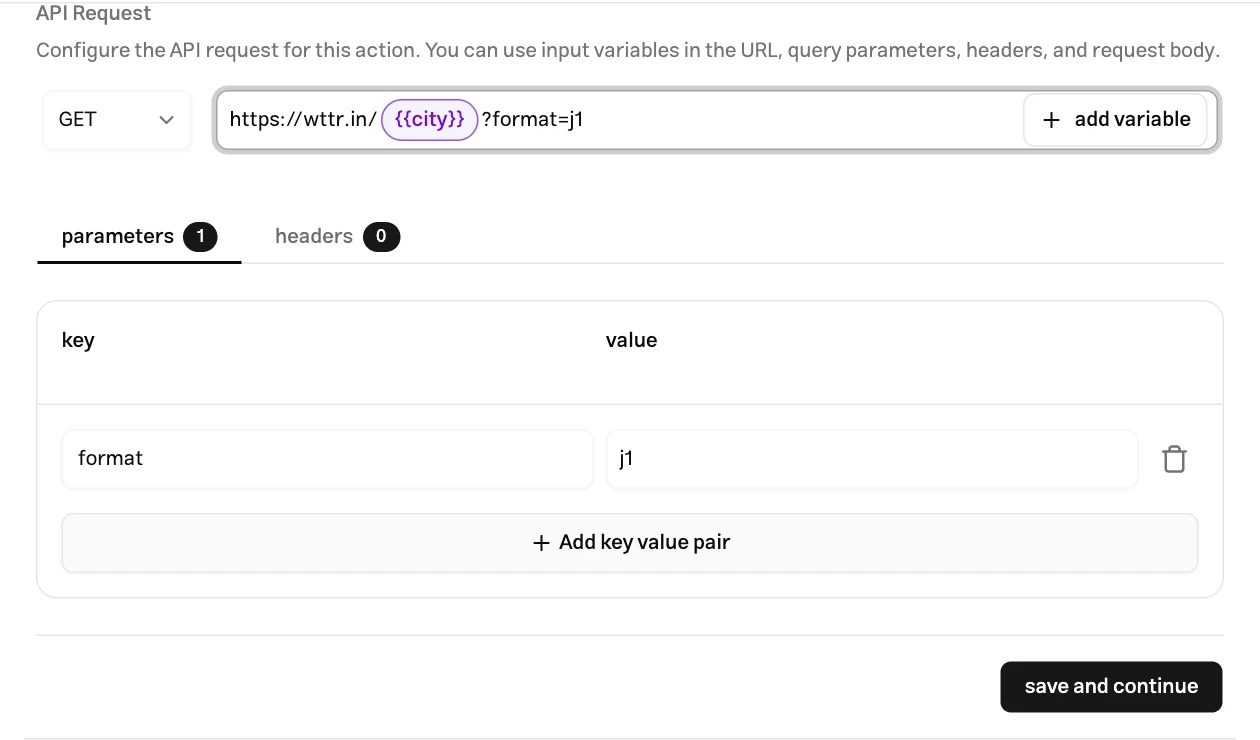
Type a variable directly using double braces, or select a defined input with add variable. Query string values entered in the URL are added to the parameters table automatically.
Define every variable you reference in the input list. Avoid using an optional input that may be absent in a mandatory URL or header value: a missing value for a referenced variable prevents the request from being prepared.
Do not send a body with GET. For other methods, provide valid JSON. When a field’s entire value is a variable, its original type is preserved. In this body, quantity can remain a number and enabled a boolean:
{
  "quantity": "{{quantity}}",
  "enabled": "{{enabled}}"
}
Define quantity as number and enabled as boolean for this example. Object and array inputs must also occupy an entire field value; do not embed them in text or URLs. Quotes and line breaks inside text are encoded correctly when the JSON request is built.
Test response
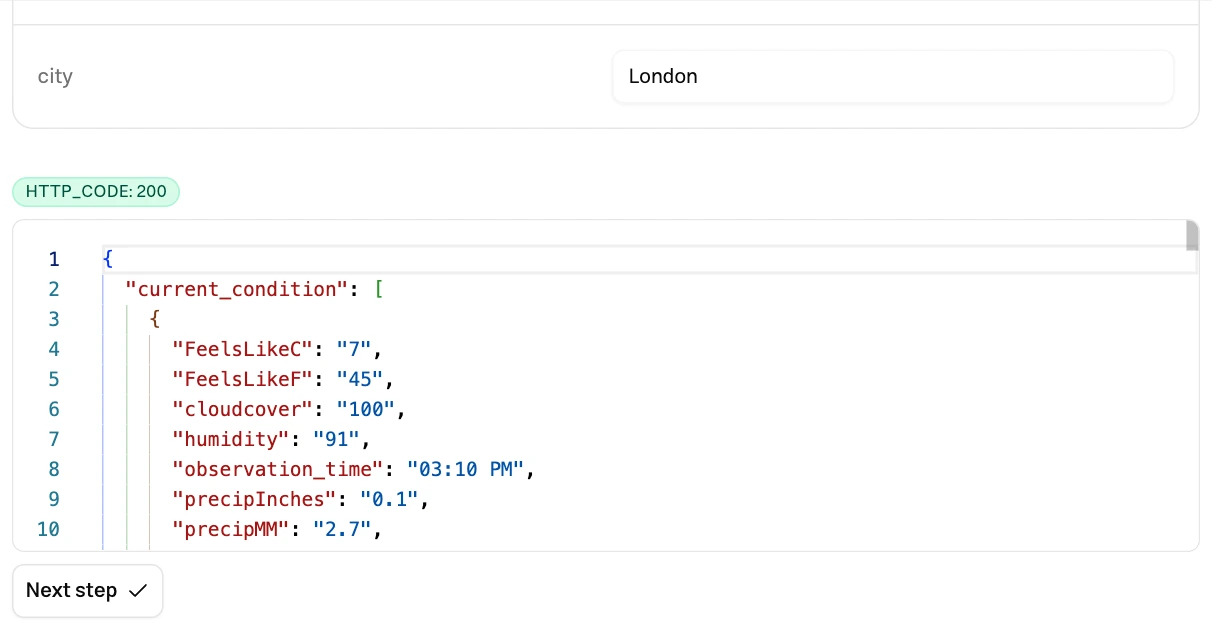
- Live response: Select live, supply test input values, and select Test response. Check the HTTP status and returned JSON. This is a real request and can change service data.
- Example response: Enter JSON manually to define the response structure and prepare field selection. Real conversations still call the API.
The response must be JSON with an object or array at its root. HTML, plain text, and empty responses are unsuitable. After changing the URL, inputs, or response structure, repeat the test and review allowed fields.
Data access
| Option | Behavior |
|---|---|
| Full data access | Muchat receives the complete API response. |
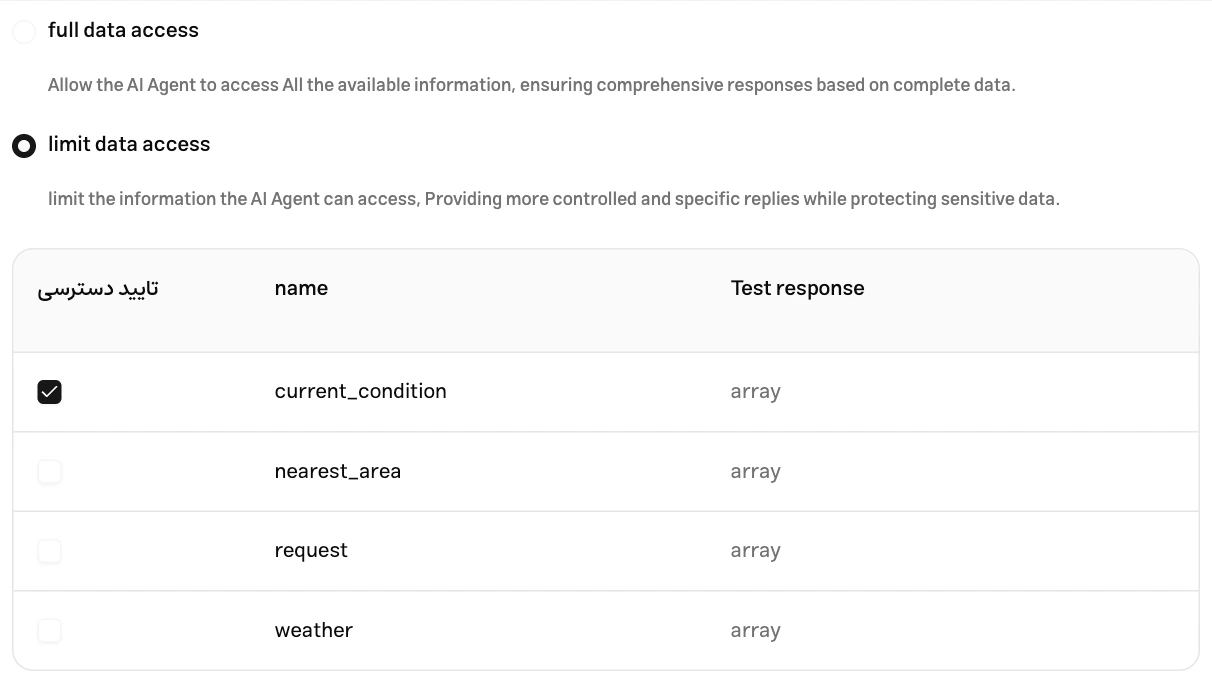
| Limit data access | Muchat receives only selected response fields. Select at least one. |
For example, if an API returns internal notes alongside status and tracking_url, select only the fields needed for the customer’s answer. The table lists top-level response fields. Selecting an object or array also exposes all its children. To share only part of that content, adjust your API response to return the needed data in a separate field.
Examples
Weather lookup
Create Get_Weather with one required string input named city, described as “The city whose weather the customer is asking about.” Choose GET and enter:
https://wttr.in/{{city}}?format=j1No body is needed. Test the live response with London as city and select Test response.
After receiving the response, choose limit data access and select only current_condition. It contains current weather information, including temp_C, FeelsLikeC, and weatherDesc. Leave nearest_area, request, and weather unselected to avoid sending extra information and the multi-day forecast to Muchat.
In the Playground, ask “What is the weather in London right now?” Check that the action receives the correct input and the reply uses the returned data. Asking only “What is the weather?” should make Muchat ask which city.
Update a subscription through your API
If your service has a subscription update API, create Update_Subscription with required string inputs named subscription_id and plan. Describe that it should only update a subscription after the subscription and requested plan have been identified.
For an API with the following contract, choose PATCH and replace the address with your own API:
https://api.example.com/subscriptions/{{subscription_id}}{
"plan": "{{plan}}"
}Add the service’s authentication header. Use a test subscription and a valid plan from that service. A successful API response could have this structure:
{
  "subscription_id": "sub_123",
  "plan": "premium",
  "status": "active"
}
Expose the necessary response fields and check the result both in the conversation and in your subscription system. A success message should follow an actual successful API update.
Limits
- Requests have a maximum execution time of 30 seconds.
- The raw API response must not exceed 1 MiB. After access filtering, the data passed to Muchat must not exceed 20 KiB. Select fewer fields for large responses.
- Responses must have a successful HTTP 2xx status. Redirects are not followed automatically; enter the final API URL.
- Limited access requires an object at the JSON response root. Wrap a root array in an object in your API, or use full access within the size limit.
Troubleshooting
Check that it is enabled and that its trigger description matches the customer’s request. Ambiguous required input descriptions can cause unsuitable questions or prevent execution.
Check the method, final URL, authentication headers, and input values. Variables must exactly match defined names. Confirm a successful status, valid JSON, and compliance with time and size limits.
A manual example does not retrieve real API data. Run a live test with the same inputs and compare the actual response structure. Selected fields must also exist in the real response.
Review the selected fields under limited access. Repeat the test and update field selection after API structure changes. For size errors, reduce the response data and allowed fields first.