Actions
WooCommerce Order Tracking
Choose a connected store and configure order tracking for signed-in customers and guests with ownership checks.
Overview
This action retrieves order status from a connected WooCommerce store so Muchat can reply using actual store information. Signed-in customers can track their own orders. You can also allow guests to track an order after their order details are matched.
Best for
Answering “What is my order status?” and retrieving a signed-in customer’s recent orders without adding order records to the knowledge base.
How to create the action
Check the store connection
In Deploy → WordPress, connect the store with the Muchat plugin. The connection must be active and connected, and order tracking must show Ready. WooCommerce must also be installed and active on that site.
Create the order tracking action
In Actions, select Create action, then WooCommerce Order Tracking. Enter the action name and trigger description. For example: “Use this action when the customer asks about their order status, and explain only the actual result returned by the store.”
Choose the connected store
Select a ready store under Connected store. Manage WordPress connection opens connection settings. For signed-in customers, enable Identify signed-in members in the Muchat plugin settings in WordPress.
Configure customer access
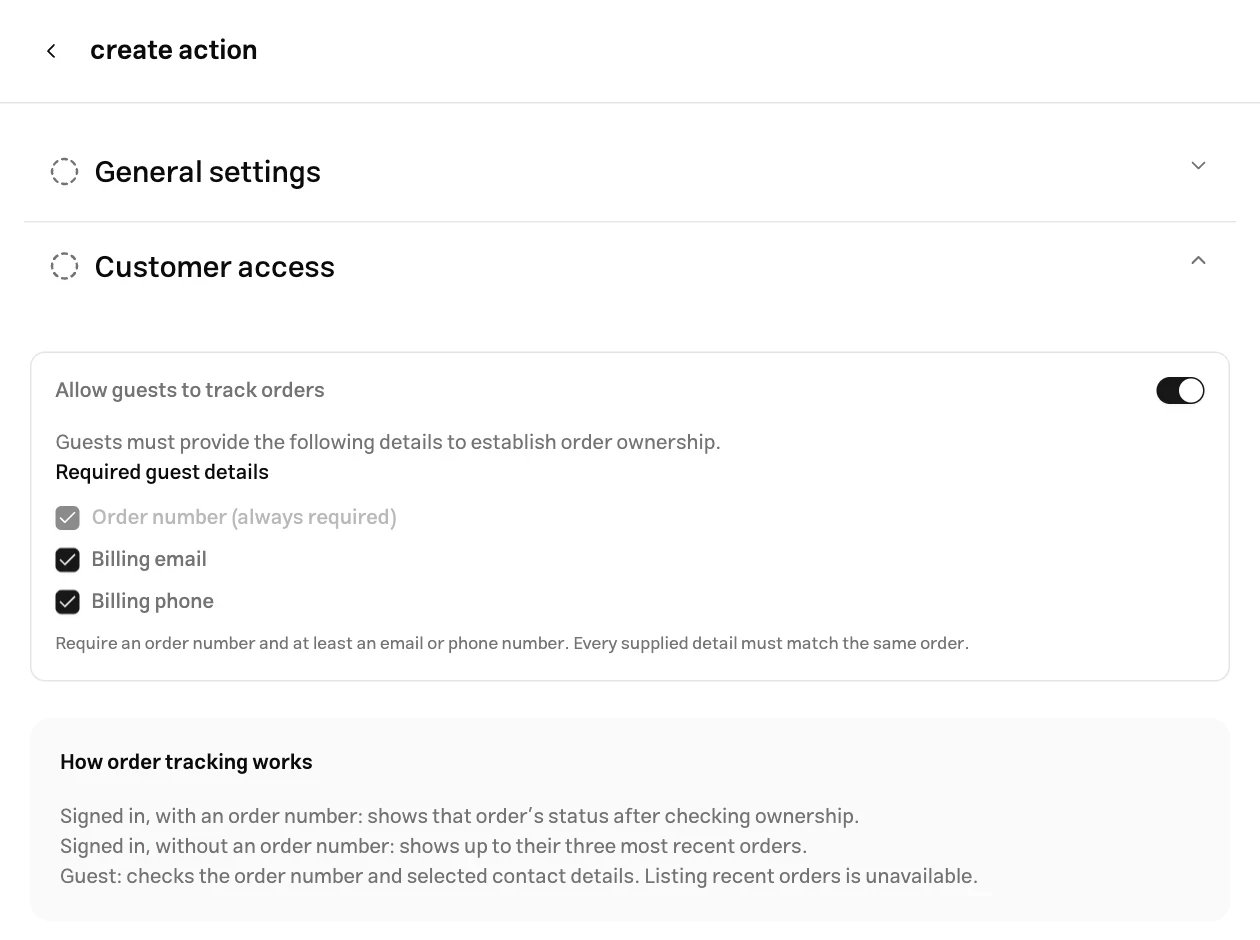
Choose whether only signed-in customers can track orders or guests can as well. Select the required guest details as explained below, then click Create action.
Customer access
| Customer | Required information | Result |
|---|---|---|
| Signed in, with an order number | Identified customer and order number | Status of that order after checking ownership |
| Signed in, without an order number | Identified customer | Up to their three most recent orders |
| Guest, with tracking enabled | Order number and selected billing details | Status of that order after matching every supplied detail |
Under Allow guests to track orders, the order number is always required. Also select at least Billing email or Billing phone; you can require both. Every supplied detail must match the same order. Guests cannot list recent orders.
Test the action
Test in the connected store’s own widget. This checks both the store connection and customer identification.
Sign in to the website as a customer with orders and open the conversation. First ask “What is the status of my recent orders?” Then ask about a specific order belonging to that account. An order belonging to another account must not be displayed.
If guest tracking is enabled, open a conversation without signing in. Supply an order number and the required billing details. Also try an incorrect email or phone number to check that unrelated visitors cannot retrieve the order.
Limits
- Signed-in customers can retrieve up to three recent orders.
- Guest tracking requires a specific order. An order number alone is insufficient.
- Too many attempts in a short period temporarily limit tracking. Wait a minute before trying again.
Troubleshooting
Check the WordPress connection, that WooCommerce is active, and that order tracking is ready. The message beside the connection explains why it is unavailable.
Enable signed-in member identification in the plugin. Check that the customer is signed in to the selected store, refresh the page and conversation, and test in that website’s widget.
Check the order number and every required billing detail against the same order. Supply a valid phone number with its country code. Guest tracking must also be enabled.
Check the plugin connection and access to the WordPress service. Until a valid response arrives, the action instructions should not encourage Muchat to guess an order status.