Channels
Iframe
Display chat inside your website, customize its content and appearance in the dashboard, and manage user access.
Overview
An iframe keeps Muchat chat open in a specific section of your page. Users do not click a floating bubble to start chatting. Use it for a support page, help center, or account area where the conversation should stay visible.
The iframe uses the same Chat Widget channel. Its saved content, appearance, language, and capabilities also apply to the iframe. Floating bubble settings, such as button placement and edge spacing, do not apply to inline chat.
Setup
Open the widget channel
Choose your agent in the dashboard. In Deploy, find Chat Widget and click Setup or Manage.
Prepare conversation content and appearance
Configure the title, description, initial messages, suggested questions, color, font, and language. Review the preview and click Save.
Open iframe installation and access settings
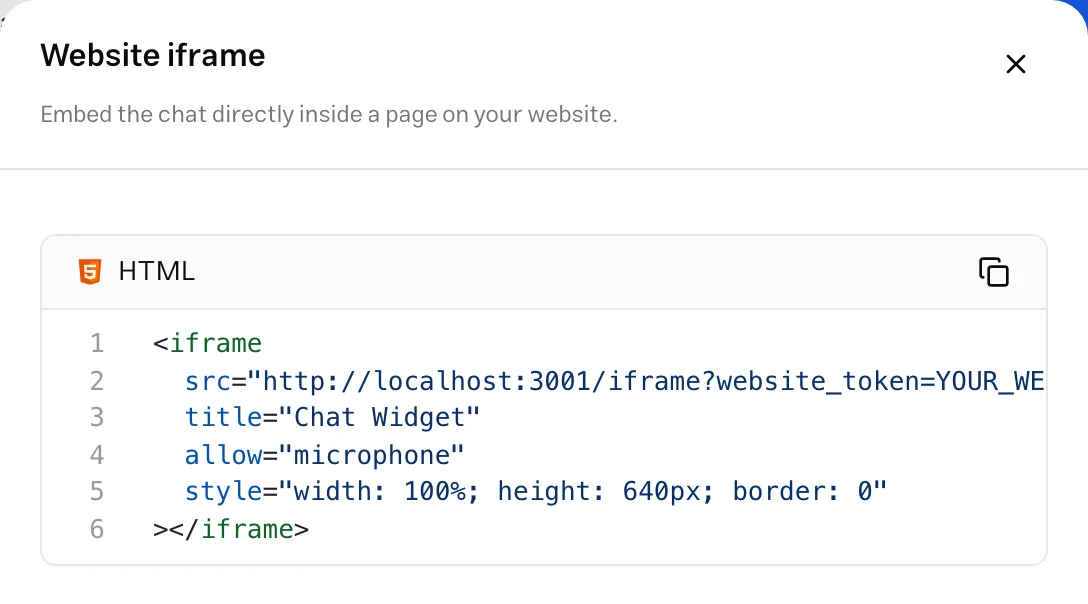
Enable the channel. Click Publish above the preview and choose Website iframe. Review and save allowed domains and user access settings.
Test on the destination page
Give the installation code to your website developer. After installation, open the page and check chat display, message sending, and replies on desktop and mobile.
Customization
| Section | What you configure for the iframe |
|---|---|
| Content | Agent image and title, description, initial messages, input placeholder, and suggested questions |
| Capabilities | Voice messages, conversation reset, sources, and branding removal where available on your account |
| Style | Light or dark theme and the conversation’s primary color |
| Typography | Conversation font |
| Language | Persian, English, or Arabic for interface controls and copy |
See Chat Widget customization for shared options. Interface language is different from response language; configure response instructions for the language and behavior of answers.
If you use both the bubble and iframe with this channel, check shared setting changes in both displays. The host page determines iframe width, height, and placement; these are not floating bubble settings.
User access
| Option | Use |
|---|---|
| Allowed domains | Sites permitted to embed the conversation. Enter each domain with its protocol on a separate line. |
| Allow access via direct link | Controls opening chat in a separate tab. The host domain must also be permitted for website embedding. |
| Allow access only for authenticated users | Restricts chat to identified users. Your website must implement the identification connection. |
For the main site, enter an origin such as https://example.com. Add https://*.example.com if subdomains also need access. Click Save to apply the settings.
Attachments and conversation features follow this channel’s settings. See Attachments for image, file, and voice behavior and size limits.
Troubleshooting
Check channel activation and the allowed domain. With authenticated-only access enabled, chat stays hidden until identity is verified. Follow the Iframe developer guide to investigate installation errors.
Those settings belong to the floating button. Change the host page layout to resize or reposition its iframe.
Check the space allocated to chat on the website page. Sizing is covered in the developer guide.