Channels
Link your WhatsApp account with a QR scan or pairing code, test message delivery, and manage its connection status.
Overview
This connection links your existing WhatsApp account to Muchat to receive and answer customer messages. Setup uses WhatsApp’s linked devices, with either a QR scan or pairing code. Keep the existing WhatsApp account; this flow continues on the phone where it is signed in.
What you can do
Answer WhatsApp messages using Muchat’s knowledge and actions, and follow conversations in Muchat Inbox.
How to connect
Open the WhatsApp channel
Open your agent in the dashboard, go to Deploy → WhatsApp, and click Setup. Create the WhatsApp connection to display the sign-in methods.
Choose a sign-in method
Follow the relevant tab below. In either method, your phone must be signed in to the WhatsApp account you want to connect.
- Select Scan QR code and wait for the code to appear.
- Open WhatsApp on your phone. Open Linked devices from the menu on Android or settings on iPhone.
- Tap Link a device and scan the dashboard’s QR code with WhatsApp’s own scanner.
- Wait for WhatsApp is connected. If the QR expires, request a new one.
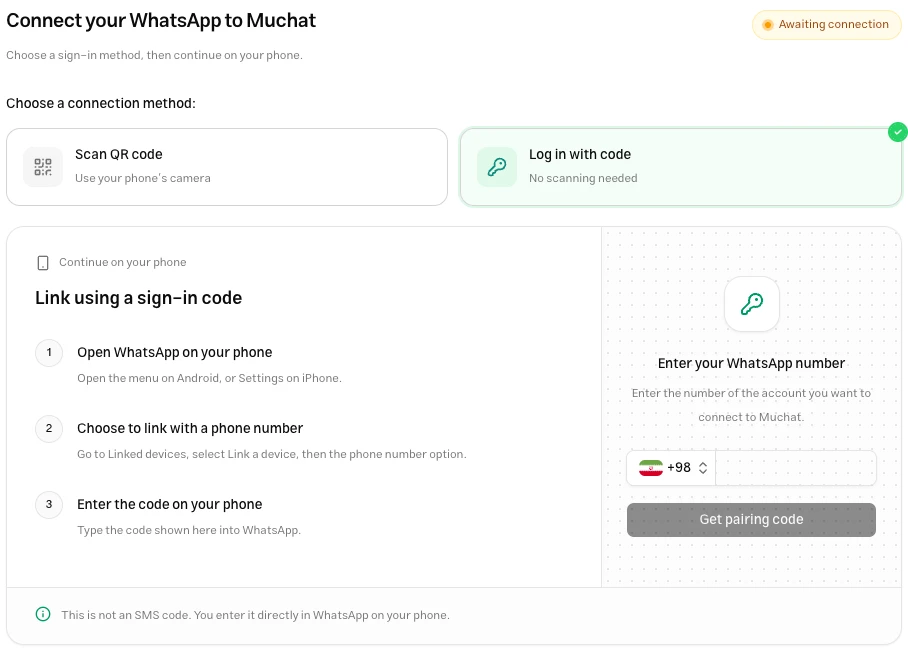
- Select Log in with code.
- Enter the WhatsApp account’s number and click Get pairing code.
- On your phone, open Linked devices → Link a device and choose phone-number linking.
- Enter the dashboard’s pairing code in WhatsApp on your phone and wait for confirmation.
Test the connection
Send a fresh message to the connected account from another number. Check that it appears in Inbox and that the sender receives a reply in WhatsApp. Use Knowledge Base and Playground to change knowledge and response behavior.
Manage the connection
WhatsApp sign-in status is separate from channel activation in Deploy. If the WhatsApp session is disconnected, an enabled channel alone will not restore it. Open Manage and complete reconnection.
Delete connection disconnects the account from Muchat. After reconnecting, send a fresh message and check its reply again.
Troubleshooting
Use the scanner under WhatsApp’s Linked devices, not the phone’s general camera. If the QR has expired, request and scan a new one.
The code appears in the dashboard, not in an SMS. Check the account number and code sign-in method, then continue phone-number linking in WhatsApp on your phone.
Creating a channel does not finish WhatsApp sign-in. Complete the QR scan or code entry on your phone until a connected status appears.
Send a fresh message from another account. If it reaches Inbox, check whether AI replies are paused or the conversation has been handed to a teammate. Otherwise, check the WhatsApp session first.