Channels
WordPress
Install the Muchat WordPress plugin, connect your site to an agent, and manage the widget, site content, WooCommerce products, and order tracking.
Overview
The Muchat plugin connects WordPress to your agent so you can display chat without editing theme code. The same connection supports posts, pages, and products as knowledge sources, and WooCommerce order tracking. Set up each capability separately.
What you can do
Display the chat widget, identify signed-in members, and give Muchat access to site content or order information through the appropriate setup.
How to connect
Install and activate the plugin
Sign in to WordPress administration. Under Plugins → Add New Plugin, find and install Muchat, then click Activate. If you have the plugin ZIP, install it with Upload Plugin.
Open Muchat settings
Open the plugin settings from Muchat in WordPress administration and click Connect to Muchat. Start the connection from this site.
Choose your agent
Sign in to Muchat and choose the agent that should answer for this site. Click Connect agent and complete the return to WordPress.
Check site access verification
In the dashboard, open Deploy → WordPress. The connection should show Access verified. Checking site access is not a final result.
Enable and test the widget
Turn on Enable widget in the plugin and save settings. Open the site as a visitor, start a conversation, and check the reply.
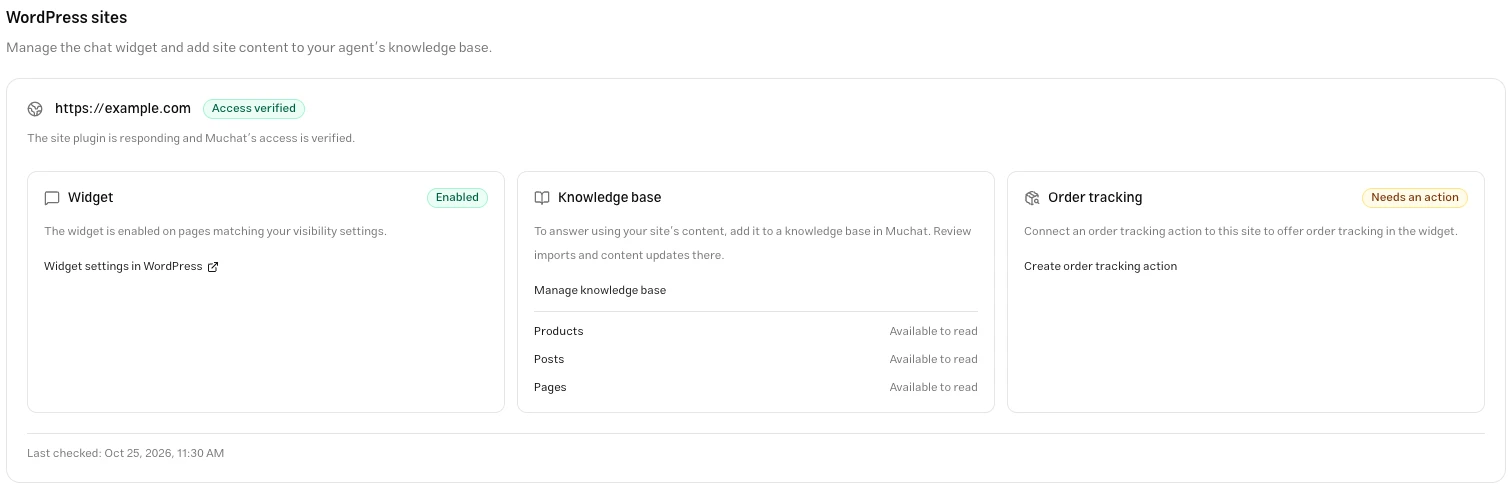
Available capabilities
| Capability | Where to configure it |
|---|---|
| Display website chat | Enable widget in the plugin; appearance and copy in channel settings |
| Identify signed-in members | Identify signed-in members in the plugin |
| Train on posts, pages, and products | Add a WordPress source in Knowledge Base |
| Track WooCommerce orders | Set up WooCommerce and create the order tracking action |
Check source synchronization to keep content current. Follow retrieval and training completion on the source itself. An available data endpoint on the connection screen is not a training status.
Connection status
| Status | Meaning and action |
|---|---|
| Site access not set up | Complete the return to WordPress and connection confirmation. |
| Checking site access | Wait for the result; this screen refreshes the status. |
| Access verified | The plugin responds and Muchat’s site access is verified. |
| Site access needs attention | Read the error and use Retry when available. |
| Check unavailable | No valid result is available to display. Check status and site access again. |
WooCommerce
WooCommerce connects through the same WordPress plugin. Product information is imported as a knowledge source, while order status is retrieved from the store when requested. These uses have separate setup paths.
After installing and connecting the plugin, make sure WooCommerce is installed and active on that same site. In Deploy → WordPress, check site access, products, and order tracking. A healthy WordPress connection alone does not confirm that WooCommerce is active.
Products
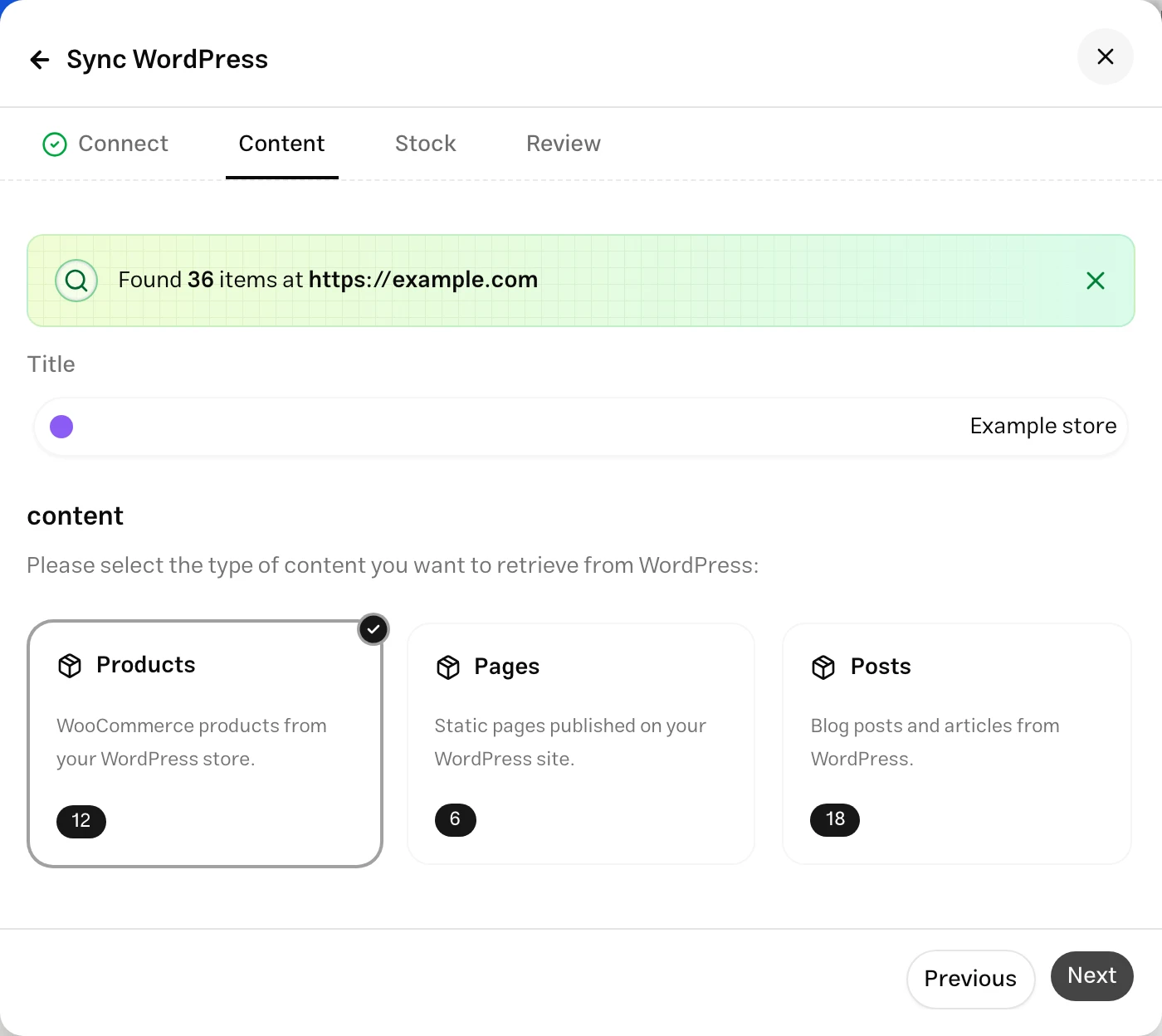
In Knowledge Base, add a WordPress source and choose Products. Review the scope and stock filter, start retrieval, and wait for training to finish.
Check source synchronization after product updates. Product answers use trained data; connecting a store alone does not add every product to your agent’s knowledge.
Order tracking
In Actions, create WooCommerce Order Tracking and choose the connected store. A ready store alone does not enable conversational order tracking; the action must be created and active.
| Customer | Access method |
|---|---|
| Signed in to the store | Enable Identify signed-in members in the plugin. Customers can access only their own orders. |
| Guest | Enable guest access in the action. Require an order number with billing email, billing phone, or both. |
Orders are not imported into Knowledge Base. See the order tracking action guide for fields, ownership checks, and signed-in and guest tests. Run those tests in that store’s own widget.
Troubleshooting
Check widget activation in both the plugin and Muchat’s widget channel. Refresh the site cache after saving and reopen the page. Review appearance and mobile display settings in the widget channel.
Read the connection’s error instructions. HTTPS and certificate issues, WordPress REST API access, and firewall or security-plugin restrictions can prevent verification. Fix the cause and retry. If connection credentials are insufficient, use Reconnect from WordPress.
Add a WordPress source in Knowledge Base, choose the content type, and wait for processing to finish. Resynchronize after changing site content.
Enable signed-in member identification in the plugin. Test with a customer actually signed in to that site, using its own widget. Typing an email address in chat does not replace website sign-in.
Check the WordPress connection and that WooCommerce is installed and active. If retrieval is available but no products were imported, also check the source scope and stock filter.
Check site access and the reason order tracking is unavailable on the WordPress screen. After fixing it, reopen the action’s store list.
Widget visibility, WooCommerce activation, and the action are separate states. Check that the action exists, is active, and uses the correct store.