Channels
Rubika
Connect an Rubika account using its phone number and sign-in code, and check two-step verification, connection status, and message recovery.
Overview
Connect an Rubika account so Muchat can receive its private messages and reply using your agent’s knowledge and instructions. This connection signs in with the account’s phone number; no bot token is required.
What you can do
Let Muchat answer Rubika private messages and manage those conversations alongside other channels in Inbox.
How to connect
Open the connection screen
Open your agent in the dashboard. In Deploy, find Rubika and click Setup.
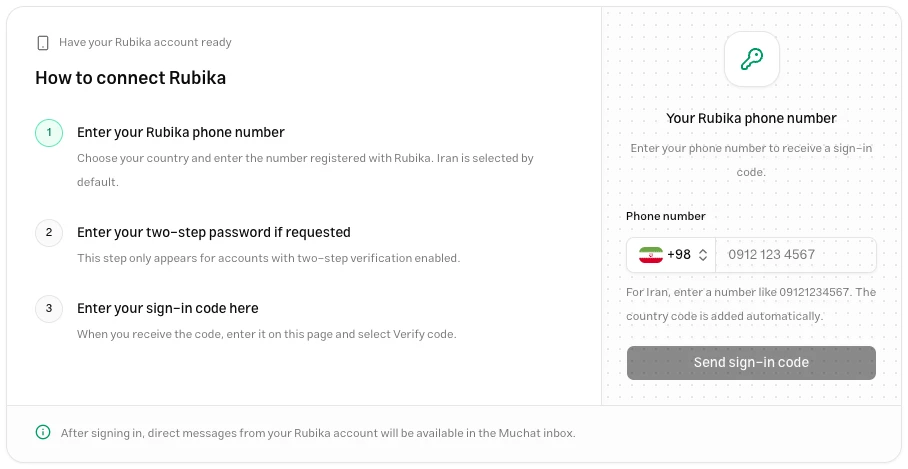
Enter the account’s number
Select the country and enter the number registered with Rubika. For Iran, follow the number format shown by the form; country selection sets the country code. Click Send sign-in code.
Verify the code
Retrieve the code using the delivery method shown on screen. Enter it in Verification code and click Verify code. Use the code for this sign-in attempt.
Enter a two-step verification password if requested
This step appears only for accounts with a two-step verification password. Enter the Rubika account’s password and continue until a connected status appears.
Test the connection
Send a fresh private message to the connected account from another account. Find it in Inbox and check that Muchat’s reply reaches the same sender in Rubika. Review knowledge and instructions in Playground to change the answers.
Connection and recovery
If sign-in is still valid but the account connection drops, use Reconnect on its management screen. If the sign-in session has been lost, complete phone and code sign-in again.
Read message recovery separately from connection status. The account may be connected and receiving fresh messages while recovery of outage messages is still incomplete. An incomplete or failed recovery warning does not confirm a complete history. Review the status message and affected conversations.
Troubleshooting
Check the country and account number. Read the delivery method shown on screen and check that route. Request a new code after the waiting period ends.
Use the code for the current attempt. If it expires, start a new sign-in with the new-code or change-number option. Do not use a new code to continue an earlier attempt.
The account uses two-step verification. Enter the Rubika account’s password, which is different from the one-time sign-in code.
Check recovery status. Receiving fresh messages and completing recovery are separate states. Follow the warnings for that connection before drawing conclusions about its history.