Channels
Goftino
Connect Muchat to Goftino with its API key and set up text replies, Inbox management, and handoff to the support queue.
Overview
Connect Goftino so Muchat answers in your website’s existing live chat. Text messages and replies can also be followed in Muchat Inbox. Manage knowledge, instructions, and actions in Muchat as you do for other channels.
What you can do
Automate Goftino text replies, join from Muchat Inbox, and return a conversation to Goftino’s waiting queue when a person is needed.
How to connect
Get the Goftino API key
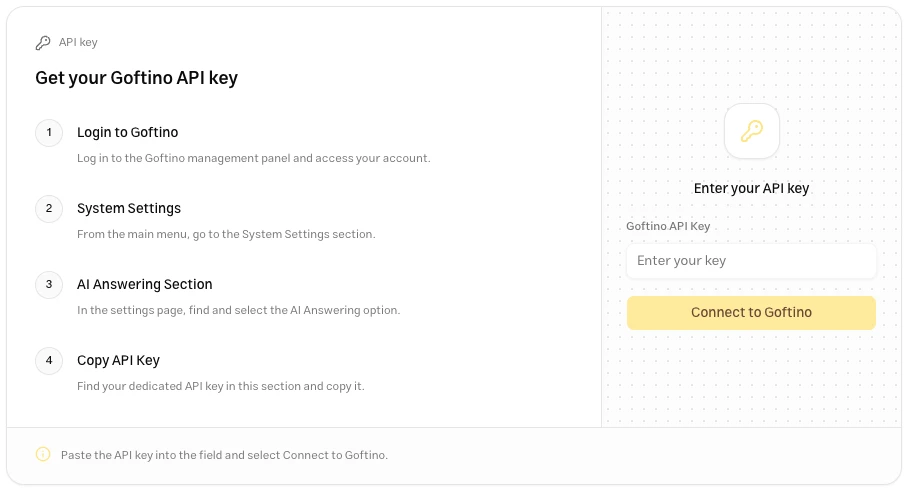
Sign in to Goftino’s management panel. Open System settings → AI answering and copy the API key from that section.
Open Goftino in Muchat
Choose your agent in the Muchat dashboard, go to Deploy → Goftino, and click Setup.
Submit the key
Enter the Goftino API key and click Connect to Goftino. Once verified, connection and AI operator information appear.
Send a message from the Goftino widget
Open the website as a visitor and send a new Goftino chat message. Check that the conversation reaches Muchat Inbox and the reply appears in that same widget.
Human handoff
Configure the live chat handoff action for conversations that need a person. Successful Goftino handoff sends the chat to Goftino’s waiting queue; it does not select a particular Goftino operator.
Teammates can also reply from Muchat Inbox. Public replies are sent under the connection’s AI operator identity in Goftino, while Muchat retains the actual teammate’s identity. Private notes stay in Muchat and are not sent to the visitor.
Limitations
| Capability | Behavior in this connection |
|---|---|
| Text and reply references | Supported. |
| Images, audio, and files | Inbound and outbound attachments are not supported. |
| Muchat forms | Questions and answers are collected as a text conversation. |
| Buttons and blocks specific to the Muchat widget | Do not run in the Goftino widget. |
Troubleshooting
Copy the key from Goftino’s AI answering section again. Do not use a key for another service or an operator identifier in its place.
Check AI answering and activation in both Goftino and Muchat. Key verification alone does not prove site message delivery. Test with a new message from the Goftino widget.
Check that conversation’s handoff and AI pause status. A teammate’s Inbox reply and handoff to the waiting queue can pause automatic replies for that conversation.