Channels
Connect an Instagram professional account through official sign-in and manage direct messages, the start message, access status, and reconnection.
Overview
Connect an Instagram professional account to receive new DMs and answer them with your agent’s knowledge and instructions. Each page connects to one Muchat agent. You can also open a conversation in Inbox and hand it to a teammate.
What you can do
Automate replies to new DMs, set a conversation start message, and manage a conversation manually from Inbox when needed.
How to connect
Open the connection screen
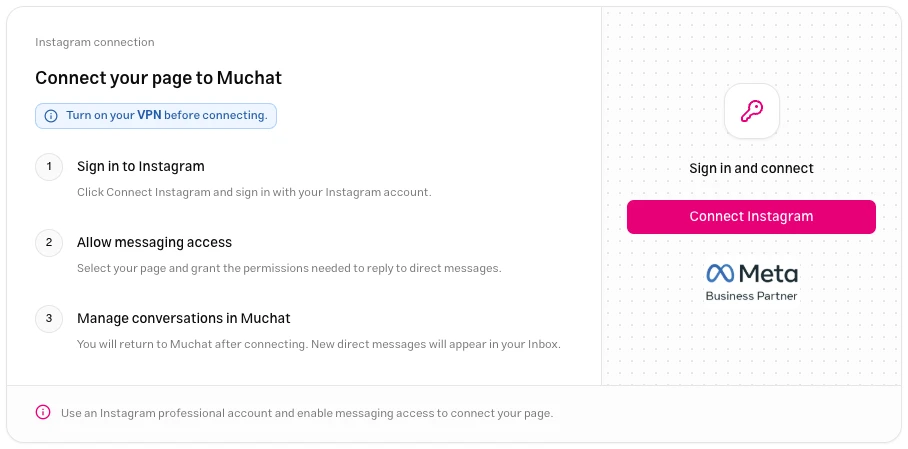
Choose your agent in the dashboard and go to Deploy → Instagram. The Instagram account must be professional, with messaging access enabled.
Start sign-in from Muchat
Click Connect Instagram and sign in with the Instagram account. If the connection guide asks you to enable a VPN, do so before continuing.
Approve messaging access
Select the intended page and grant the permissions needed to receive and answer DMs. Continue until you return to Muchat.
Test the connection
The status must be Connected. Send a new DM from another account and check both its arrival in Inbox and the reply. Returning to the dashboard alone does not confirm connection completion.
Settings
The optional Start message (optional) is sent once when a contact starts a new conversation. Edit it and click Save. The connection’s activation switch controls this channel; turning it off does not delete the connection.
| Status | Action |
|---|---|
| Connected | Test receipt and replies with a fresh message. |
| Waiting for connection | Restart sign-in and authorization from the same screen. |
| Access expired or Disconnected | Click Reconnect this page and approve access again. |
| Temporarily unavailable | Check the status again. This status alone does not mean the page was deleted. |
To switch pages, delete the previous connection and connect the new page. Deleting the connection does not erase recorded Muchat conversations; their history remains in the archive.
Human takeover
Open the conversation in Inbox and use human takeover. Takeover applies to that conversation. Configure the handoff action for support requests made during chat.
Limitations
- Replies are available for 24 hours after the contact’s last interaction.
- Earlier history is not imported. Test with a fresh DM.
- This connection handles DMs; it does not manage posts or reply to comments.
- Supported media includes
JPEGandPNGimages up to 8 MB, and permitted audio, video, andPDFfiles up to 25 MB. Content processing also depends on file type and model capability.
Troubleshooting
Read the status message in Muchat. Restart using this screen’s connection button and continue in the same browser until you return to Muchat.
Messages from before connection are not imported. Send and check a new DM from another account.
Check access status, activation, the 24-hour window, and whether AI is paused for that conversation. Reconnect the same page if access has expired or been disconnected.